
ASRock Phantom Gaming 360 LCD CPU Cooler Review
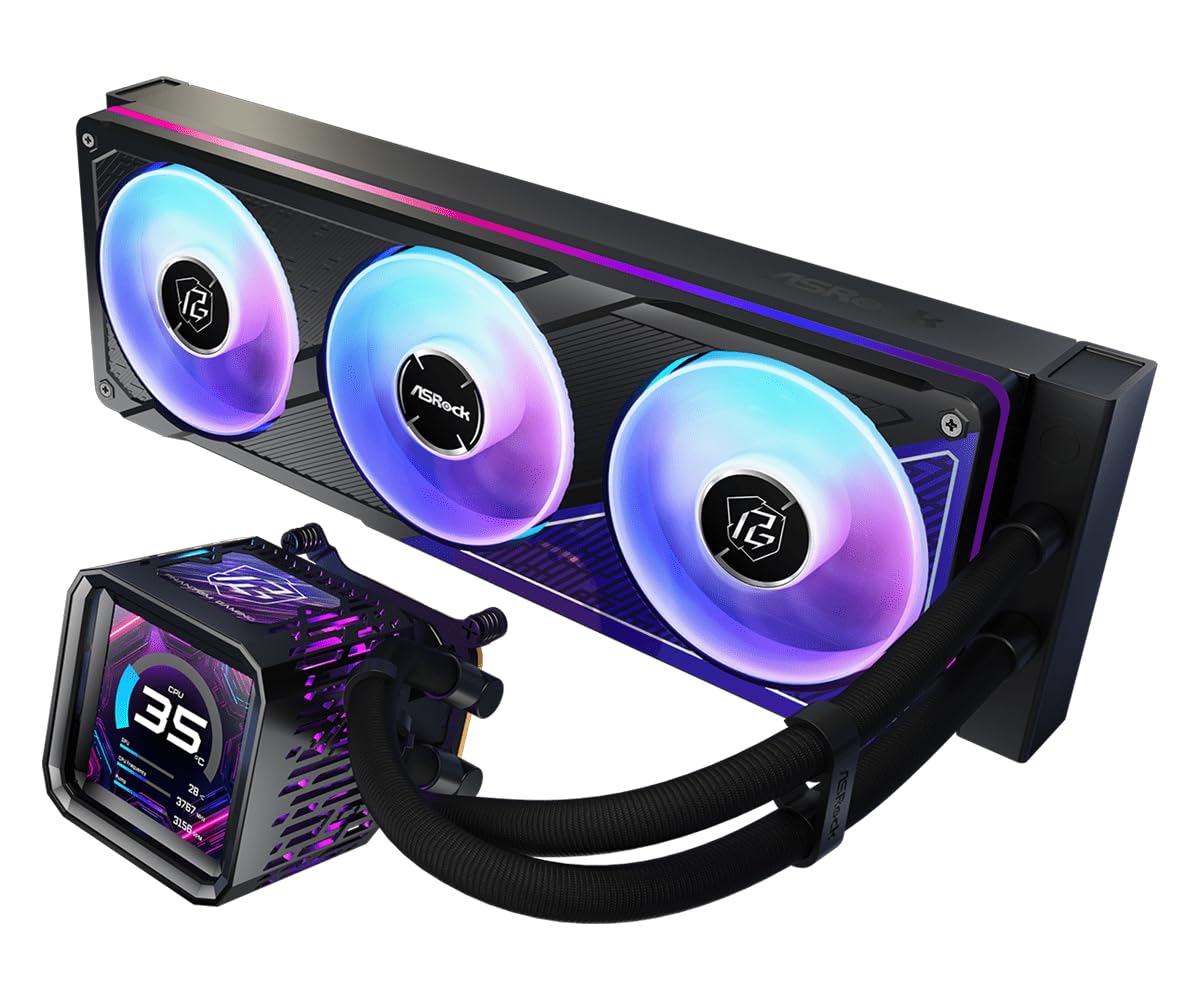
Going big is a great way to enter a market, and we can’t think of a better way to go big in the cooling market than to start at the 360mm (3x 120mm) format: The modestly larger 420mm (3x 140mm) format fits far fewer cases, and all of the smaller formats (such as 280mm and 240mm) have at least one less fan. ASRock further boosts the feature set of its Phantom Gaming 360 LCD with a bunch of ARGB, an LCD pump cover and even a hidden VR MOS fan that aren’t even covered in our table of basic stats:
| ASRock Phantom Gaming 360 LCD | |
| Thickness | 33mm (59mm w/fans) |
| Width | 122mm (4.80″) |
| Depth | 397mm (15.63″) |
| Block Height | 108mm (4.25″) |
| Speed Controller | PWM (motherboard typ.) |
| Cooling Fans | (3) 120 x 26mm |
| Connectors | (2) 4-pin PWM, (2) ARGB, (1) USB |
| Weight | 1919g (68oz) |
| Intel Sockets | LGA 1851, 1700 |
| AMD Sockets | AM5/AM4 |
| Warranty | 2-Years (partial 6-year) |
| Web Price | $190 |
An exception in the table generates two requests from us: Since the 2-year warranty limitation applies only to the LCD panel of a cooler that’s otherwise covered for six years, we’d like to request that you keep in mind the six years of cooling parts coverage at least long enough to finish reading this review. We’d also like to request ASRock to extend its panel coverage to at least three years, as this seems to be the minimum we’ve seen from its competitors.
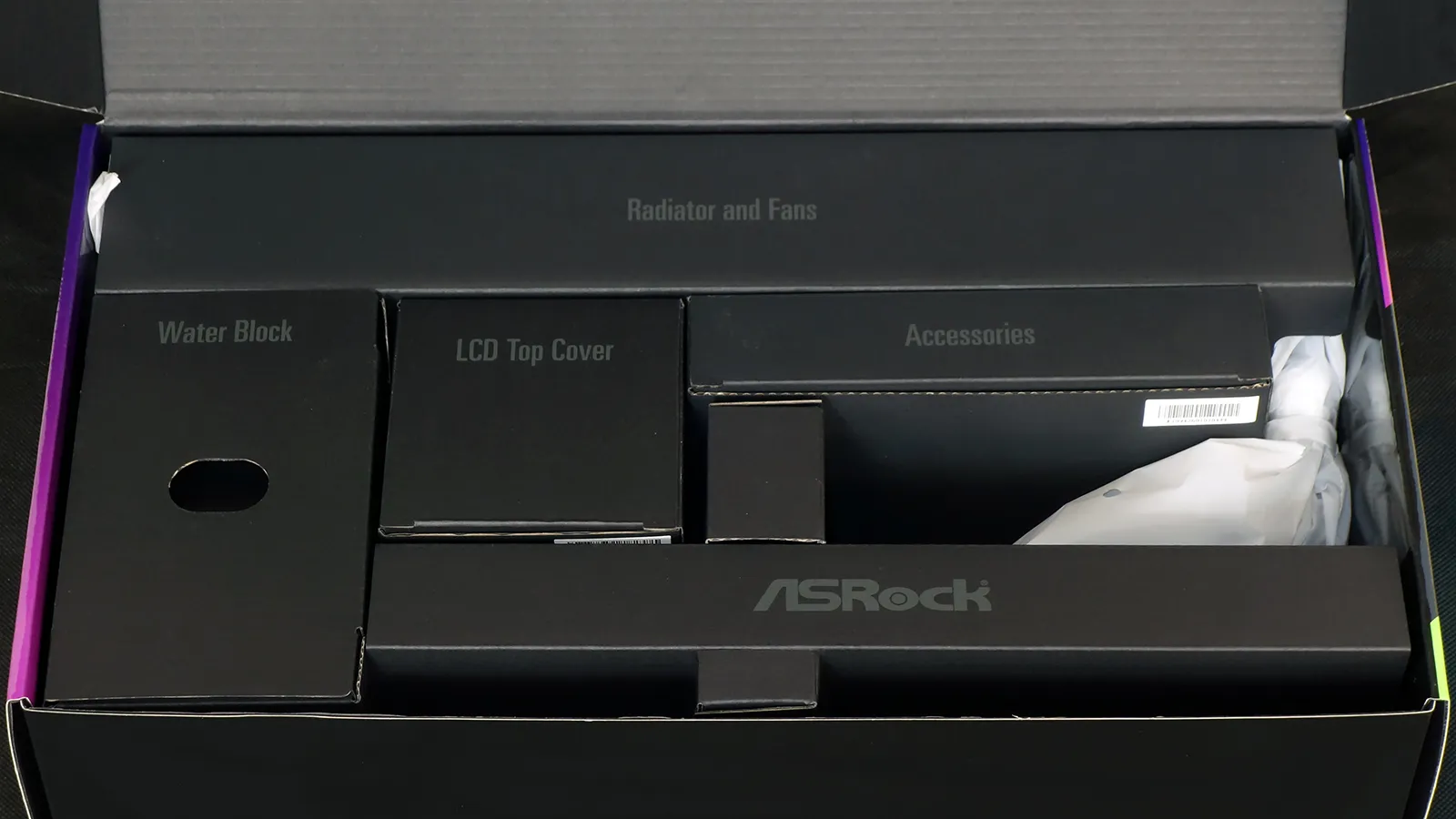
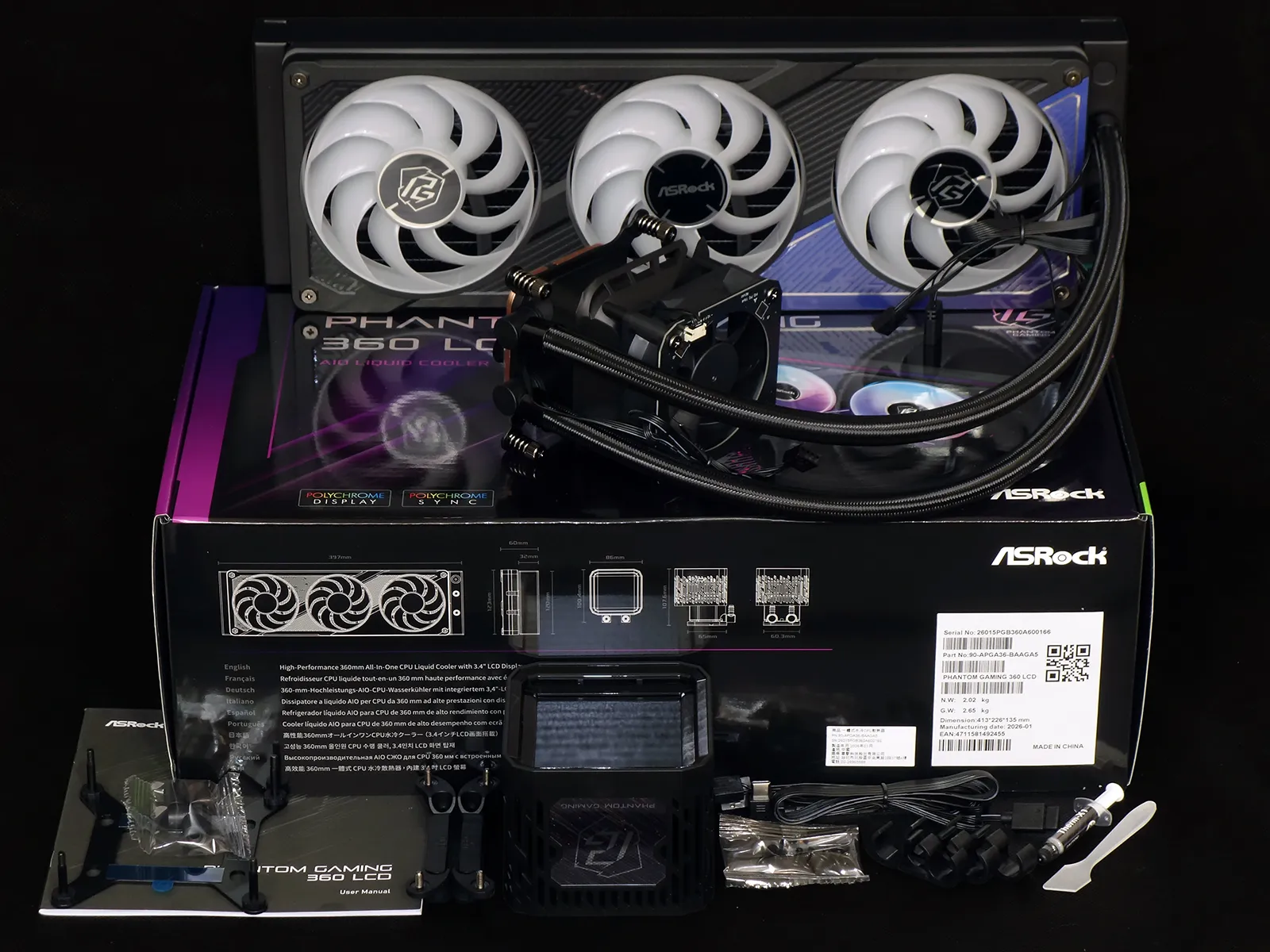
The Phantom Gaming 360 LCD includes a manual, Intel and AMD installation kits, the LCD pump assembly cover, a multi-connector extension cable, twelve short radiator screws, three decorative hose pairing clips, a small tube of ASRock Therm-X1 thermal interface material and a plastic spatula to help spread it.
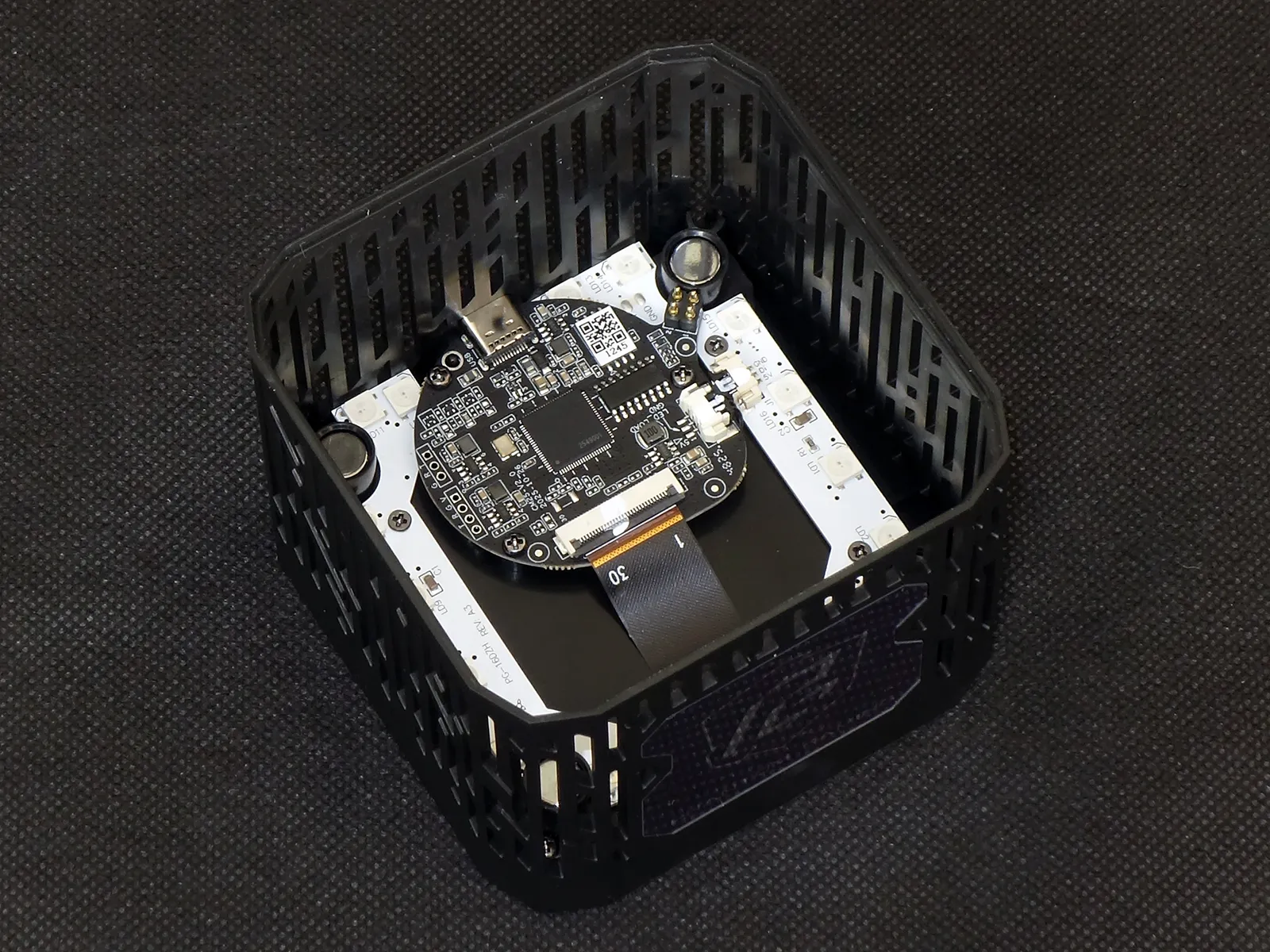
A 70x24mm fan tops the Phantom Gaming 360 LCD’s pump housing, and is then topped by an interface card for the LCD-containing pump assembly cover. The pump housing is designed to spread air outward from the fan to cool the heatsinks of voltage regulators that usually surround the CPU socket.
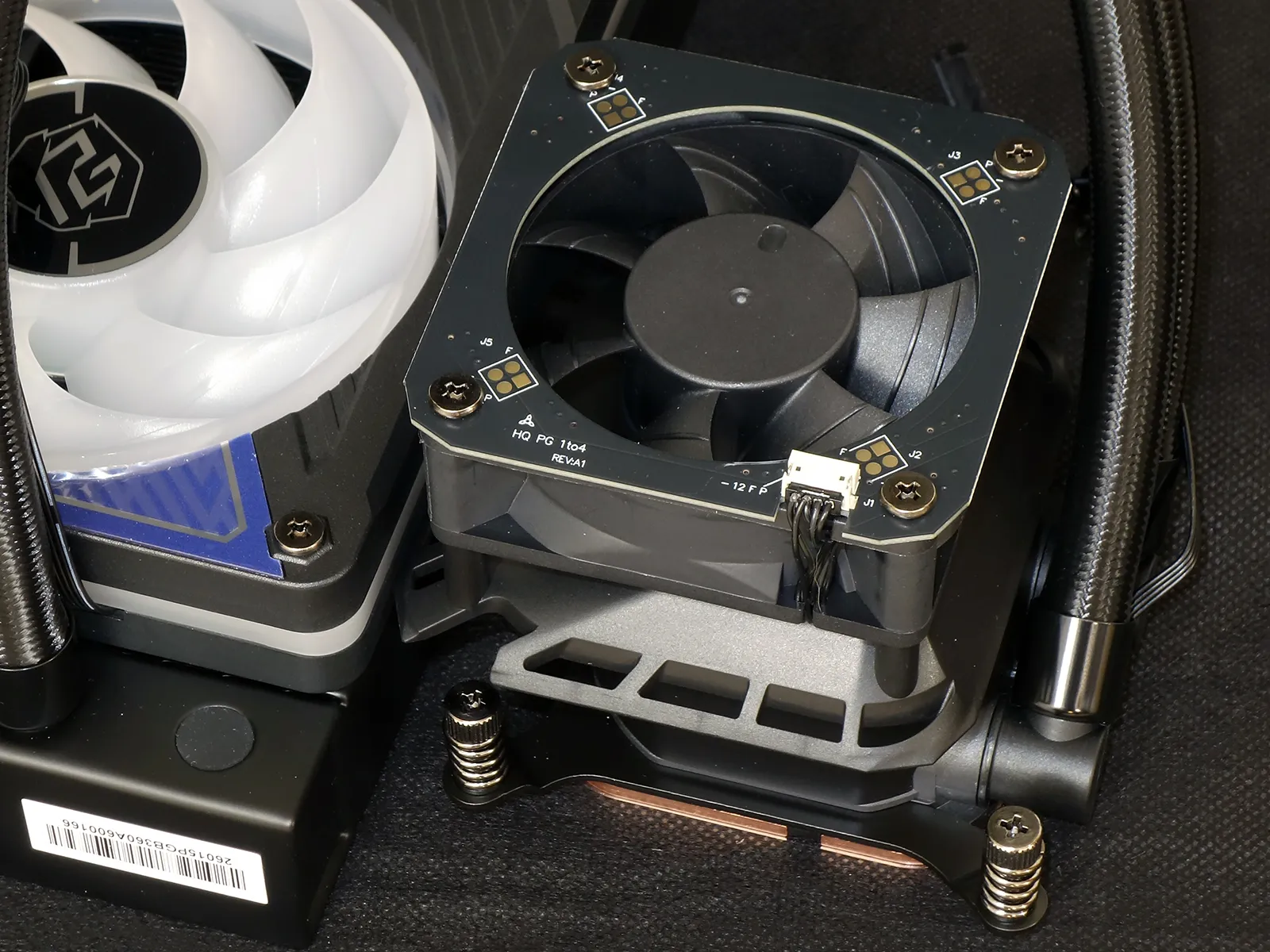
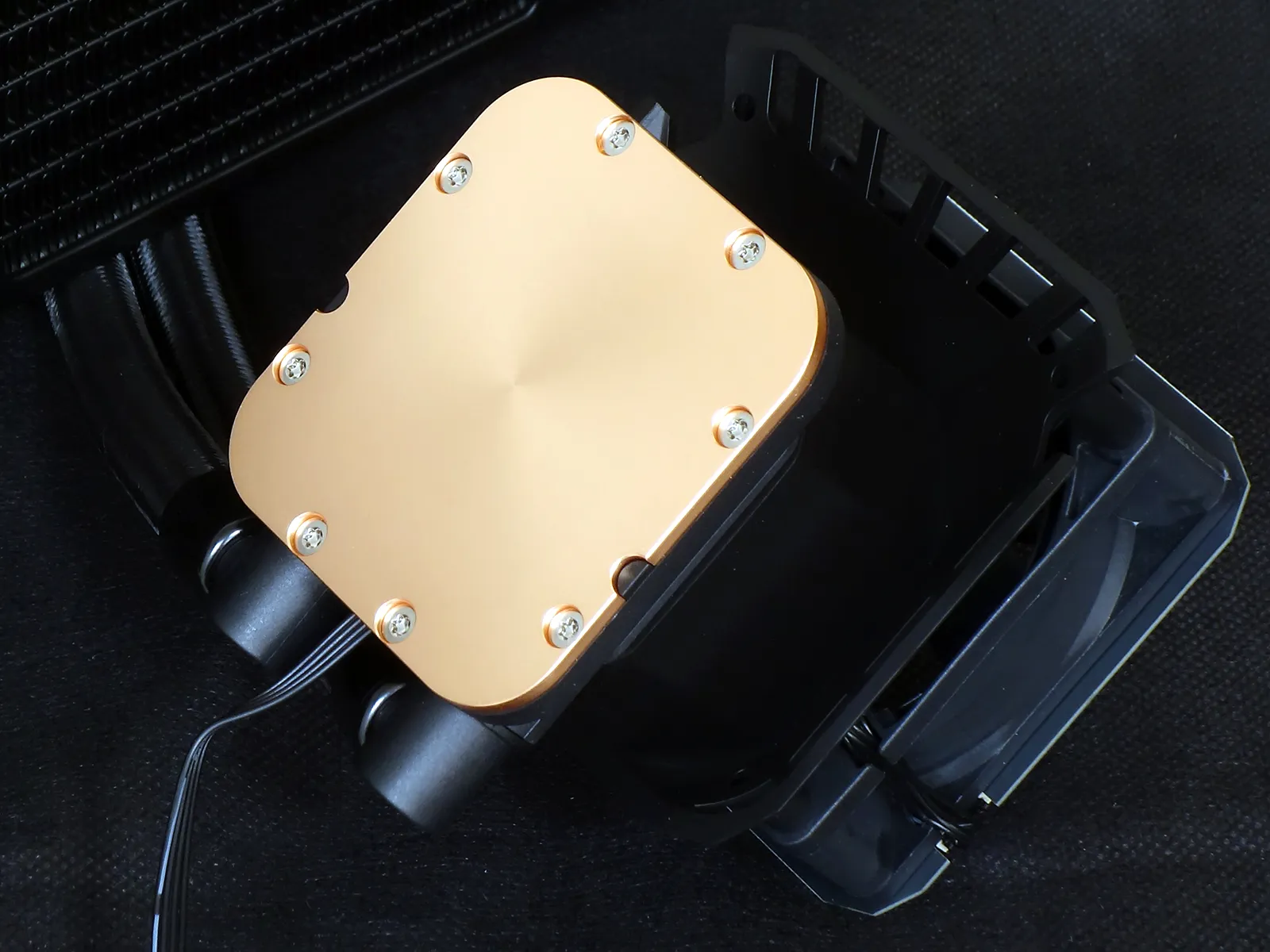
Machined almost perfectly flat and smooth, a copper coldplate covers that the bottom of the pump housing transfers heat from the CPU’s integrated heat spreader to the Phantom Gaming 360 LCD’s liquid coolant.
Vents for the integrated fan fill three sides of the Phantom Gaming 360 LCD’s pump cover assembly, its top fitted with an LCD display driver, a circumferential ARGB strip, a four-contact pogo pin connector for those electronic features and a set of four magnets to secure the cover to the tops of the voltage regulator fan screws.
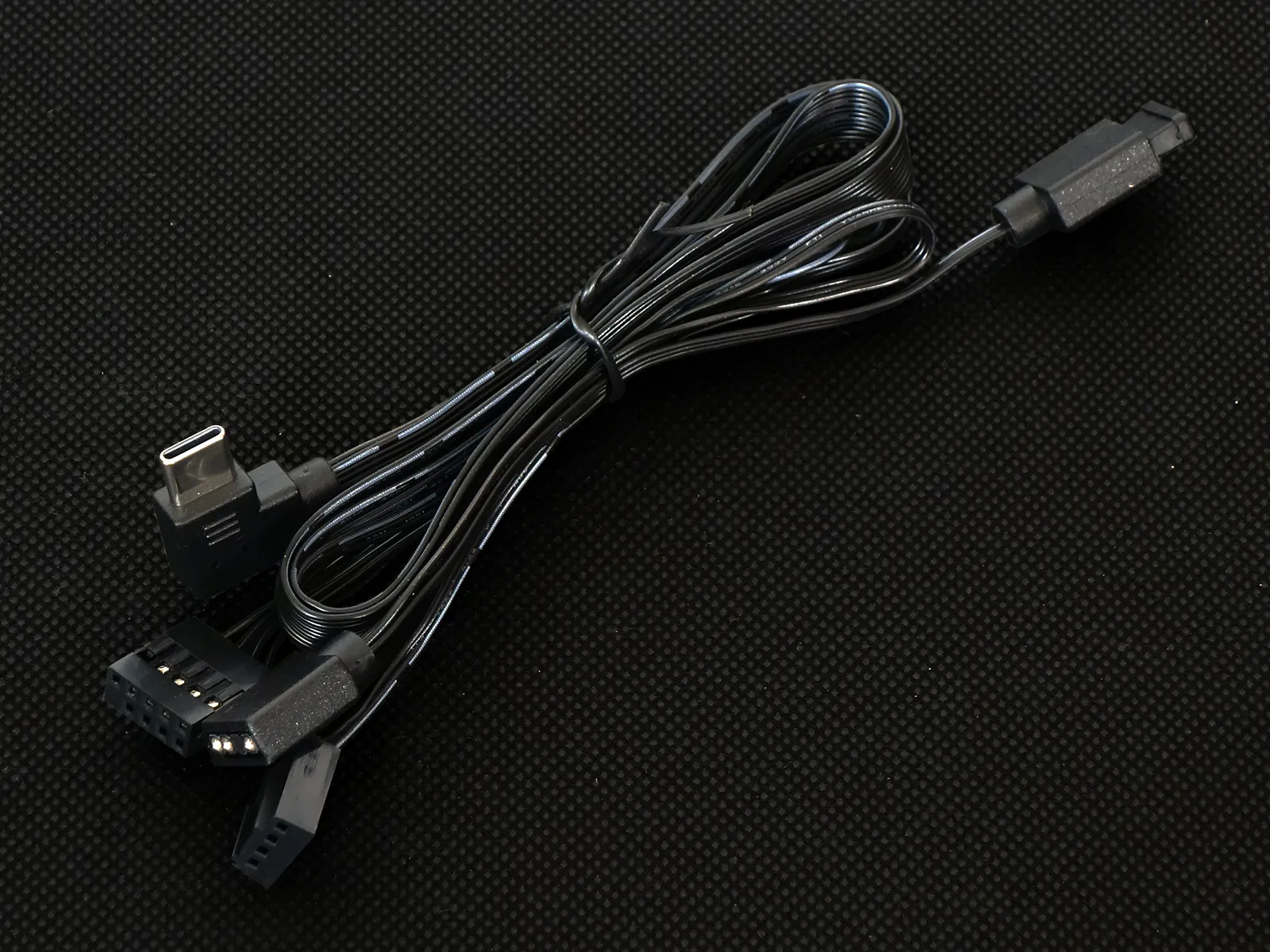
The Phantom Gaming 360 LCD’s included extension cable feeds its LCD display via a nine-pin motherboard USB 2.0 header and its pump-top ARGB strip via a motherboard ARGB port. A shared lead also powers both the pump motor and voltage regulator fan from a single motherboard PWM fan header. The cable’s ARGB passthrough allows the same motherboard ARGB header to serve the radiator fan’s ARGB function.
Installing The Phantom Gaming 360 LCD
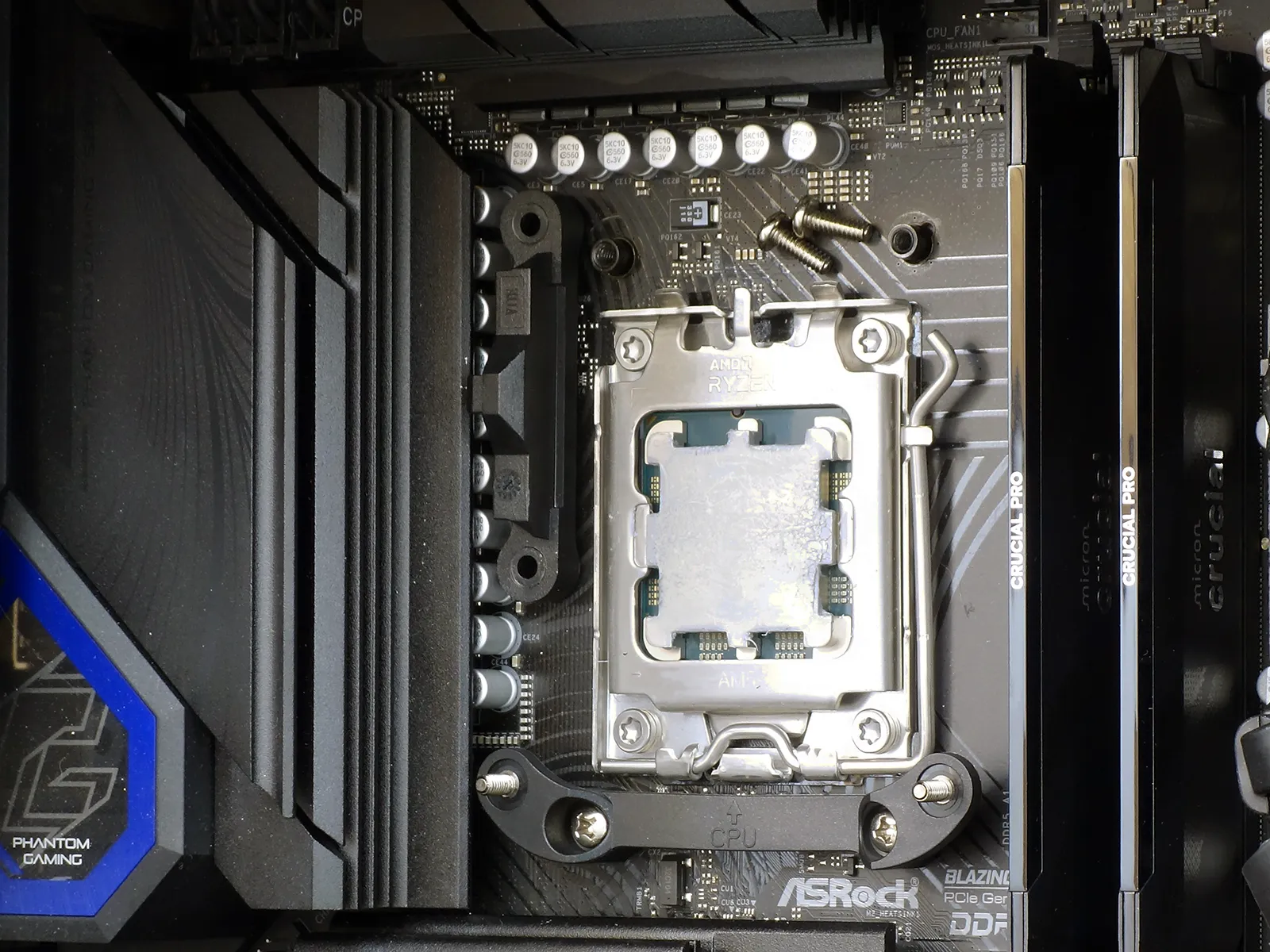
The Phantom Gaming 360 LCD’s pump bracket natively fits Intel LGA 1700 spacing, so that attaching it to an AMD socket requires users to remove their board’s original clip bracket (shown removed at the top of the photo) and replace it with the cooler’s provided adapter (shown installed at the photo’s bottom).
Since Intel’s sockets have no threaded cooler mounting plates, LGA 1851 or 1700 motherboards must add the one supplied with the kit by inserting its mounting studs through the motherboard’s cooler mounting holes from behind. Four plastic spacer then go over the bracket’s mounting studs from the top side, to prevent the cooler from being over-tightened.
After adding thermal paste to the top of our CPU’s heat spreader, we topped the CPU with the pump assembly and tightened its spring-loaded hardware in a star pattern until the threads bottomed out: Though they look like screws and have screw-heads, the spring-loaded parts are actually threaded tubes that fit over the previously shown studs.
The pump’s right-angle hose connectors rotate to provide a cleaner directional path, though the spring-nut attachment hardware sticks out far enough to restrict how far those lines can be laid to one side or the other: Our biggest installation complaint is that we couldn’t quite reach our desired approach angle.
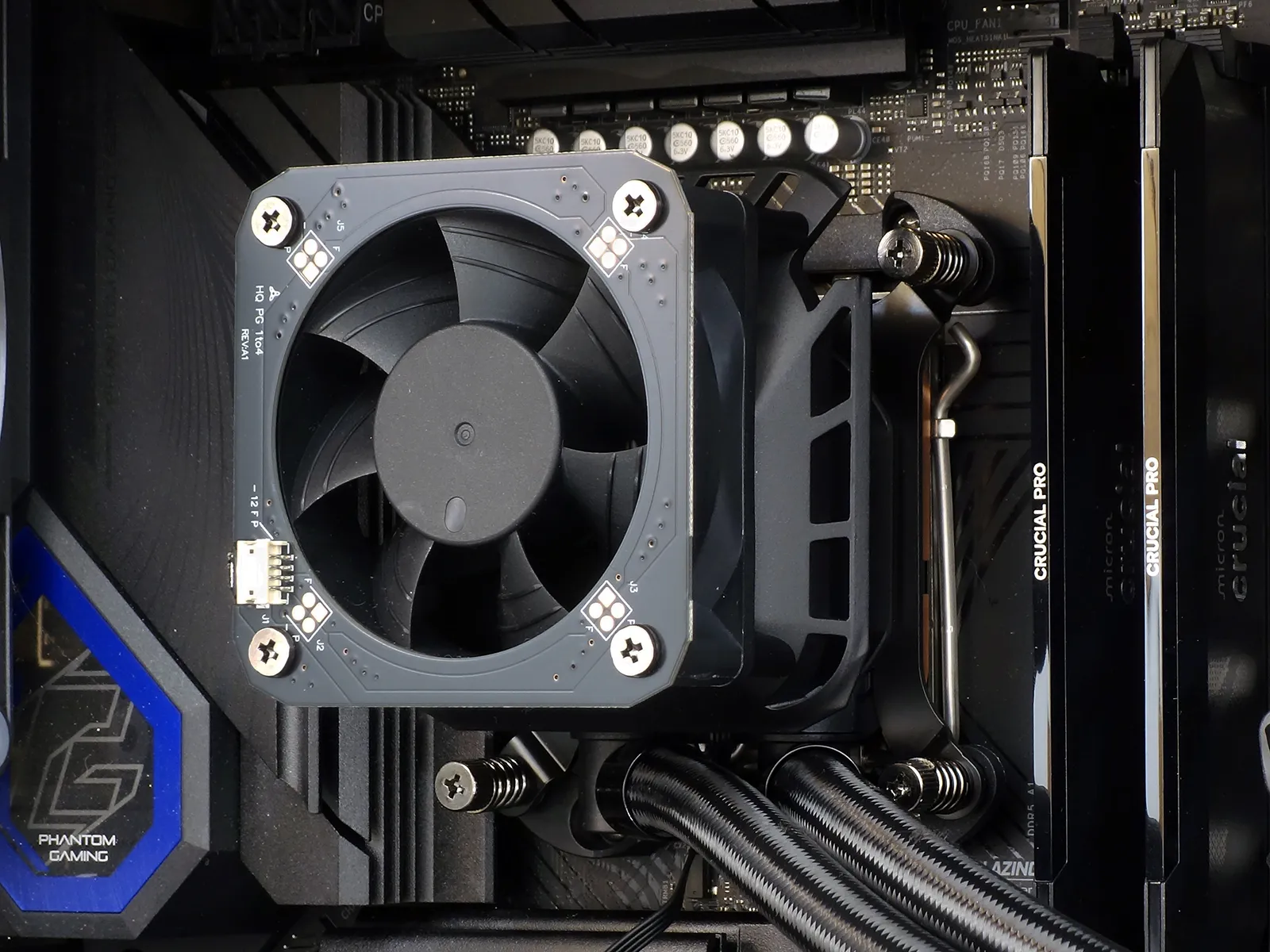
Approach angle be damned, we still got the tubes to go close enough to the direction we wanted.
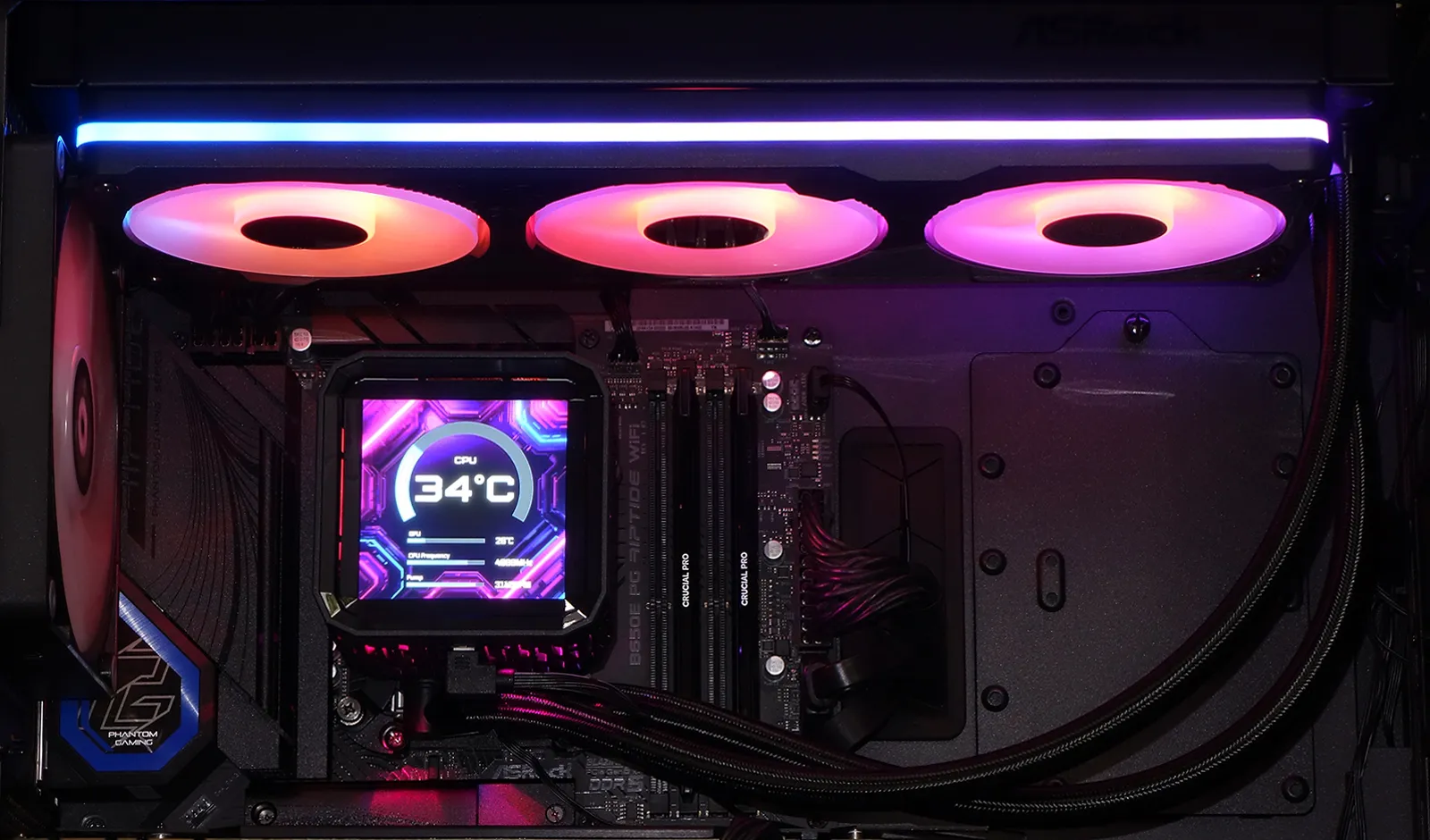
Configuring The Phantom Gaming 360 LCD’s LCD
The Polychrome Sync applet built into or motherboard’s firmware menu isn’t complex enough to address the Phantom Gaming 360 LCD’s advanced functions, but we still wish that the cooler’s display had a default function mode: We found that without Polychrome Display software installed, the cooler’s display would shut off as soon as Windows loaded. That said, we were almost ready to forgive that inconvenience once we saw how well the Polychrome Display software worked.
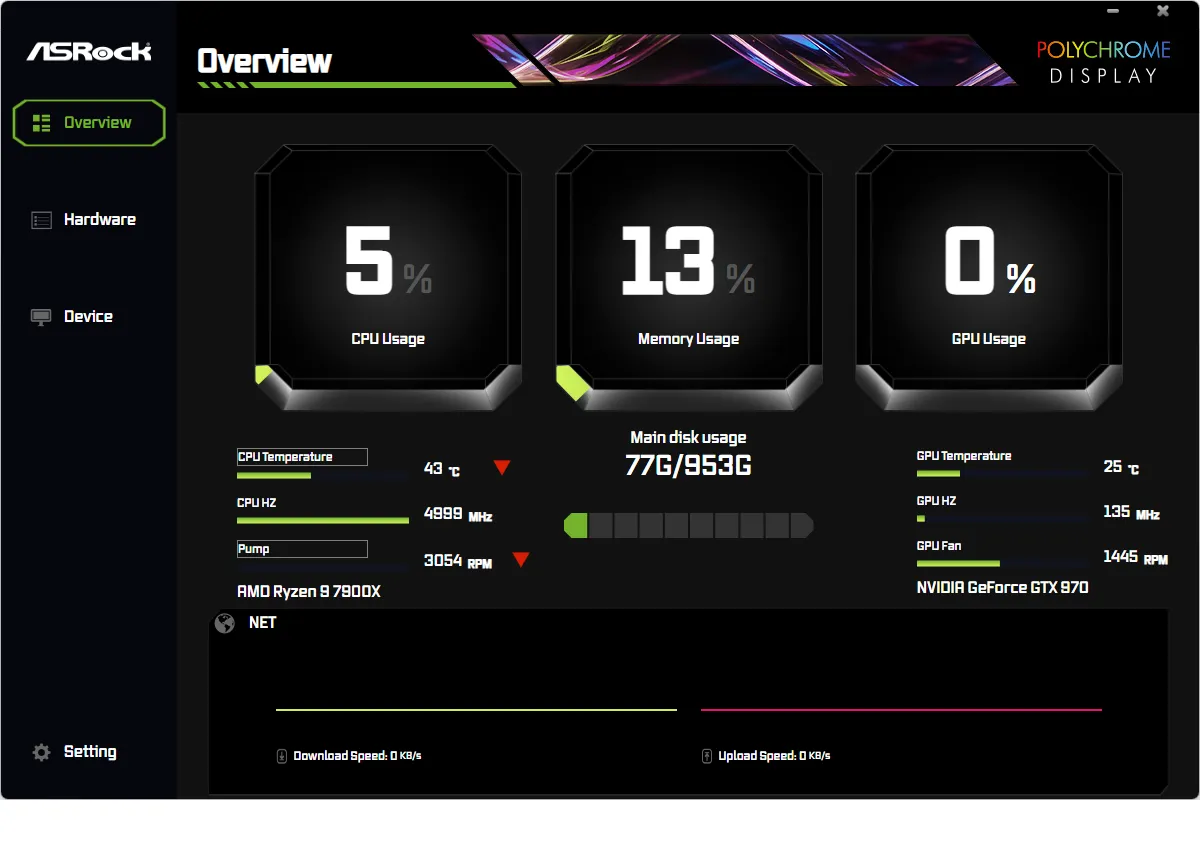
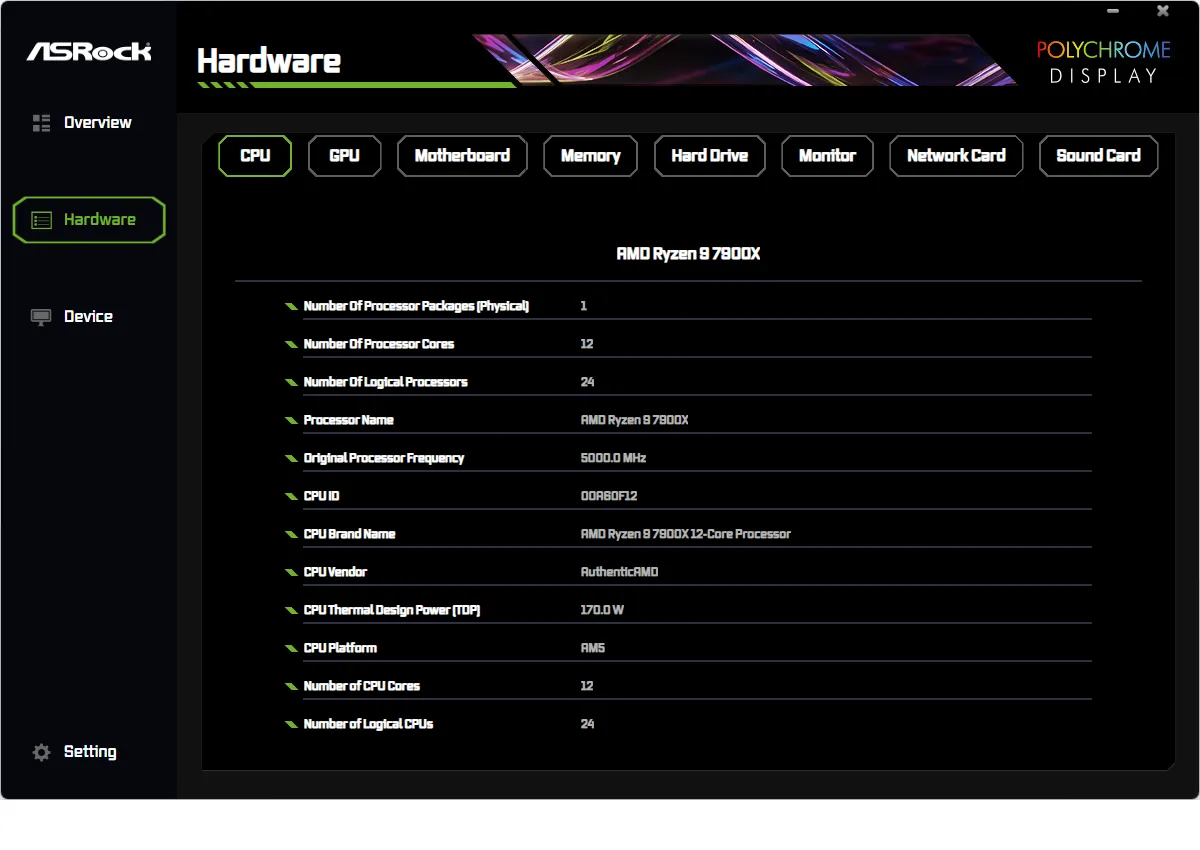
Users are welcomed to chose from a plethora of default profiles or create their own: A quick look at the manual showed us how easy it was to create a basic design of our own, but poking around at the options also showed us the great amount of effort ASRock put into making its designs look so polished.
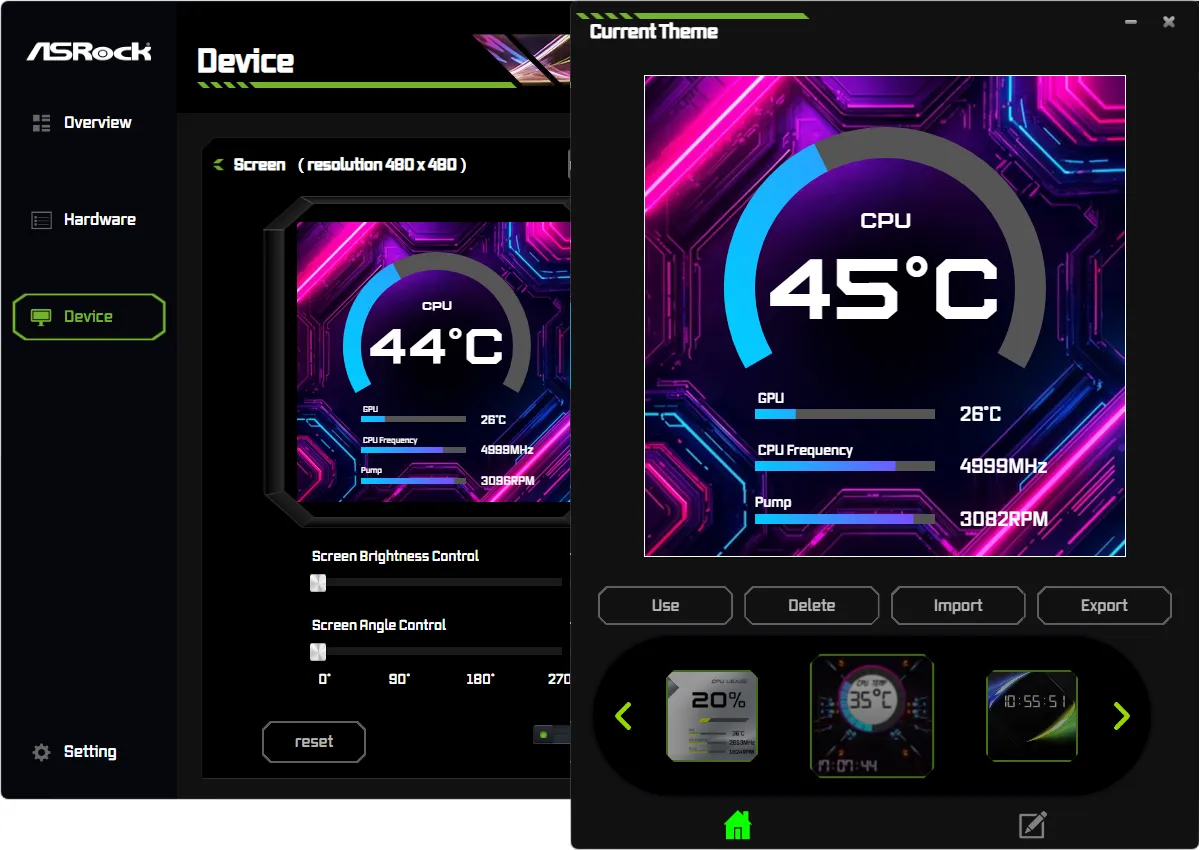
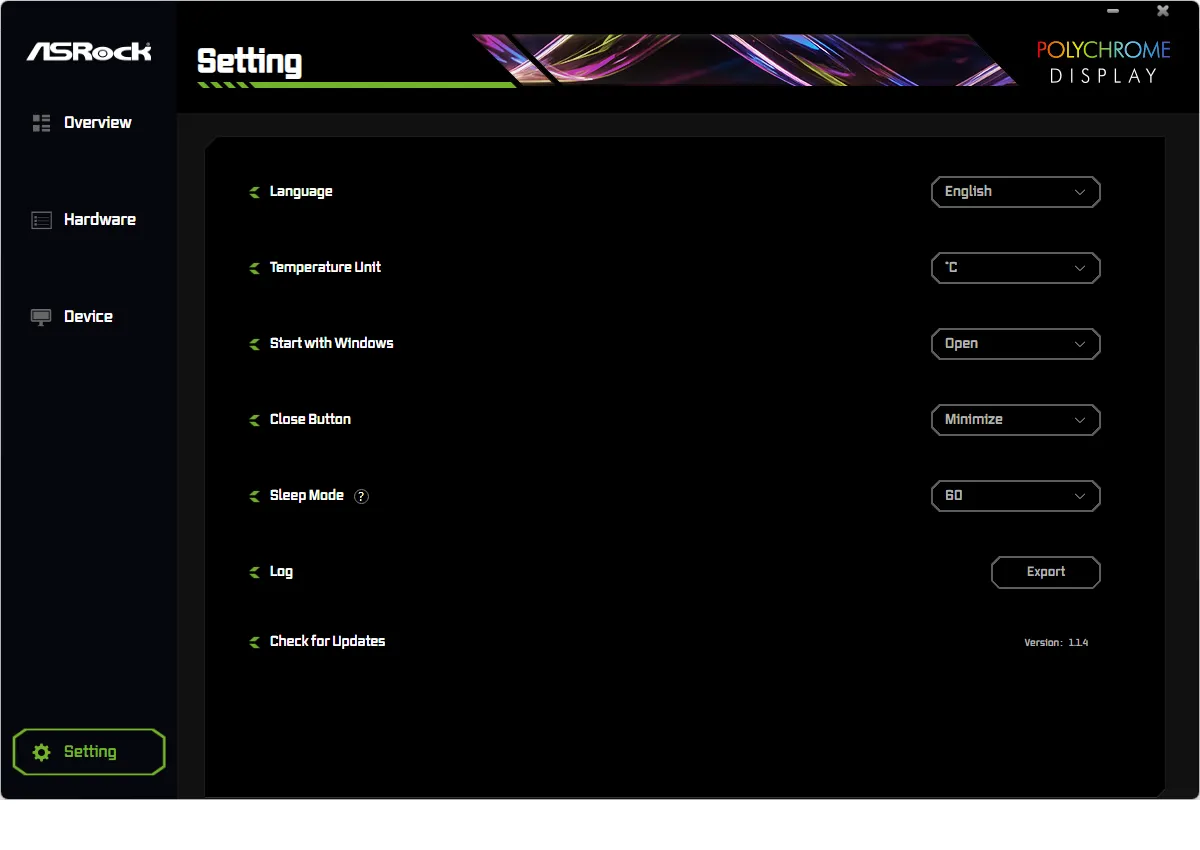
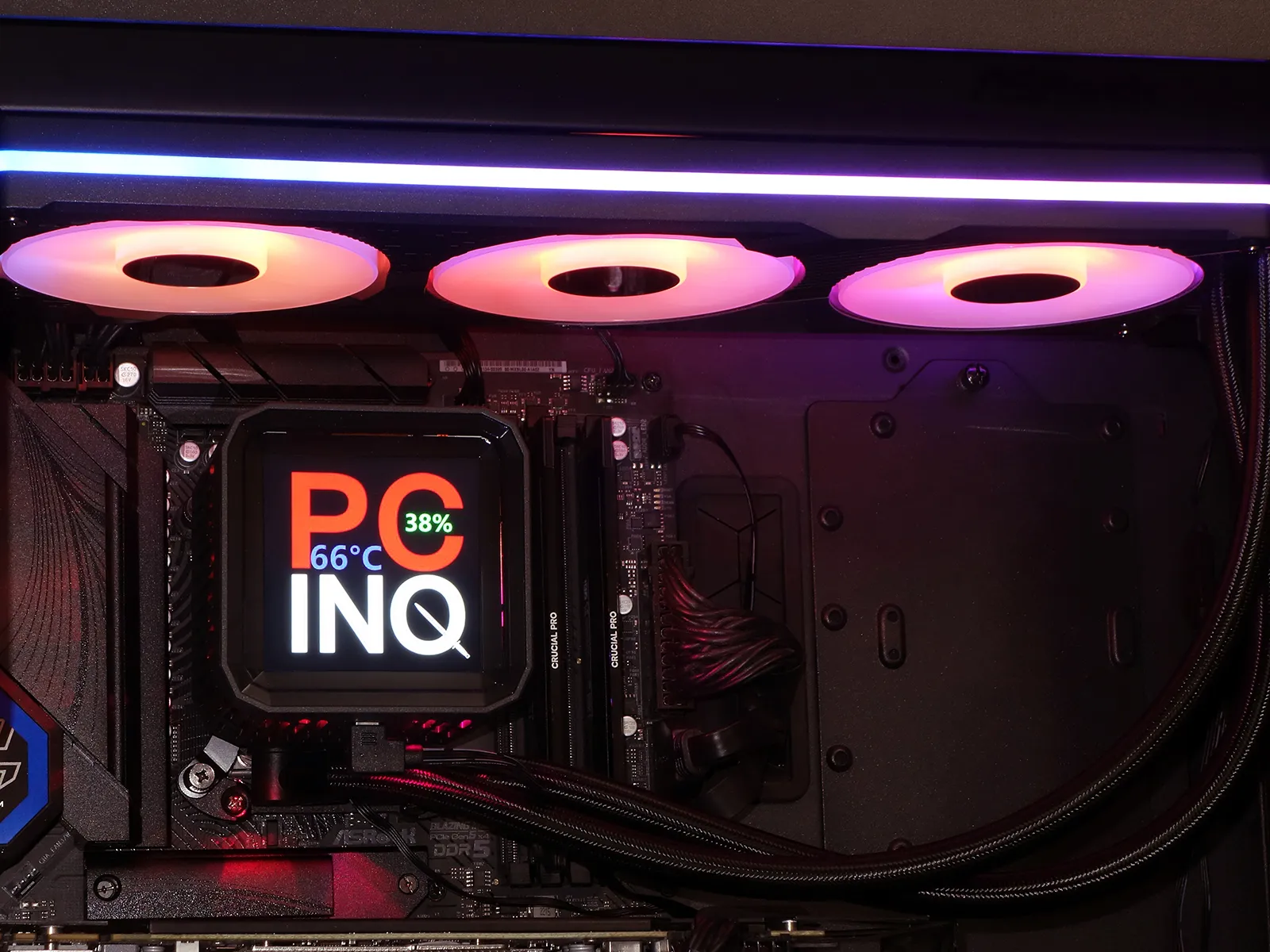
In the end, we decided that the easiest way to add the PC Inquisitor touch would be to combine our logo with the Polychrome Display utility’s CPU temperature and percent use functions: Text options include dozens of fonts ranging in size from 12pt to 200pt. Bold, italic, and underline options are also present, along with non-text alternatives such as straight and curved progress bars.
Testing The Phantom Gaming 360 LCD
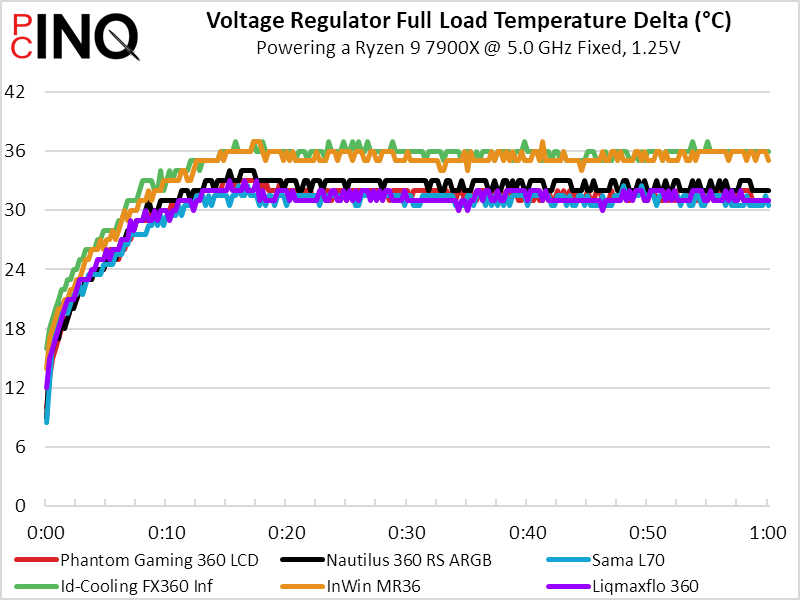
Locking down our test platform a couple years ago has allowed us to build a wider range of samples from which to compare data, without the cumbersome task of rebuilding systems to retest older samples. Since CPU cooler airflow is also supposed to help cool the voltage regulator, we apply only a CPU-centric load and take thermal readings only from the CPU and VR MOS.
| System Configuration | |
| Case | Thermaltake Ceres 500 TG ARGB |
| CPU | AMD Ryzen 9 7900X: 12 cores/ 24 threads, 64MB L3 Cache O/C to 5.00 GHz at 1.25 V Core |
| Motherboard | ASRock B650E PG Riptide WiFi, BIOS 1.18 |
| RAM | Sabrent Rocket SB-DR5U-32GX2 64GB DDR5-4800 |
| System Drive | HP SSD FX900 M.2 1TB NVMe SSD |
| Test Configuration | |
| Load Software | Prime95 Version 30.8 Torture Test, Small FFTs |
| H/W Monitoring | HWiNFO64 v7.42-5030 |
| SPL Monitoring | Galaxy CM-140 SPL Meter: Tested at 1/4 m, corrected to 1 m (-12 dB) |
CPU temperature takes priority when testing a CPU cooler, and maintaining fairness forces us to compare units of the same 360mm format (3x 120mm). Conversely, the only samples we’ve tested with similar advanced features, such as the VR cooling fan of the BR24 from InWin or the LCD displays of the ToughLiquid Ultra 240 and iCue H100i Elite LCD XT, have been 240mm units.
Test Results
ASRock’s Phantom Gaming 360 LCD ties for first place in CPU temperature, but the extra cooling fan over its pump body provides less benefit to VR MOS temperature than we’d hoped. Perhaps that’s because we put the logo-side-up, where the upper heat sink sits? (We can’t imagine builders doing it the other way as the logo sits at the opposite side of the cover from the USB cable.)
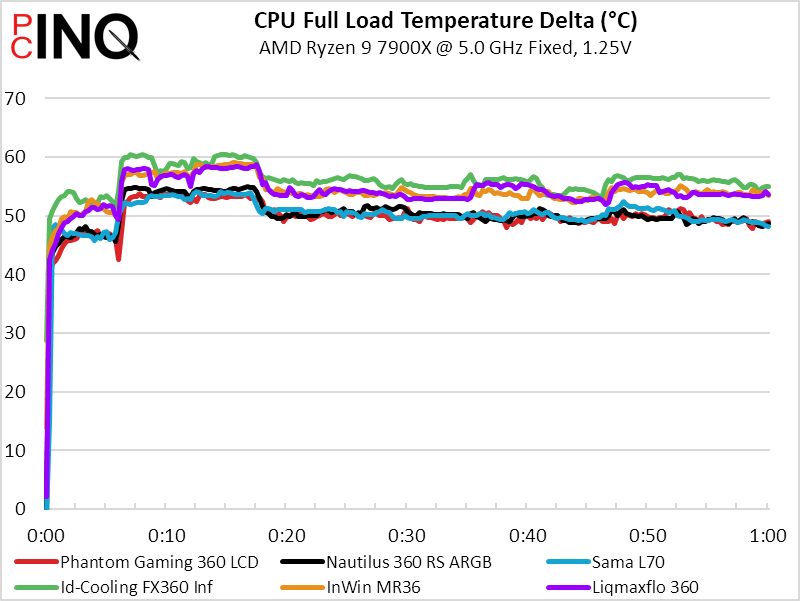
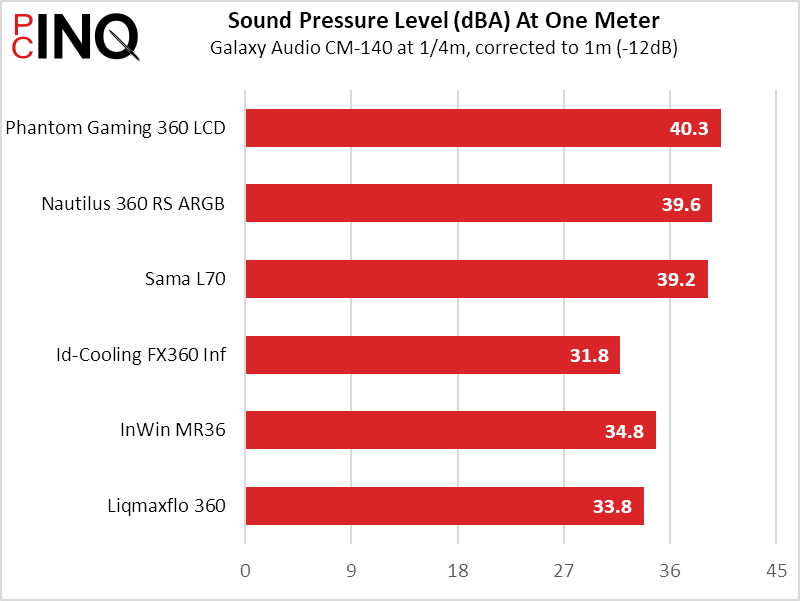
The VR MOS fan does make a little noise, and we’re crediting it for pushing the Phantom Gaming 360 LCD’s SPL past the recently tested Corsair and Sama models. Also notice how the three least-effective thermal solutions also have the lowest noise: This is usually the tradeoff of using noise-optimized (rather than flow-optimized) fans.
Remembering that overall performance is a measure of how most cooling you can get per unit of noise (or how little noise you can produce per unit of cooling), the three quiet coolers appear most performant overall despite their higher temperatures.
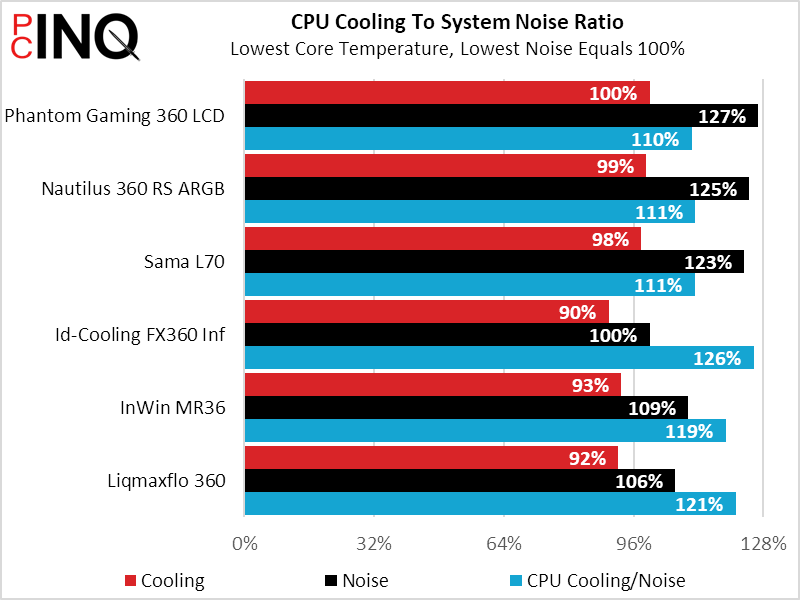
Understanding that our motherboard is also capable of managing fan speed to reduce noise when the extra cooling isn’t needed, we could spend weeks finding the optimal fan speed for each of the more powerful coolers. Or, we could just accept that the three most powerful coolers got to that position by making a similar amount of excess noise and consider the other thing: Is the Phantom Gaming 360 LCD a good value?
The only LCD-equipped coolers we’ve tested on our current platform are 240mm units, which means that they both underperform the Phantom Gaming 360 LCD, Unfortunately, both of those coolers also cost more despite being smaller and less powerful. Having said that, we welcome both of ASRock’s better-established competitors to submit 360mm LCD models if they’d like to claim the Phantom Gaming 360 LCD’s “best 360mm LCD cooler” crown.
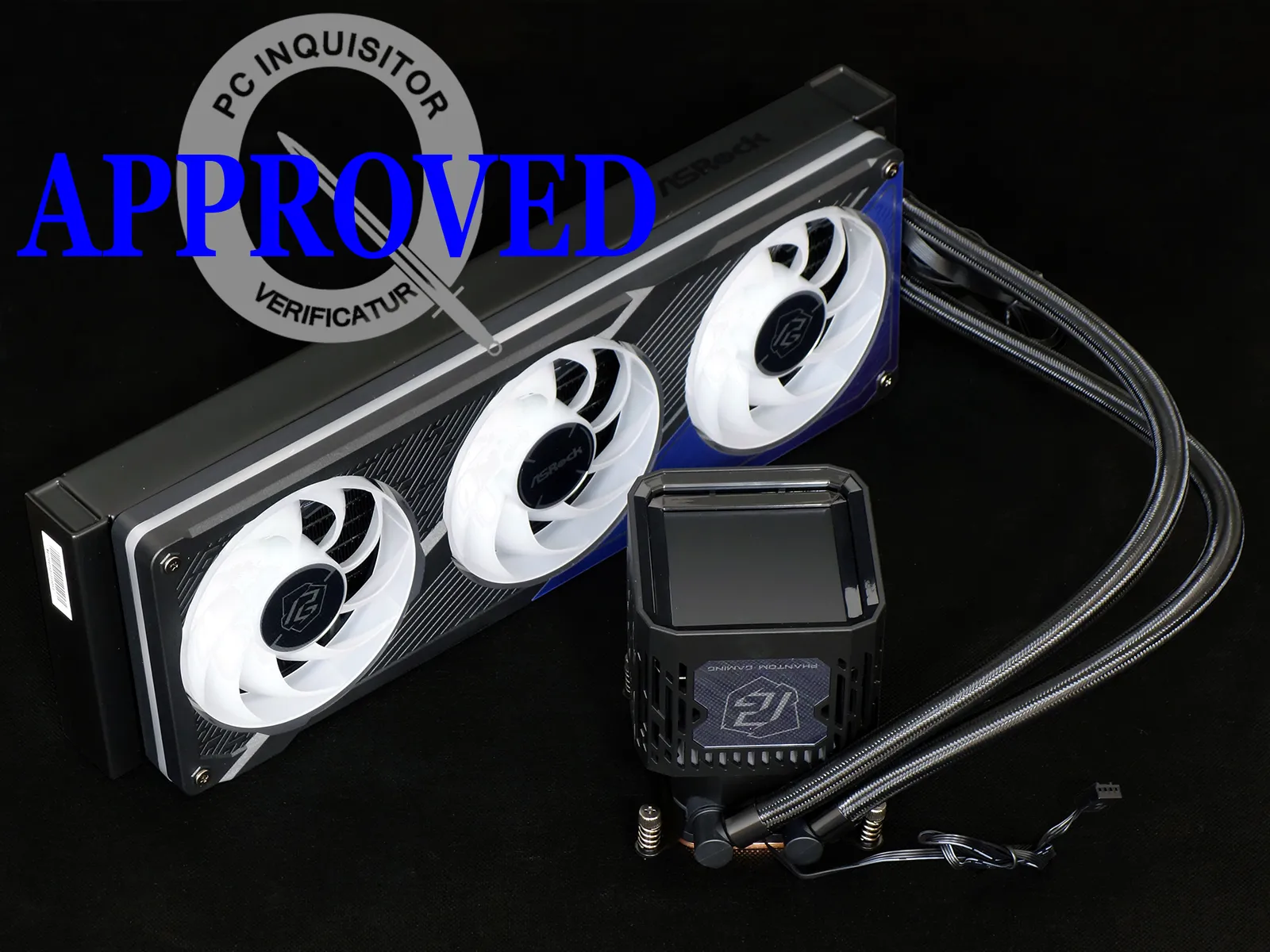
It may only come close to Excellence-level 360mm-format performance, but it’s the best-cooling LCD-equipped closed-loop liquid cooler we’ve tested. With that niche carved, it’s also a better value to than the other two LCD coolers we’ve tested.
| ASRock Phantom Gaming 360 LCD | |
| Pros: | Cons: |
| High cooling at full-power test setting Highly configurable 480×480 display cover Integrated PWM fan a rarity Six-year warranty on cooling devices | Noisey at full-power test setting LCD-topped coolers are pricey This PWM fan delivers little airflow Two-year warranty on LCD display |
| The Verdict: | |
| The Phantom Gaming 360 LCD offers similar cooling performance to similarly-sized coolers of similar noise rating, its integrated LCD to differentiating it from cheaper models. | |


