
ASRock X870 Challenger WiFi ATX Motherboard Review
We’ll be the first to admit that the X870 Challenger WiFi’s low $170 price caught us a little off-guard: Our deep dive into how ASRock managed to fit the required USB4 controller into that budget certainly didn’t disappoint!
ASRock X870 Challenger WiFi | |||
| Socket | AM5 | Form Factor | ATX |
| Chipset | AMD X870 | Voltage Regulator | 19 (16+2+1) Phases |
| Rear I/O | |||
| Video Ports | HDMI 2.1 (4k/120Hz Max), 2x USB4 (8k/30Hz Max) | Audio Jacks | (3) Analog |
| Rear USB 4.x/3.x | (2) 40Gb/s Type-C, (2) 10Gb/s Type A, (1) 5Gb/s Type A | Legacy Ports/Jacks | (4) USB 2.0 |
| Network Jacks | (1) 2.5GbE, (2) Wi-Fi Antenna | I/O Panel Extras | BIOS Flashback |
| Internal Interface | |||
| PCIe x16 | (1) v5.0 x16, (1) v3.0 x2 | SATA Ports | (2) 6Gb/s |
| PCIe x8 | ✗ | USB Headers | (1) Type-E @Gen1x1 (10Gb/s), (2) 19-pin Gen1, (2) 9-pin v2.0 |
| PCIe x4 | ✗ | Fan Headers | (6) 4-Pin |
| PCIe x1 | ✗ | Legacy Interfaces | UART (3-pin), System (Beep-code) Speaker |
| CrossFire/SLI | ✗ / ✗ | Other Interfaces | FP-Audio, RGB LED, (3) ARGB LED, SPI-TPM |
| DIMM slots | (4) DDR5 | Diagnostics Panel | ✗(four indicator LEDs) |
| M.2 slots | (1) PCIe 5.0 x4, (2) PCIe 4.0 x4*, (1) PCIe 4.0 x2 (*M2_2 shared w/USB4) | Internal Button/Switch | ✗ / ✗ |
| Controllers | |||
| SATA Controllers | Integrated only | HD Audio Codec | Realtek ALC897 |
| Ethernet Controllers | RTL8125BG 2.5Gb/s PCIe | DDL/DTS Connect | ✗ |
| Wi-Fi / Bluetooth | Realtek 8922AE WiFi 7 (2.4GHz/5GHz/6GHz) / BT 5.4 Combo | Warranty | 3 Years |
| USB Controllers | ASM4242 USB4, ASM1543 MUX, GL852G Hub, | Price When Tested | $170 |
Find it at Amazon
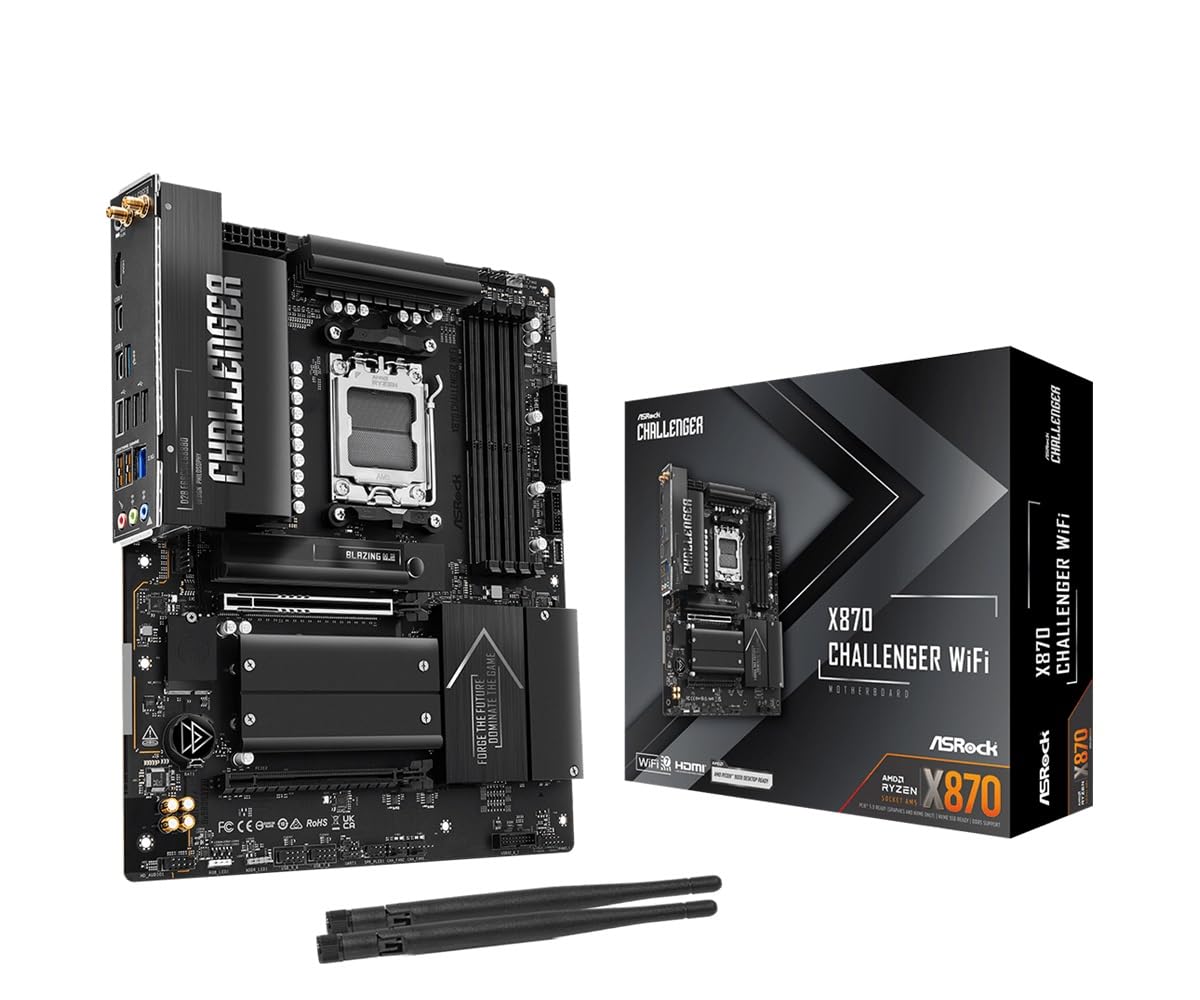
(click for availability)
Special Features
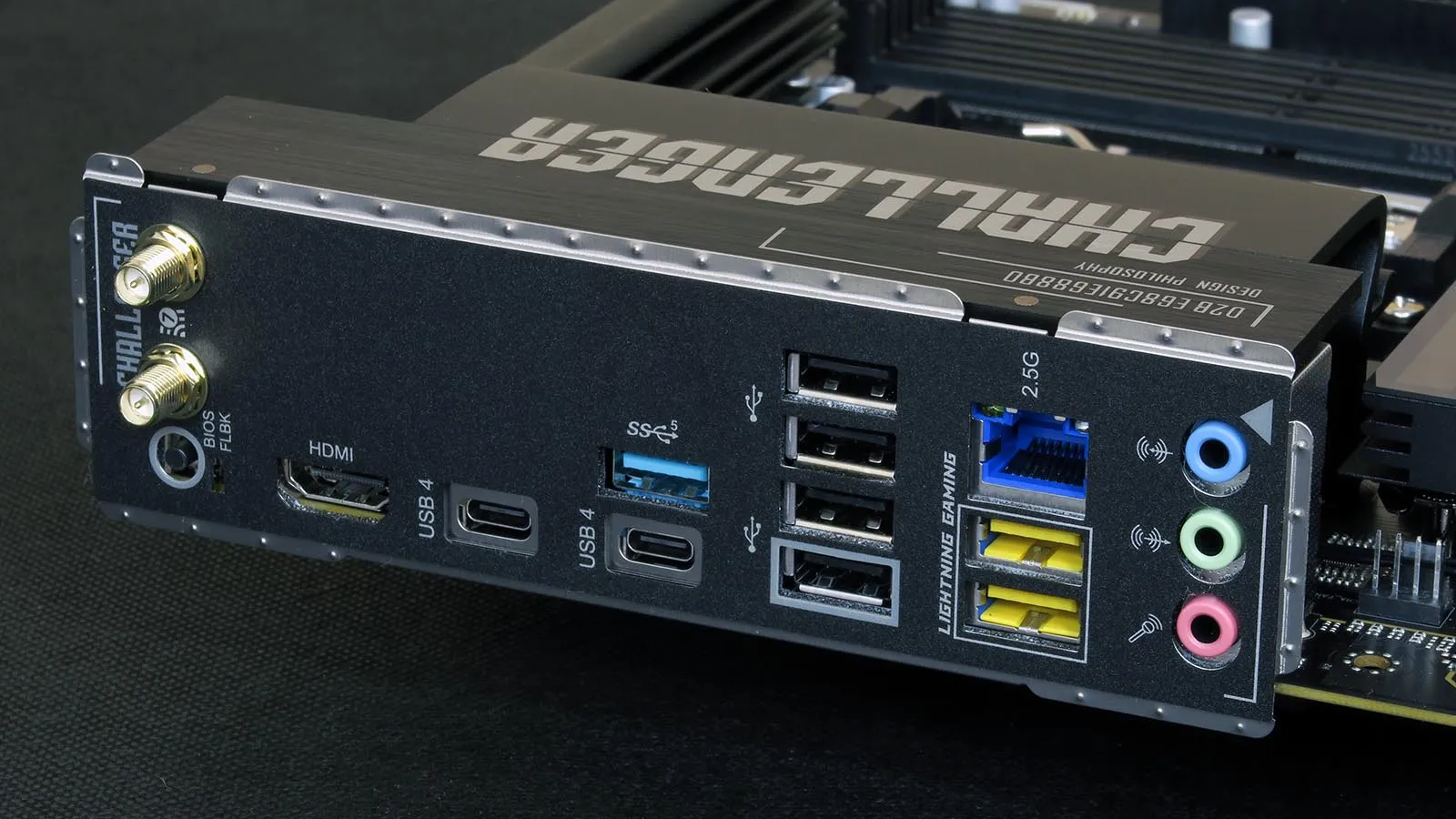
You can see those two 40Gbps ports sitting right between the HDMI and USB 2.0 ports, the latter hinting at the board’s first cost-cutting measure: Unlike the typical high-end board that might use a hub to break one of the chipset’s 10Gbps ports out into two, the X870 Challenger WiFi ditches all the associated hardware and loads the back with twice as many USB 2.0 ports.
Buyers still get two (but only two) 10Gbps ports along with the single 5Gbps, and ASRock even pushes WiFi-7 and 2.5GbE here: It’s only the lesser interfaces that appear to pay the price (so far). Also present are a BIOS Flashback initiation button and three analog audio jacks.
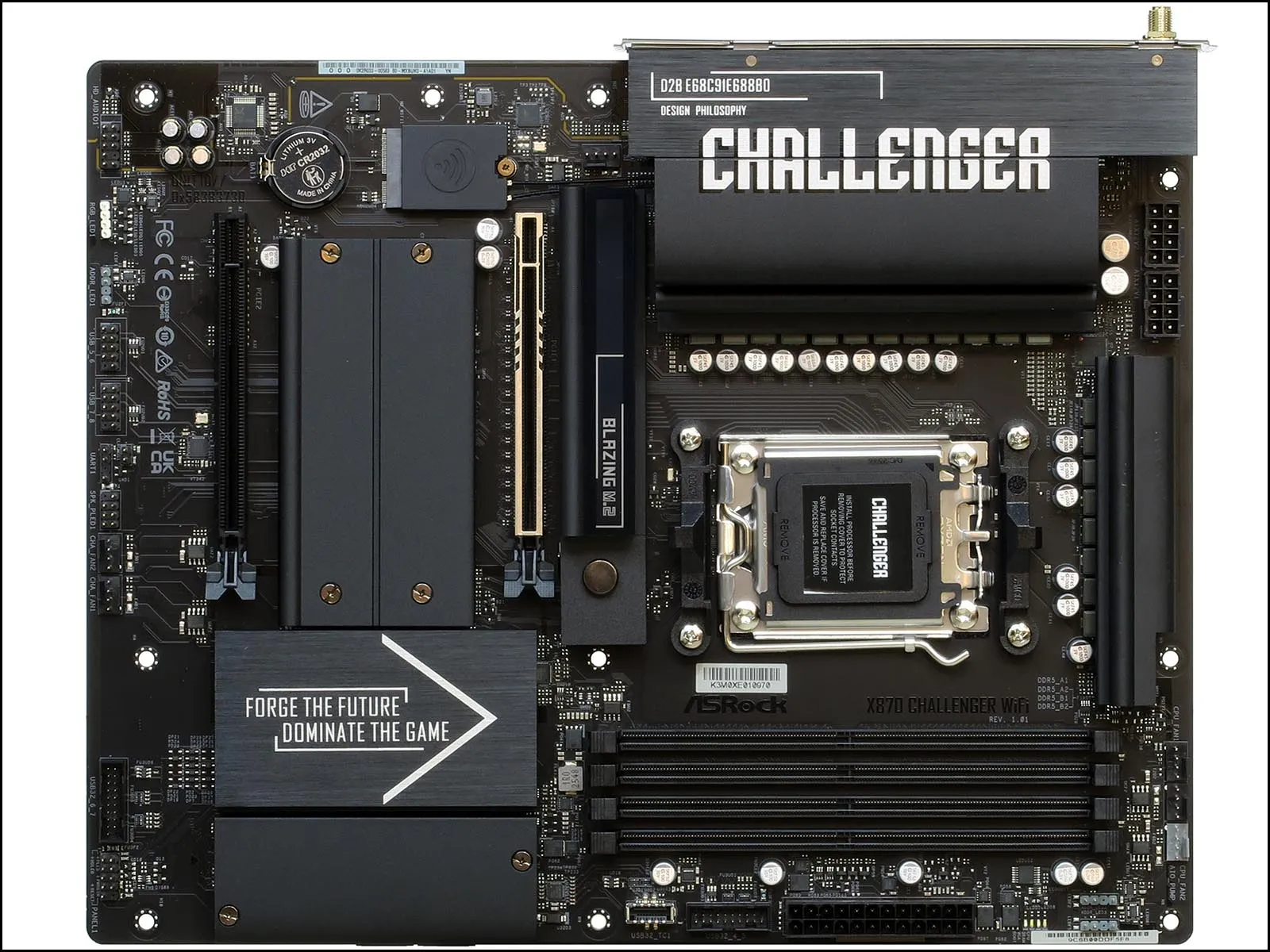
A wider angle appears to show four M.2 heat spreaders—though two of those are conjoined—and two PCIe x16 connectors. While the first expansion card slot lives up to expectations by delivering the full sixteen lanes of PCIe 5.0 connectivity, the second slot doesn’t even have the ordinary 4×4 connection that we’ve come to expect: Cost cuts to onboard components have forced it down PCIe 3.0 x2.
The X870 Challenger WiFi brings back the rear exhaust fan header that’s missing from many of its contemporaries: Behind the upper M.2 slot and below the rear-panel I/O, this difficult-to-reach location is still ideal for connecting the short cables of some rear-panel case fans. Other design highlights include the dual first-generation USB 3.x internal headers to help fill the extra ports of better-equipped cases, and a Type-E connector to feed the Type-C port of modern cases. For the cost of a Genesys GL9904 MUX (around $3), ASRock unfortunately cuts that last port down from its native 20Gbps (Gen2x2) to a mere 5Gbps (Gen1x1).
Component Design
Since Gen5 mode pushes higher levels of heat from modern NVMe drives, the upper M.2 slot is the only one with an extra layer of thermal conductivity beneath those drives. Of the three lower-bandwidth drive slots, the second shares its four lanes with the USB4 controller and the fourth has only two lanes at best. Regarding that sharing, installing a drive into the X870 Challenger WiFi’s M.2_2 slot enables two of its four lanes (as Gen4x2) while dropping the USB4 controller’s I/O interface to only two lane, essentially giving the entire two-port controller the bandwidth of a single port. A BIOS setting that enables Gen4x4 for the second M.2 slot disables the USB4 controller entirely.
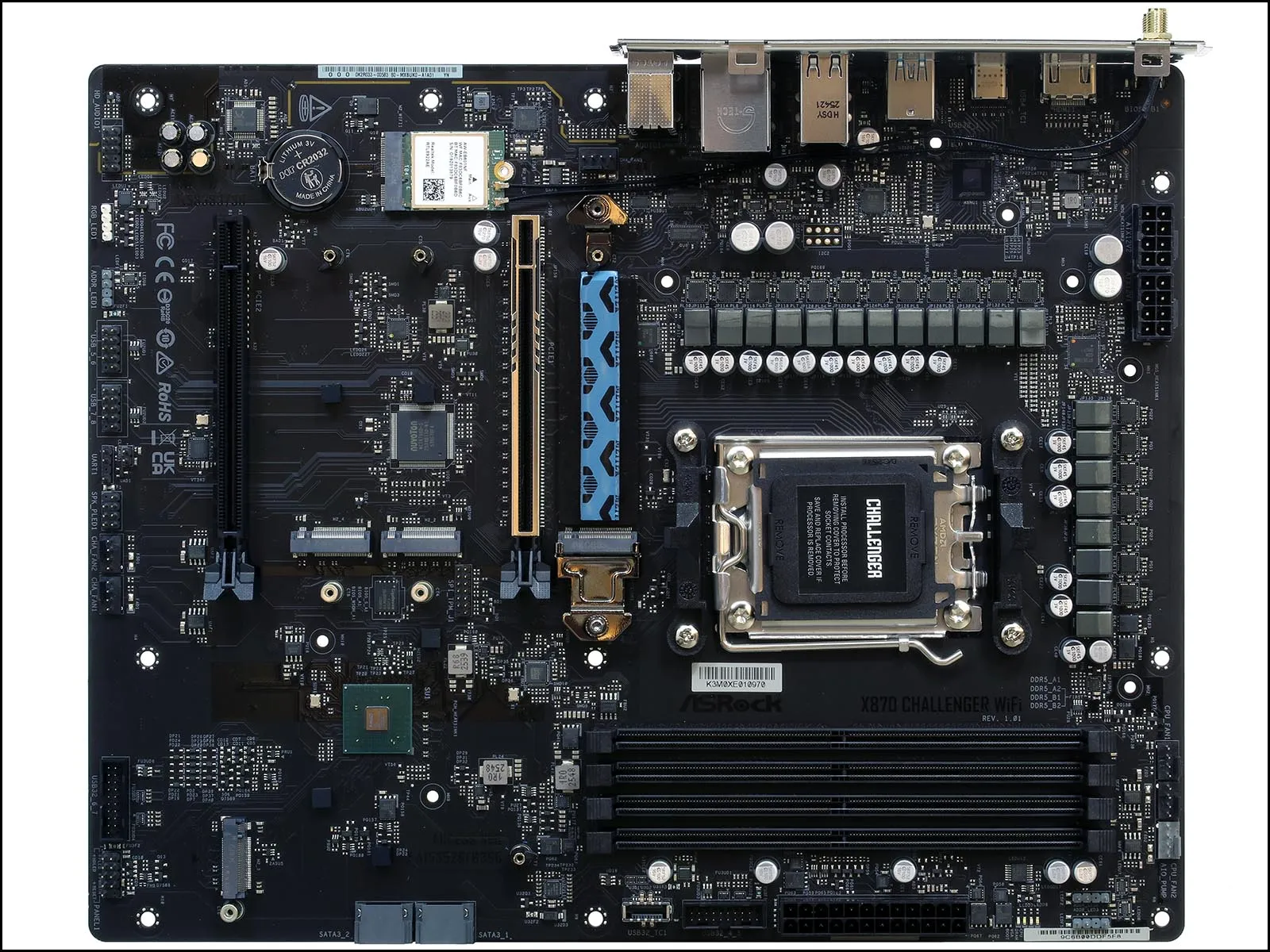
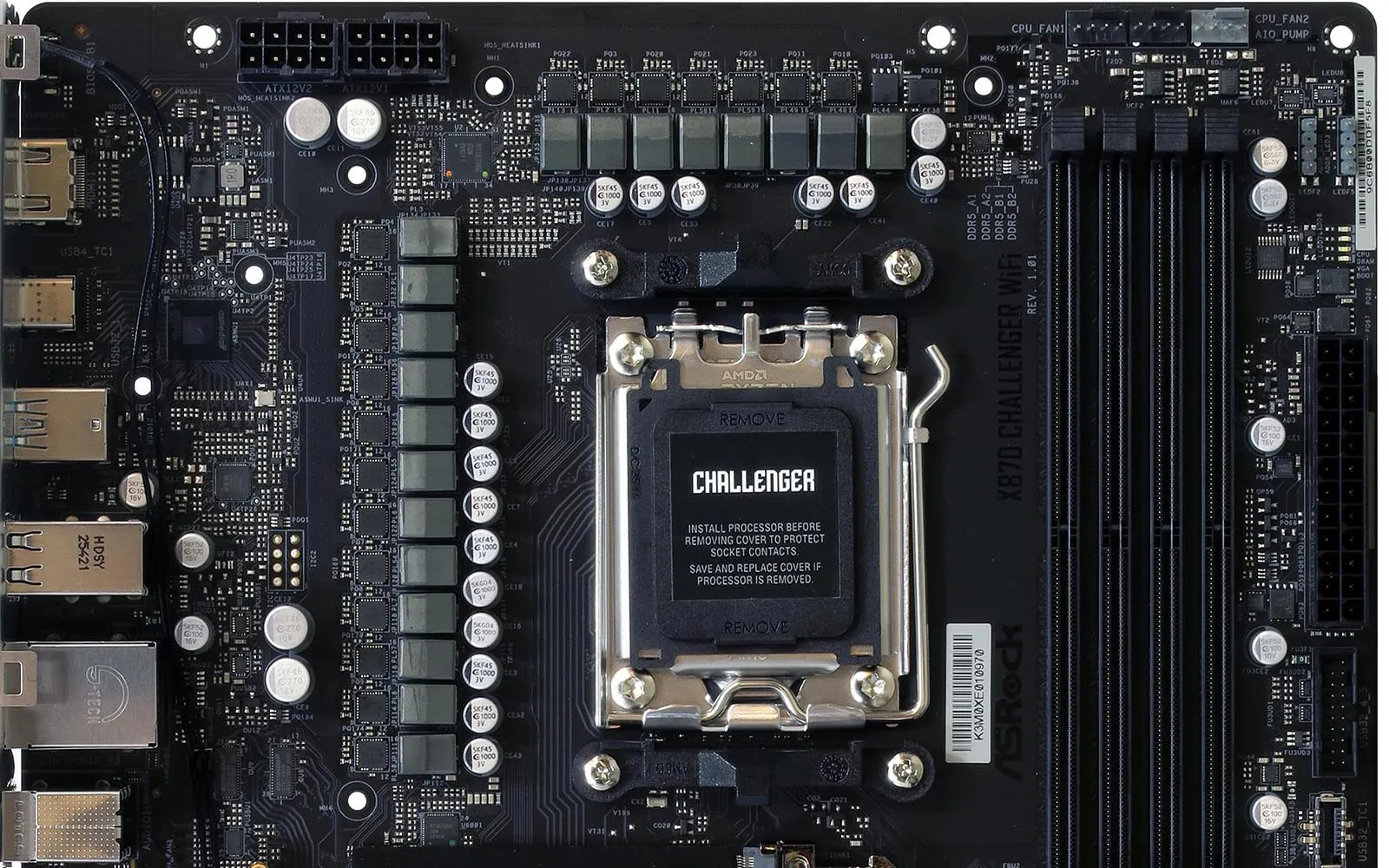
The little square of black glass 2/3 of the way up the motherboard’s I/O panel is ASMedia’s ASM4242 USB4 controller IC: Moving up and clockwise, a pair of 8-pin ATX12V/EPS12V connectors feeds extra current to the X870 Challenger WiFi’s 16+2+1 phase CPU voltage controller, a 1A and two 3A (ampere) PWM headers feed the CPU cooler and any associated AIO pump, a pair of three-pin lighting headers feed nearby ARGB light strips and fans, four activity LEDs shown boot progress through CPU, DRAM, VGA and OS device initialization, a 24-pin ATX/EPS header feeds non-CPU devlces, a 19-pin USB3 Gen1 header feeds up to two front-panel (usually Type A) ports, and a single Gen2x2 header wired as mirrored Gen1x1 feeds a 5Gbps signal to and from a front-panel Type-C port. The ASM1543 MUX seen to the left of that last port (click to enlarge) does the mirror trick, flipping the active side of the two-sided port to match the manner in which a device is plugged.
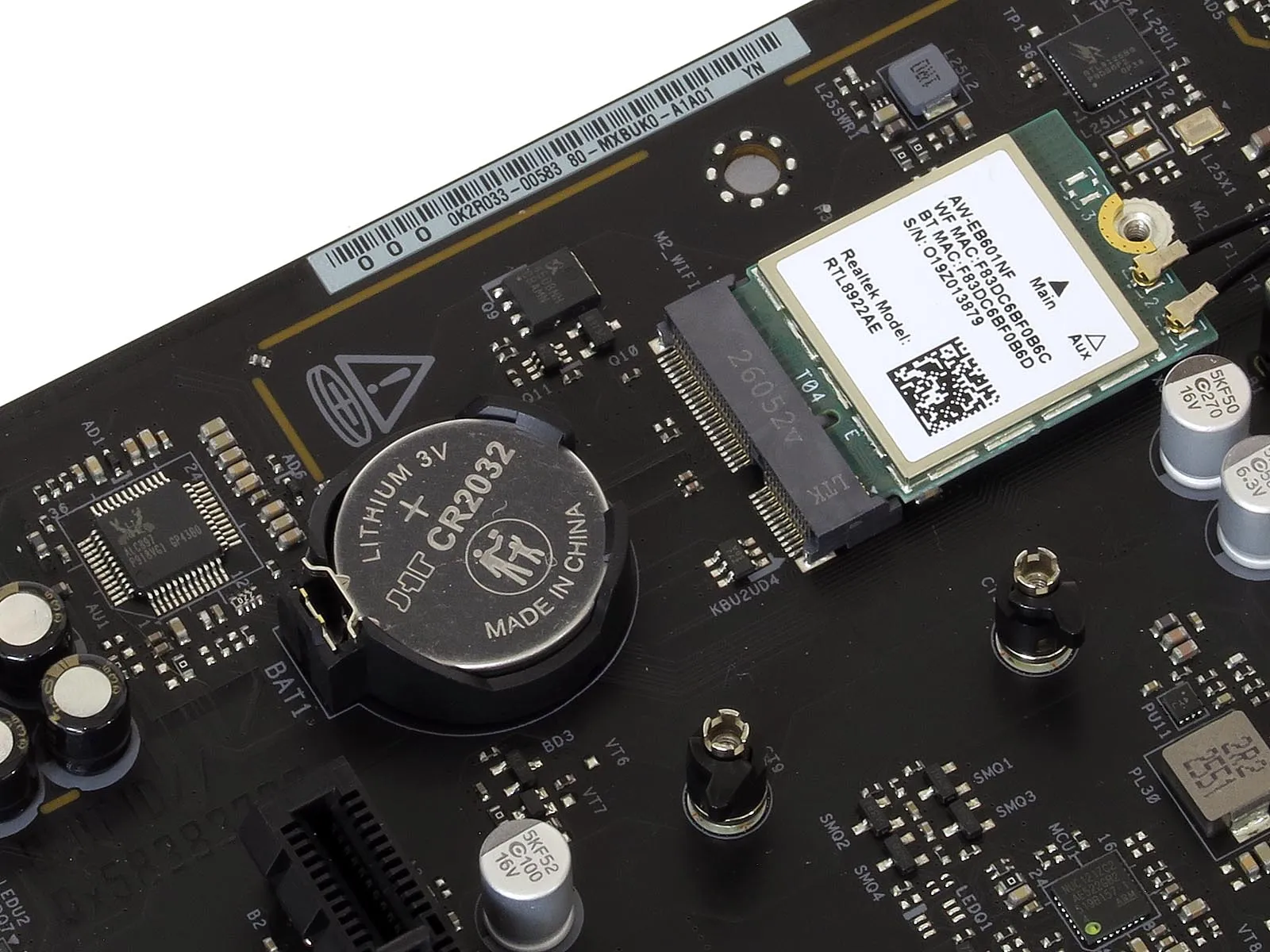
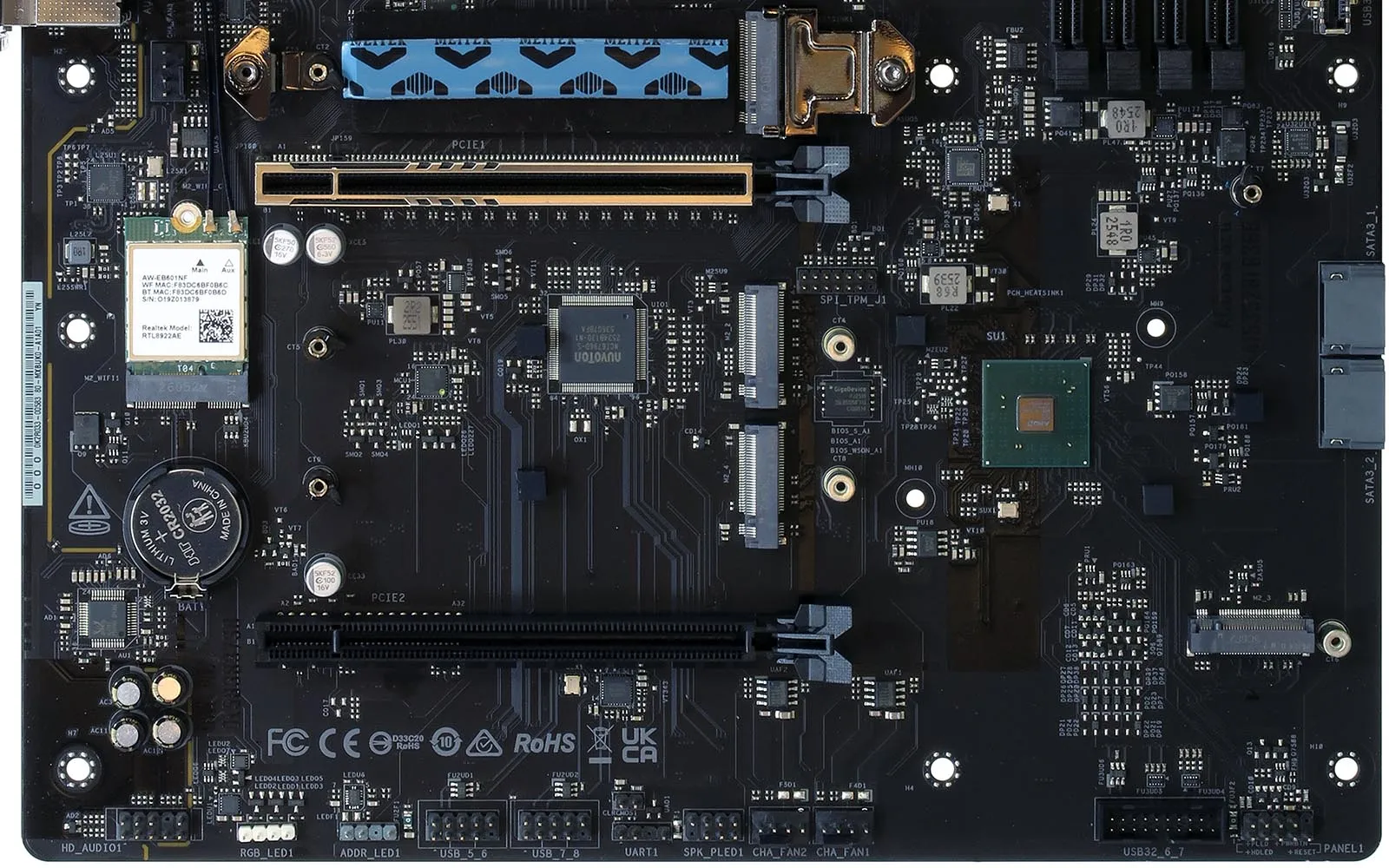
Going counter-clockwise around the X870 Challenger WiFi’s lower half we find the previously-mentioned rear fan header, the wired network and WiFi controllers, a clock battery and audio codec, HD Audio, classic RGB and a third ARGB header, two nine-pin USB 2.0 headers, a 3-pin UART header that’s not documented and mustn’t be confused for ARGB, a four-pin (beep code) speaker and three-pin power indicator combo header, two more four-pin fan headers, a second Gen1 USB3 front-panel header, a nine-pin combined F-Panel header and two SATA ports. The SPI_TPM module header is located mid-board, just above the board’s 64MB flash ROM.
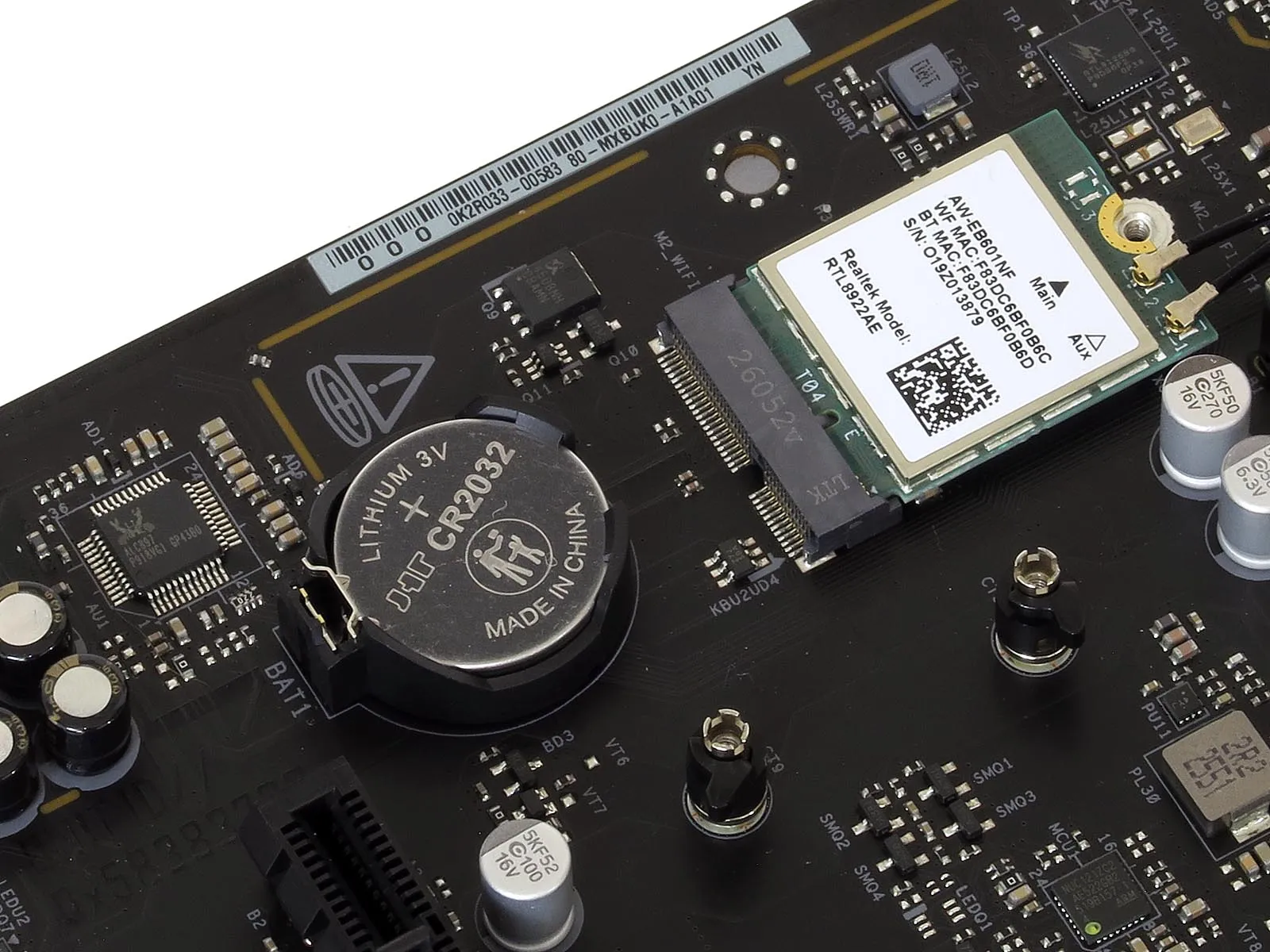
Sound comes from Realtek’s low-cost ALC897 codec (left), wireless from its RGL8922AE mobile WiFi 7 module (right), and 2.5 Gigabit Ethernet from its RTL8125BG PCIe-based controller (far upper right corner).
Hardware in the upper rear corner is far more elaborate, with the pair of lane switches that control x0/x2/x4 lane switching between the USB4 and M.2_2 slot seat at the far left of the photo and the ASM4242 USB4 controller visible at center rear. The nearby CPU voltage controller starts with the RT3678BE feeding the sixteen core and two SOC phases through eighteen SiC661 (80A) power stages from the top, and a RT3672EE feeding feeding VDD_MSC and VDDIO_Mem from the bottom.
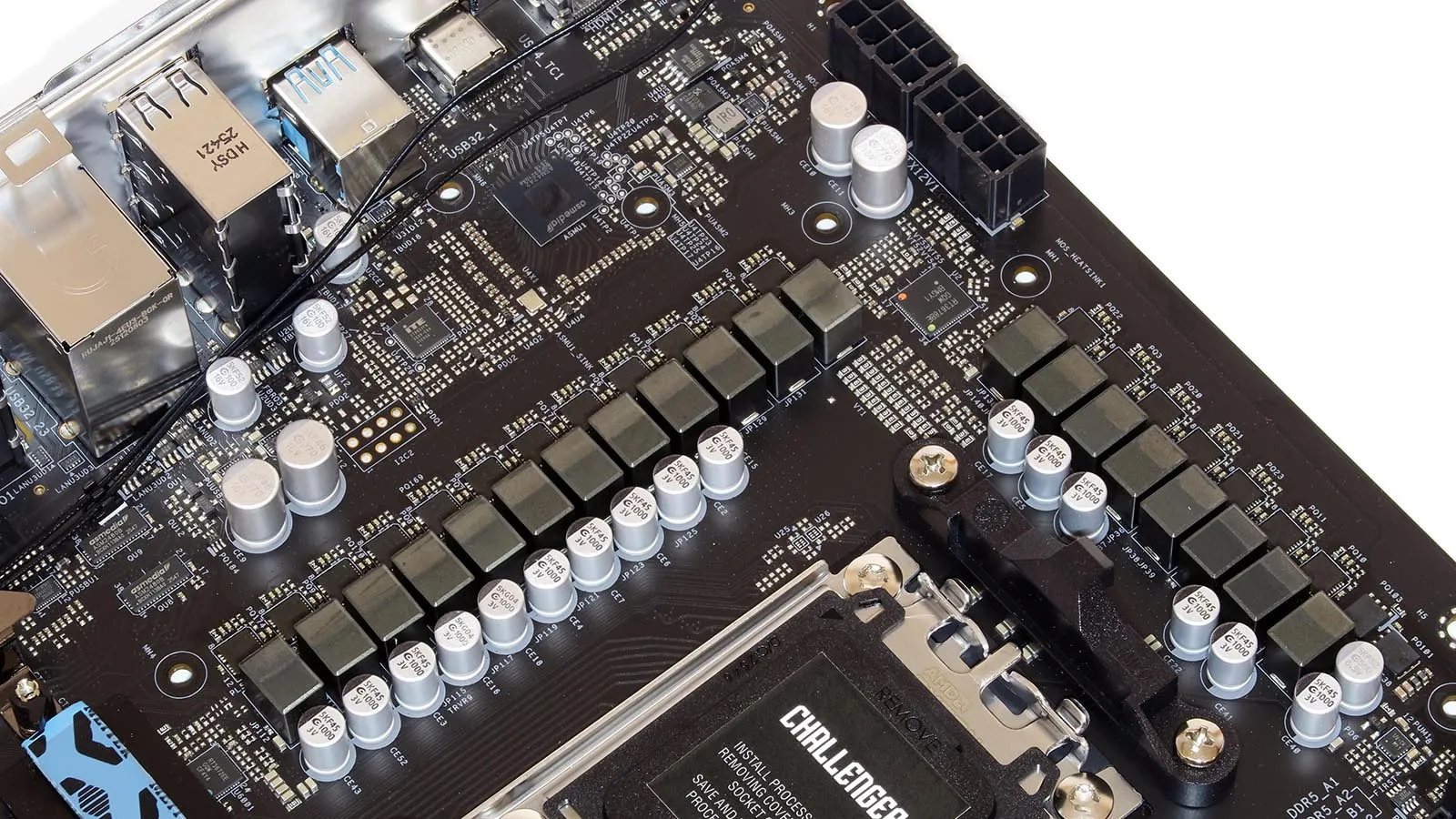
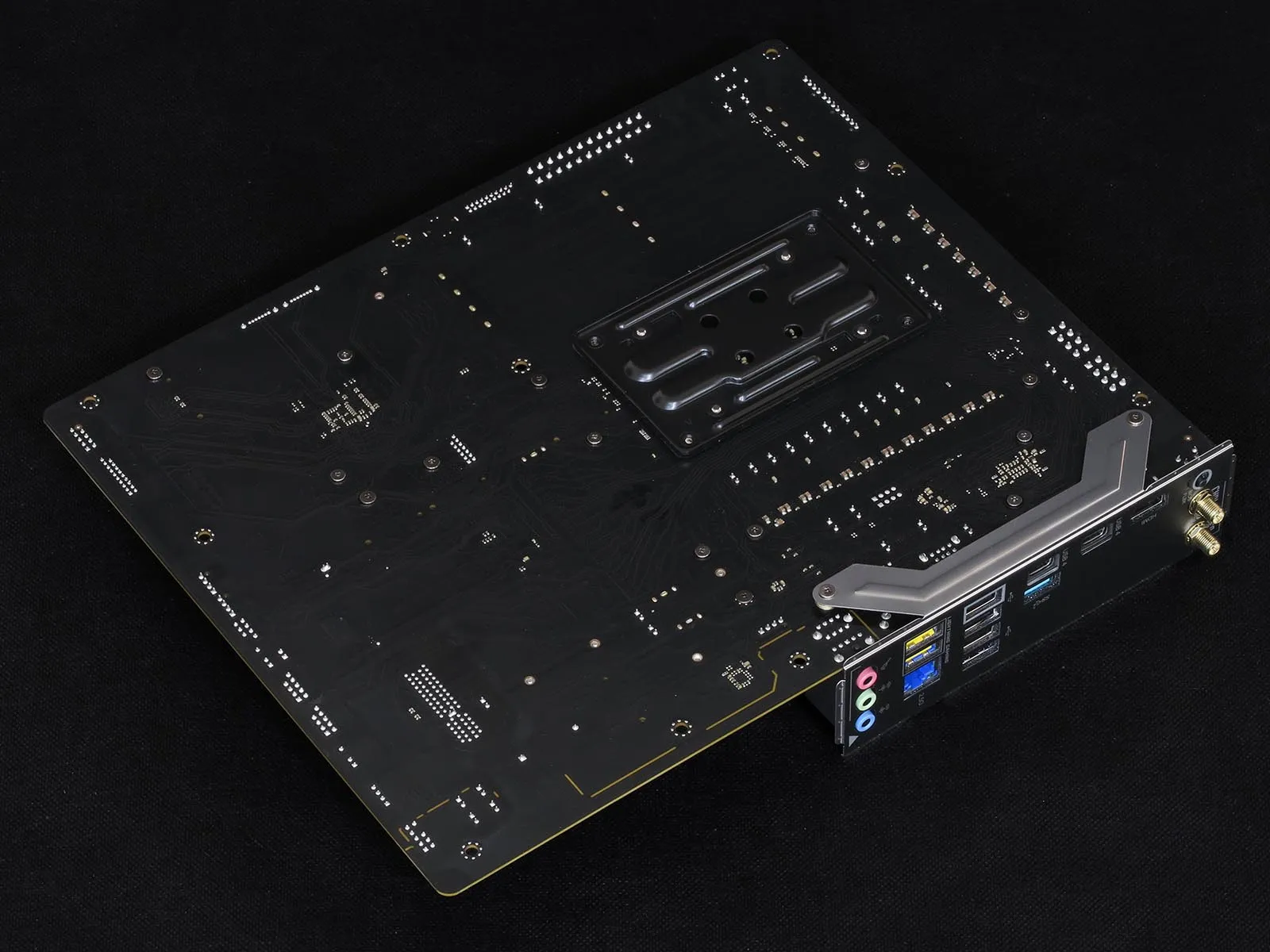
As the X870 Challenger WiFi is far from overloaded, ASRock didn’t find the need to place any of its controllers here.
Package Contents
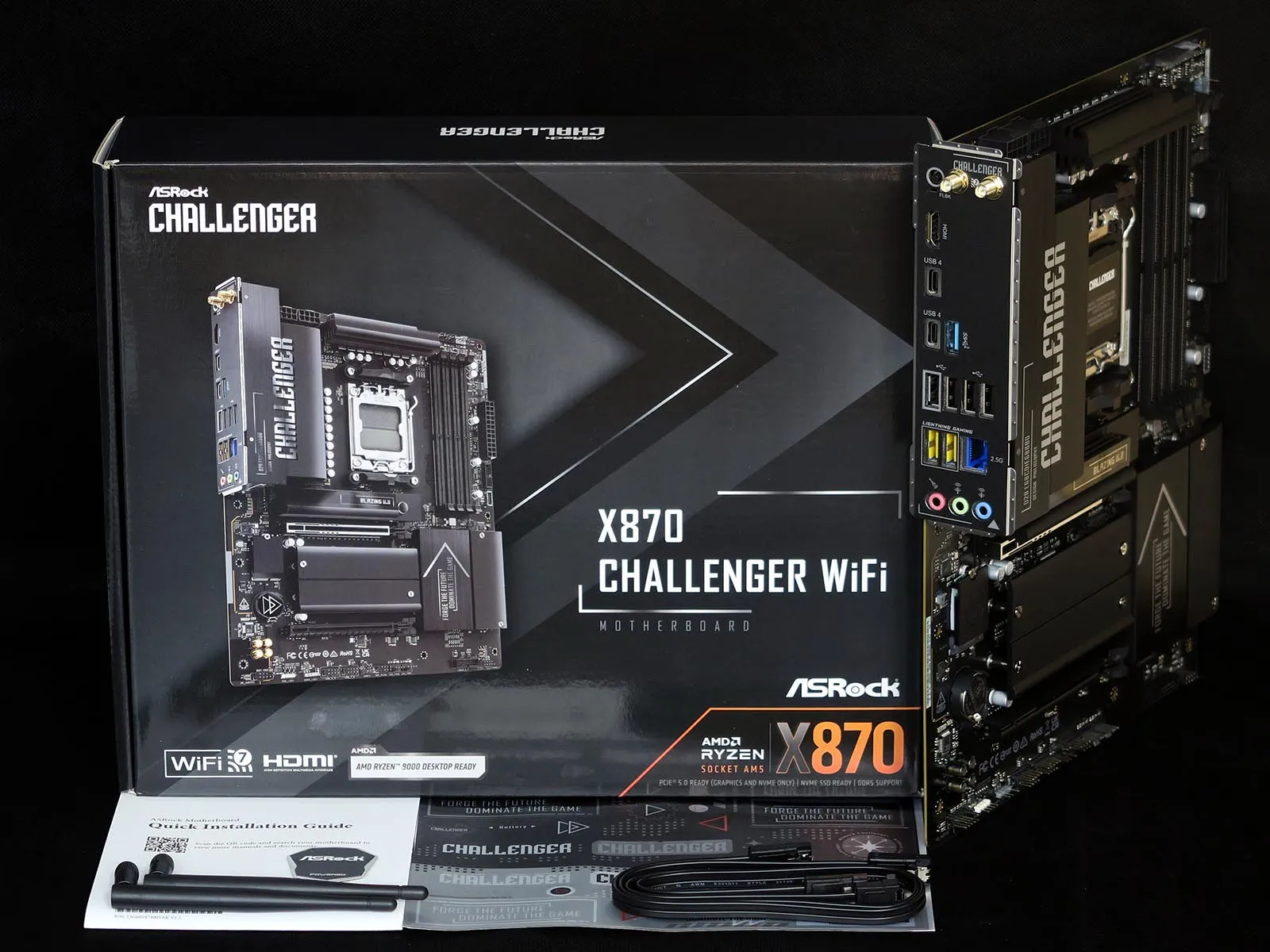
Equipped with only two SATA ports, the X870 Challenger WiFi includes a pair of SATA cables to go with its Wi-Fi antennas case badge, installation guide and sticker pack.
| Test Hardware | |
| CPU | AMD Ryzen 9 7950X: 16C/32T 4.5-5.7 GHz, 64MB L3 Cache, Socket AM5 |
| CPU Cooler | Alphacool Core 1 Aurora CPU, Eisbecher D5 150mm, NexXxoS UT60 X-Flow 240mm |
| DRAM | Crucial Pro OC Gaming Edition DDR5-6400 32GB Kit |
| Graphics Card | ASRock RX 7700 XT Phantom Gaming 12GB OC PCIe 4.0 x16 |
| Power | be quiet! Dark Power Pro 10 850W: ATX12V v2.3, EPS12V, 80 PLUS Platinum |
| Hard Drive | Crucial T700 Gen5 NVMe 2TB SSD |
| Graphics Driver | AMD Adrenalin Edition 24.8.3 |
Firmware
X870 Challenger WiFi firmware is set to enter its “Advanced” GUI by default, but a message in its upper-right corner invites those who are afraid of complex setting menus to press their keyboard’s F6 key to enter “Easy Mode”.
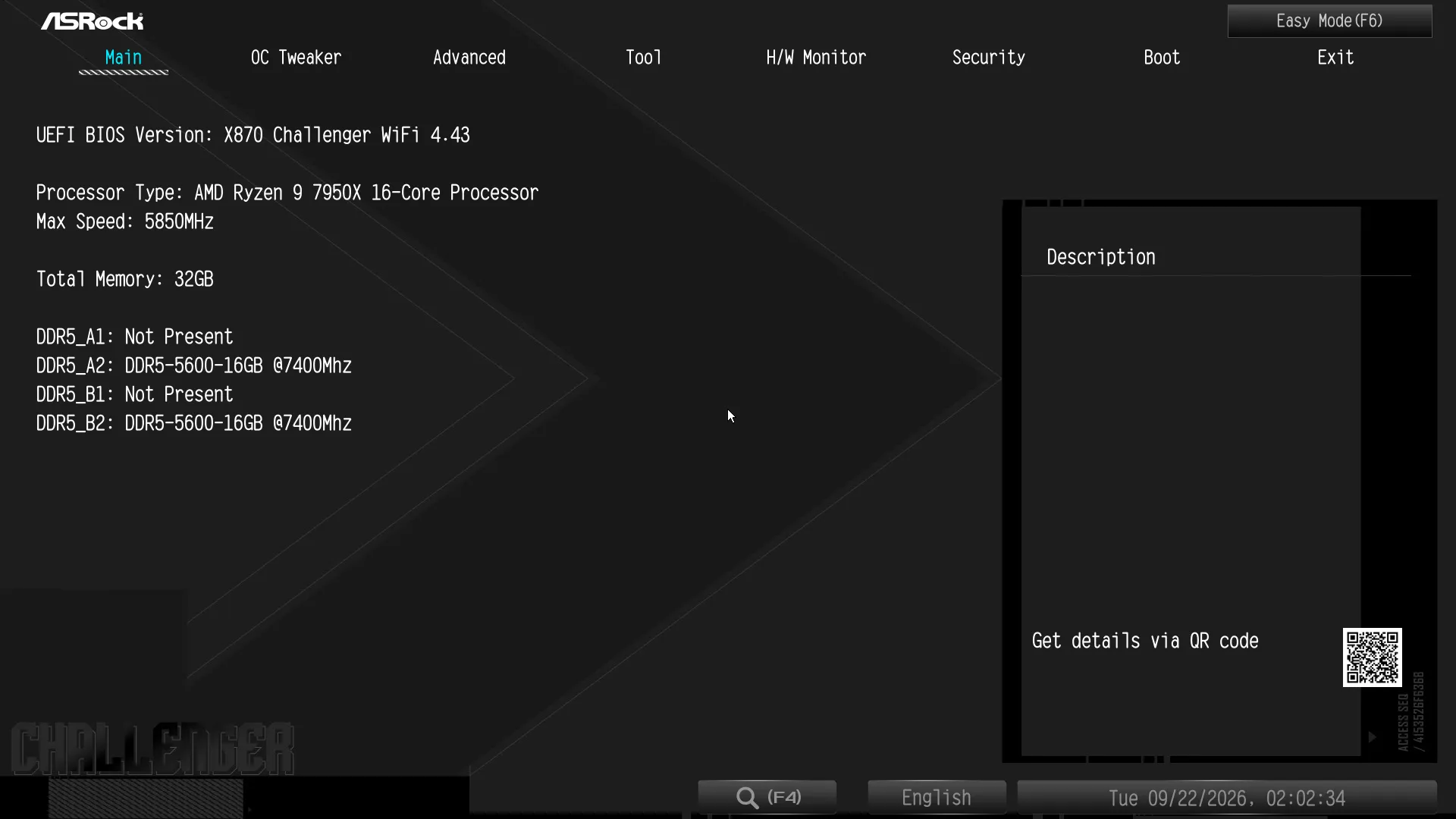
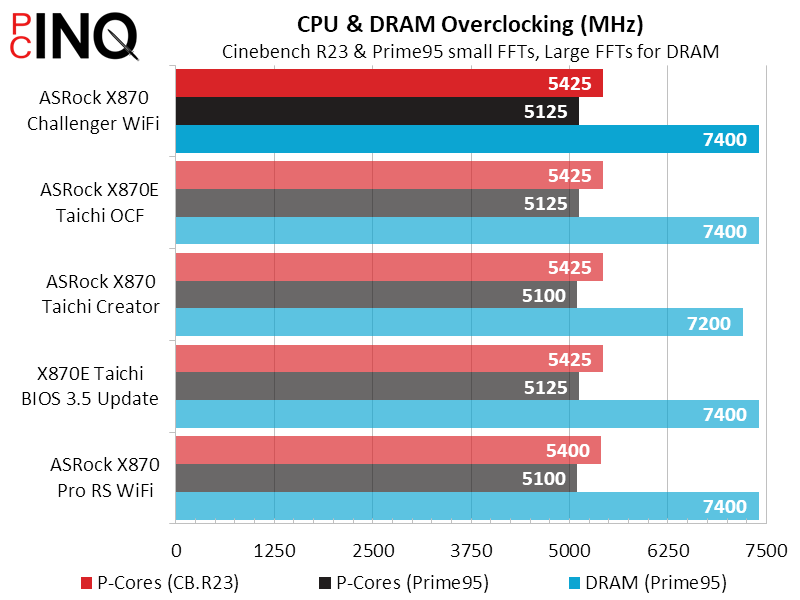
ASRock’s OC Tweaker menu is where we went to try our hand at pushing our Ryzen 9 7950X’s clocks skyward: We reached 5.425GHz while using Cinebench as our least aggressive full-load test, where increasing core voltage beyond 1.29V caused an apparent overcurrent reset.
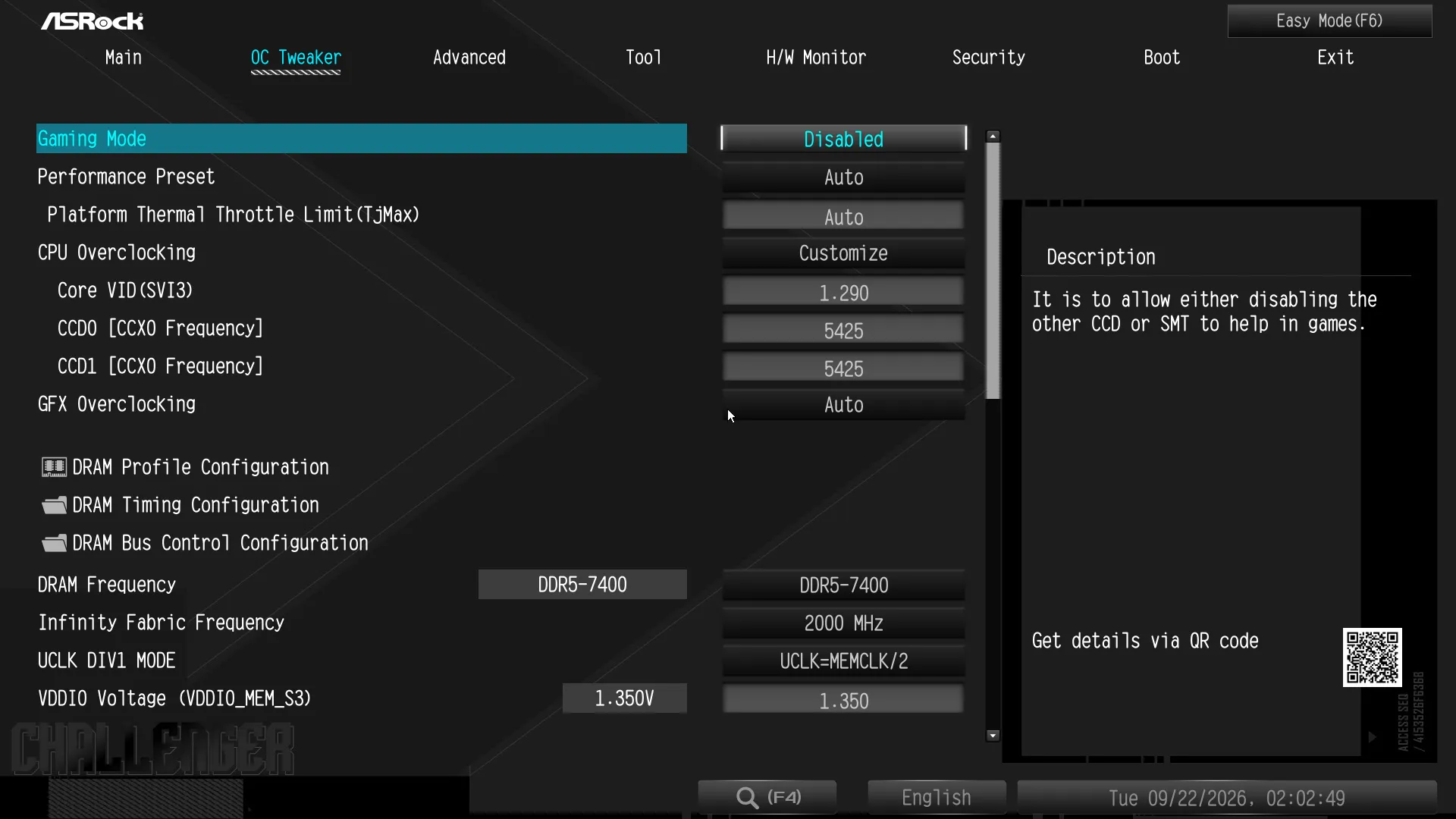
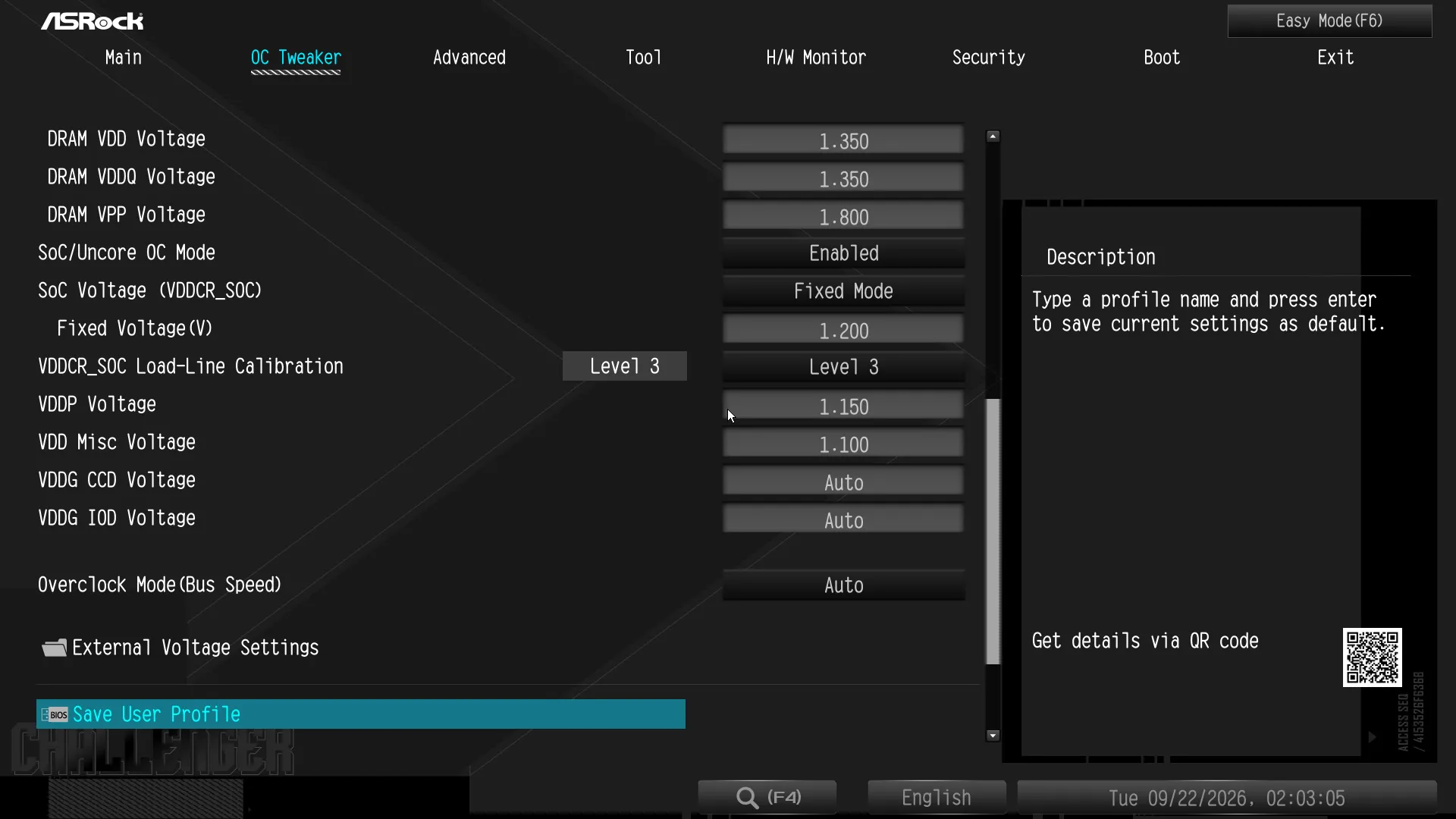
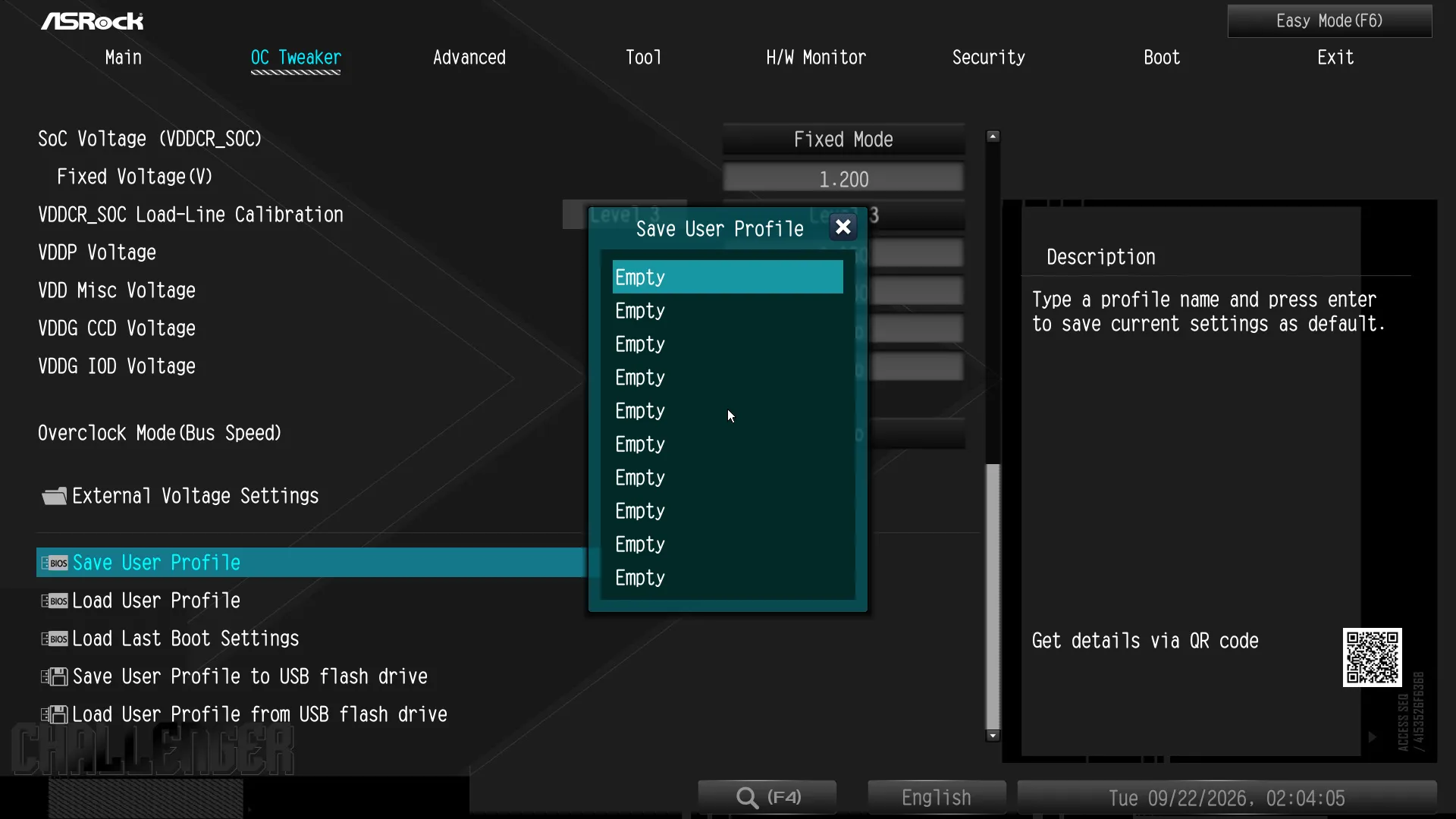
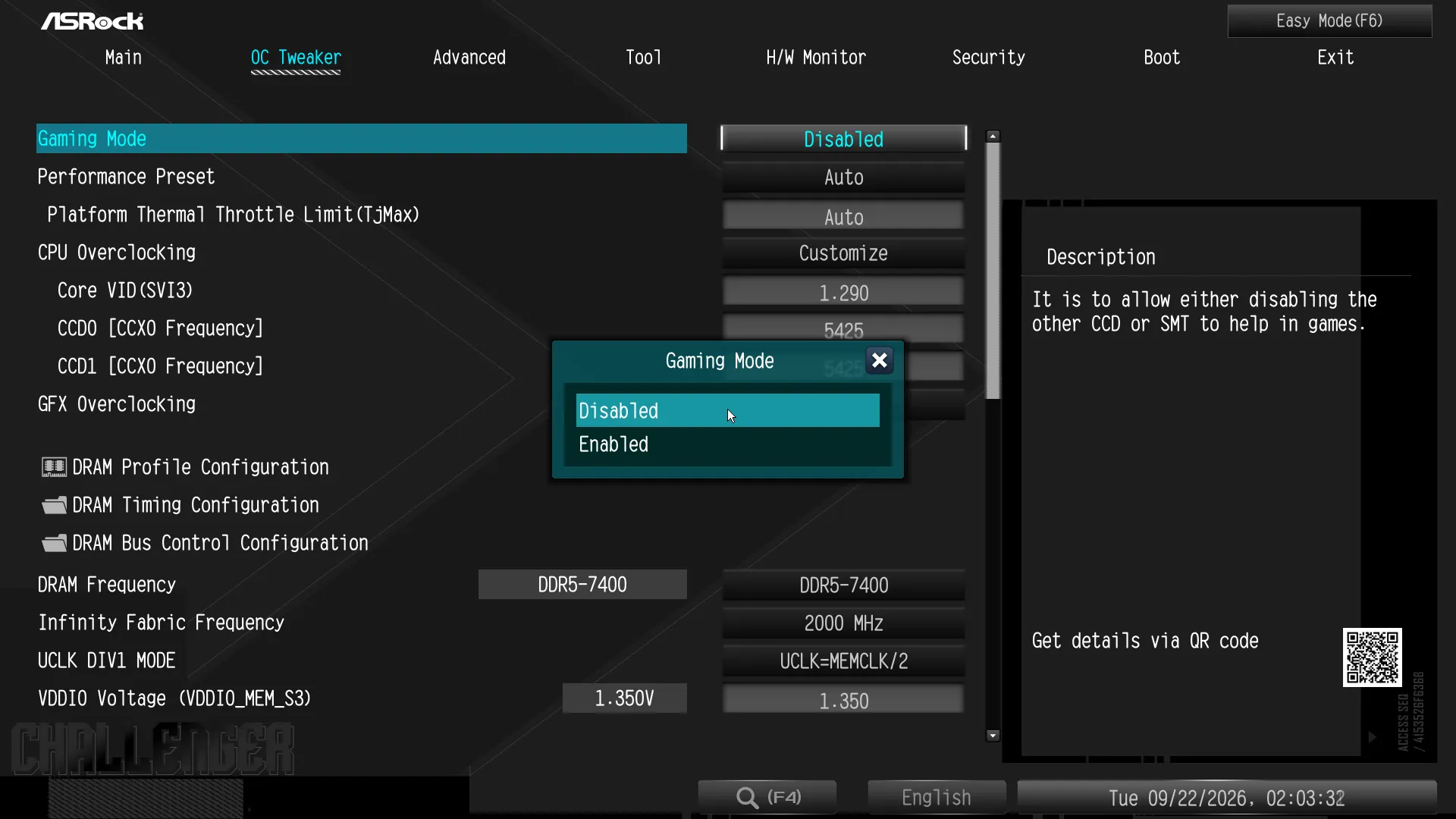
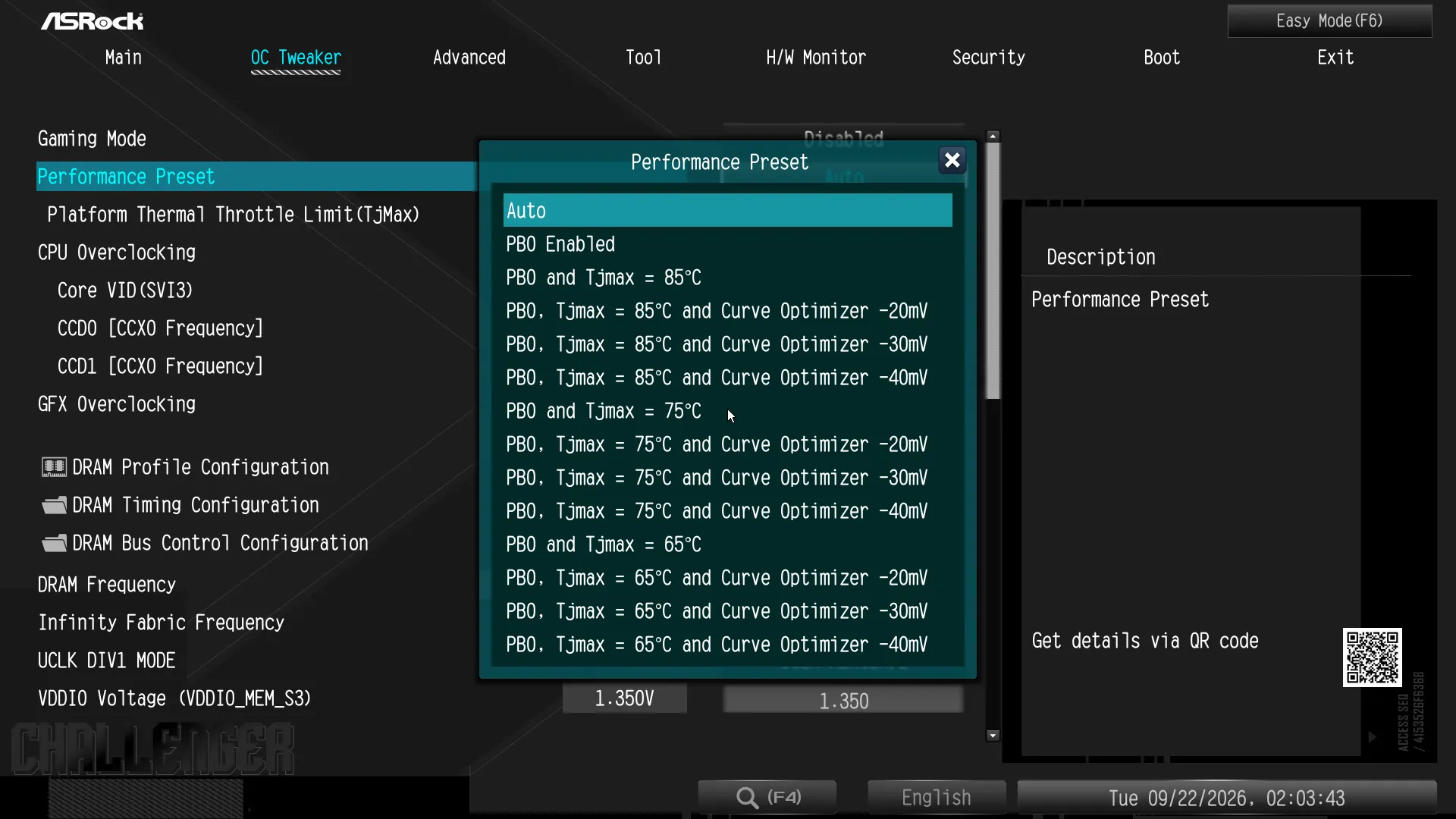
Other options from OC Tweaker’s main page include a set of eight registers to save the types of custom settings you’re seeing as user profiles, Gaming Mode and AMD PBO automatic overclocking management. User profiles can also be exported to or imported from a USB flash drive.
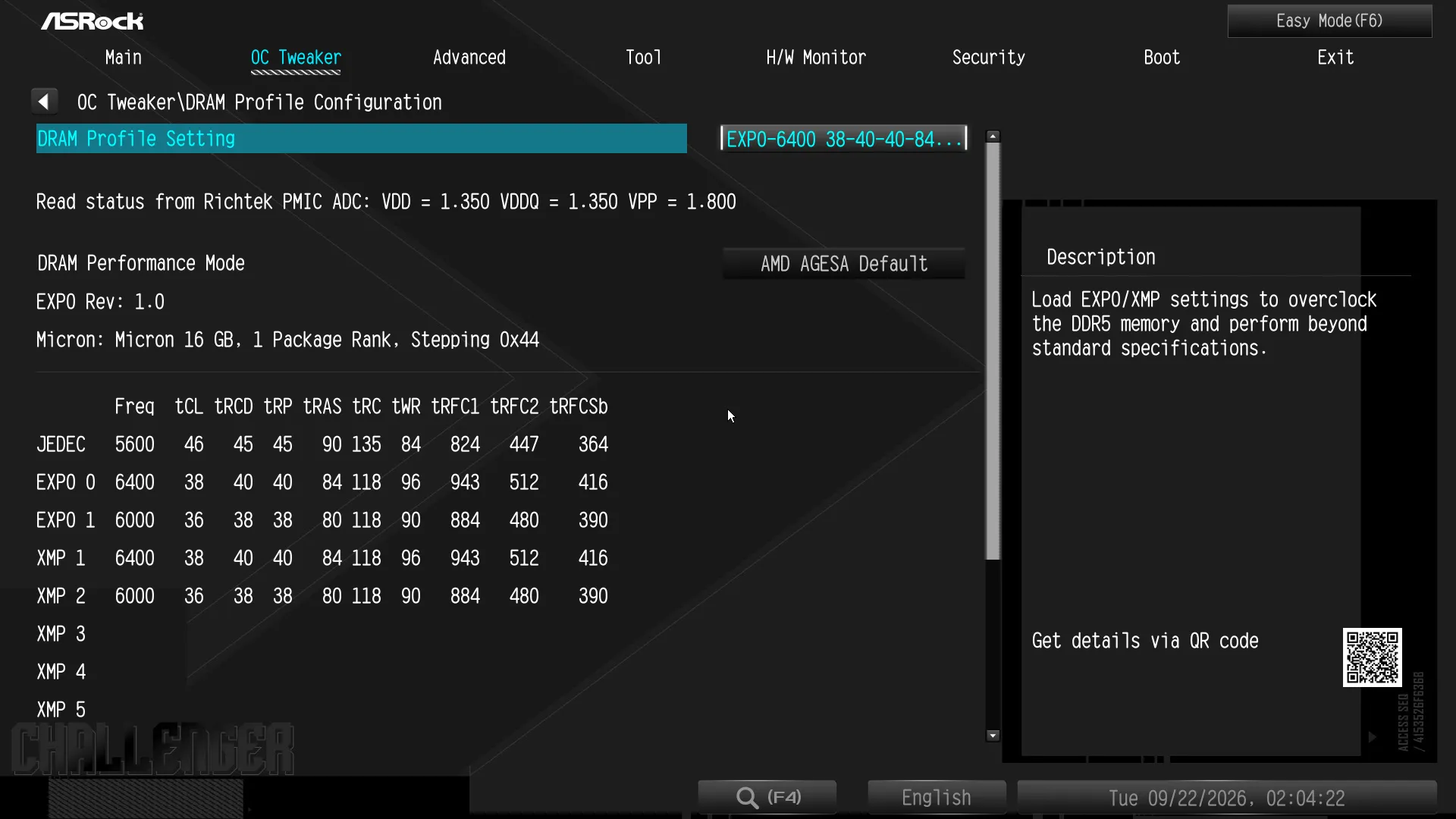
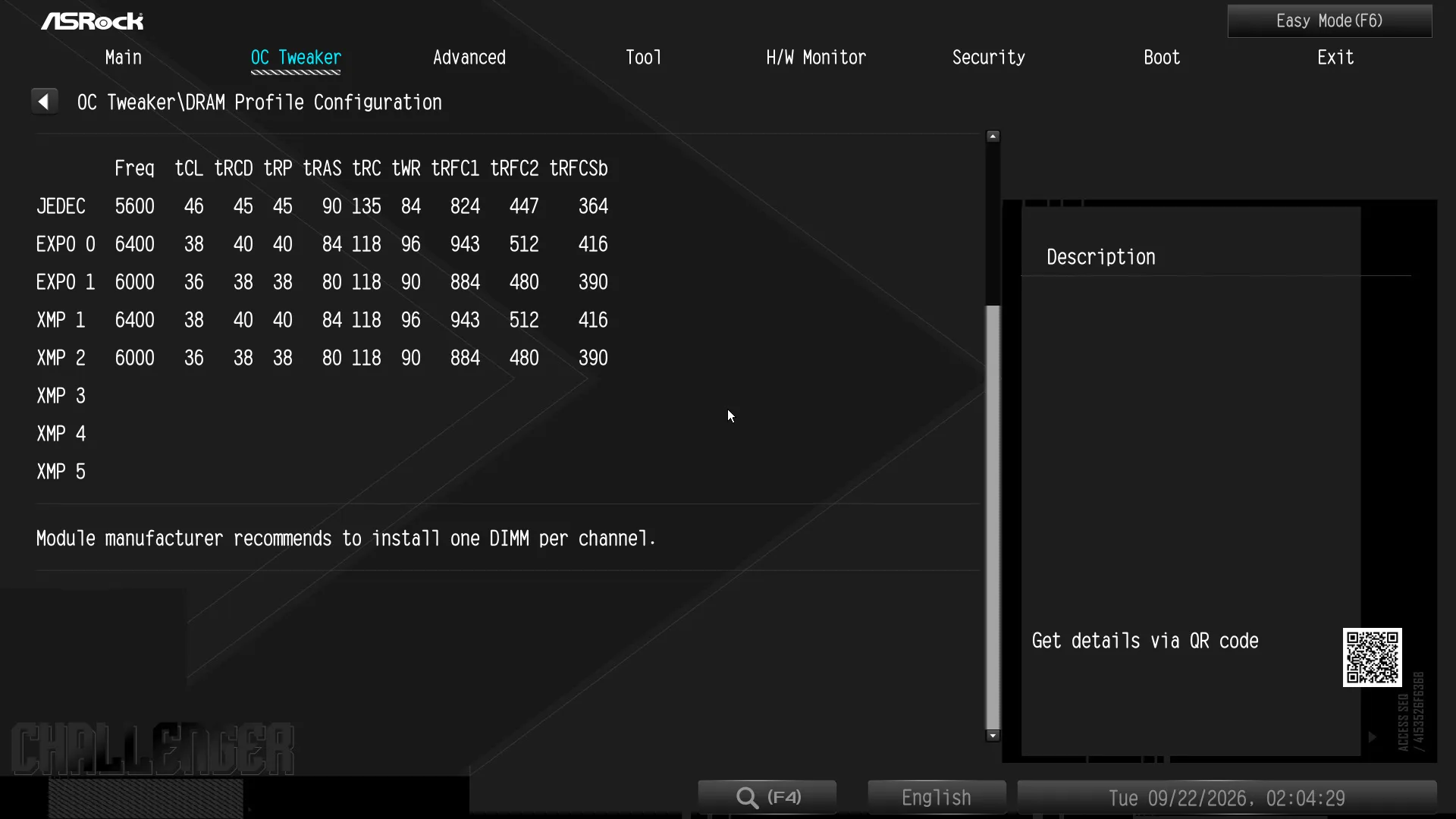
Our memory overclock began by engaging its highest EXPO setting of DDR5-6400 C38: The DRAM Profile Configuration submenu where we found this setting also includes a fairly good summary of our memory’s SPD programing.
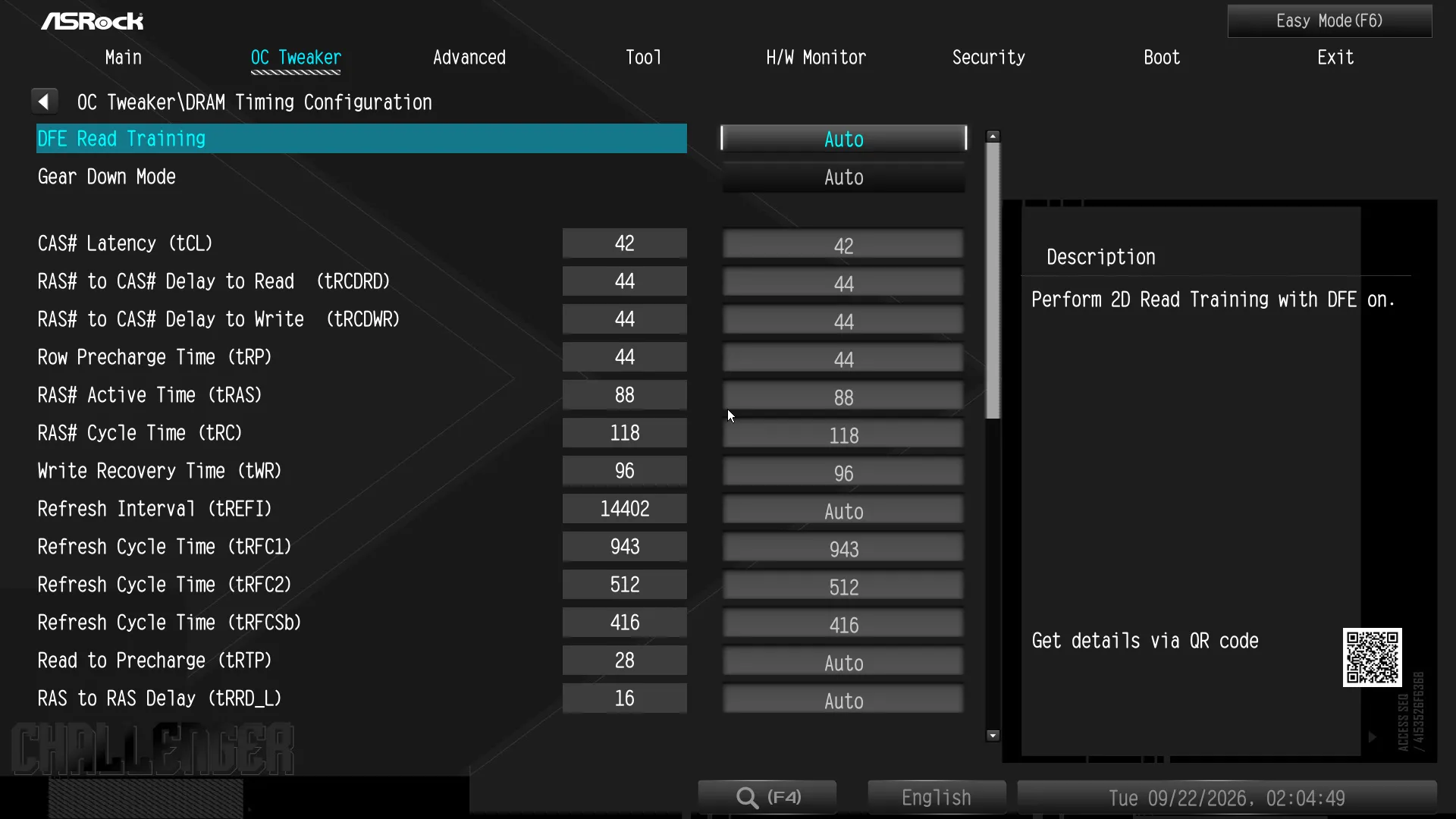
Reaching DDR5-7400 from our EXPO-6400 baseline required only that we increase our memory’s timings from C38 to C42, as 42-44-44-44-88 shown here. The motherboard’s firmware configured everything else automatically to match these settings
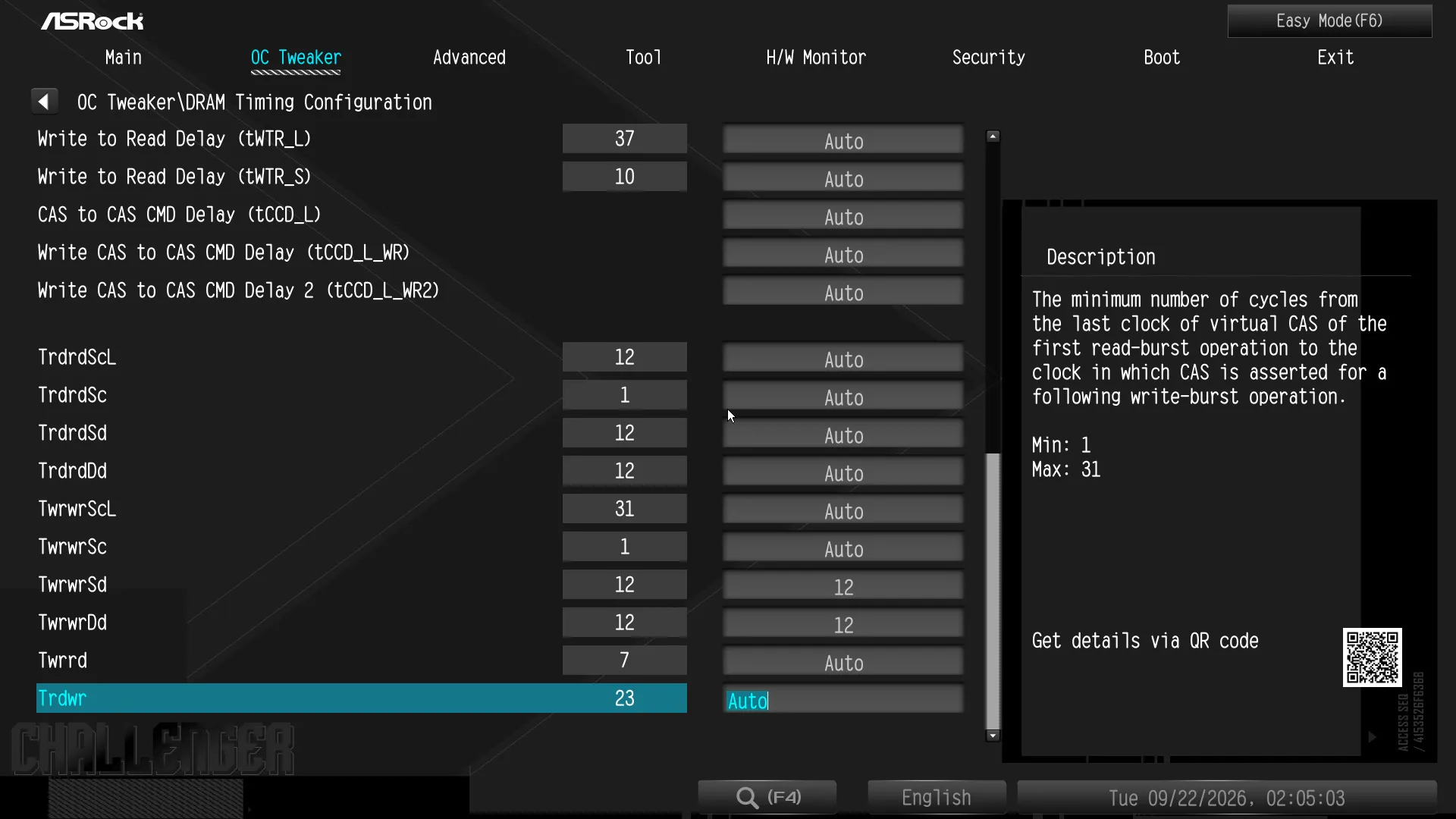
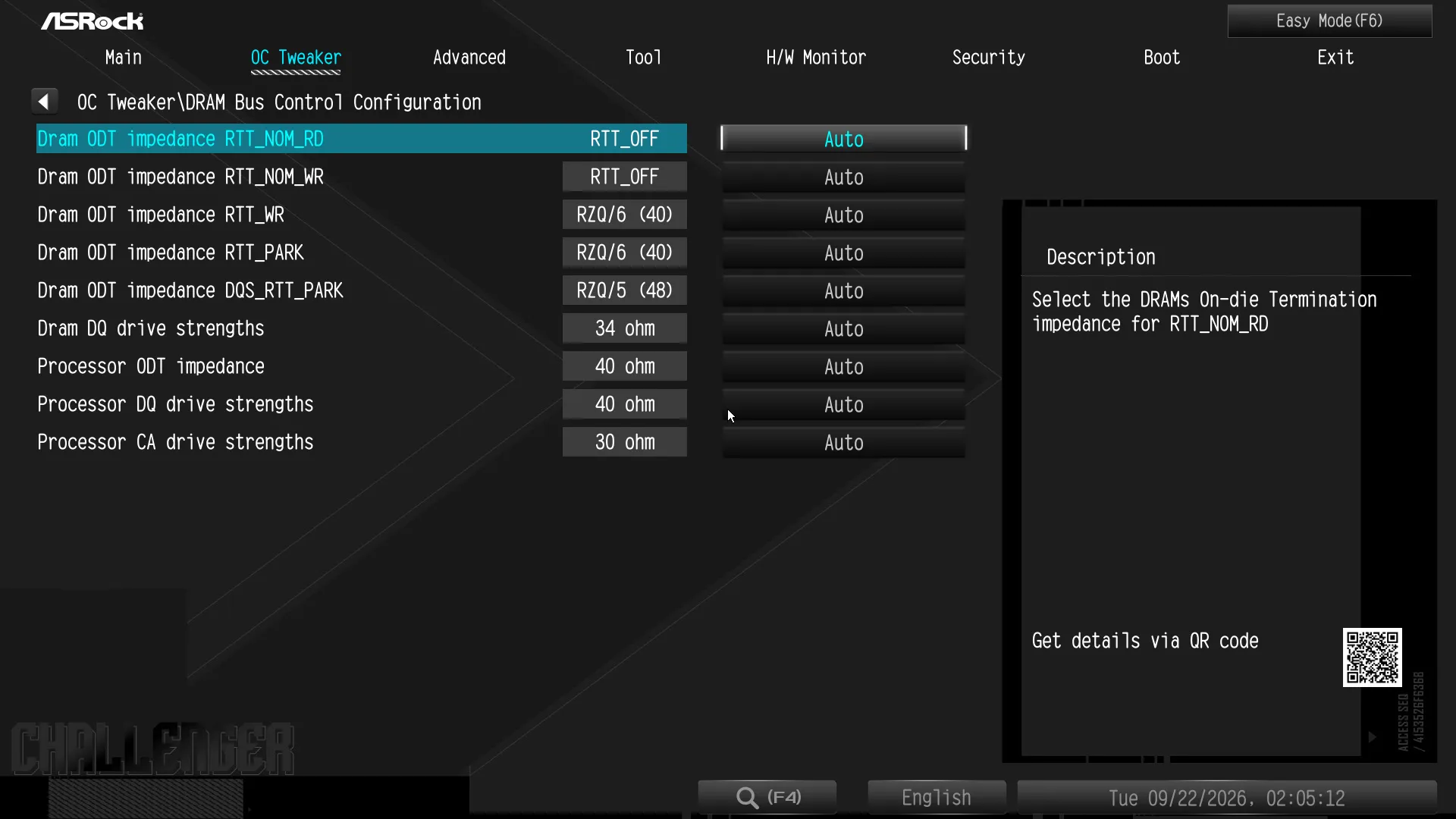
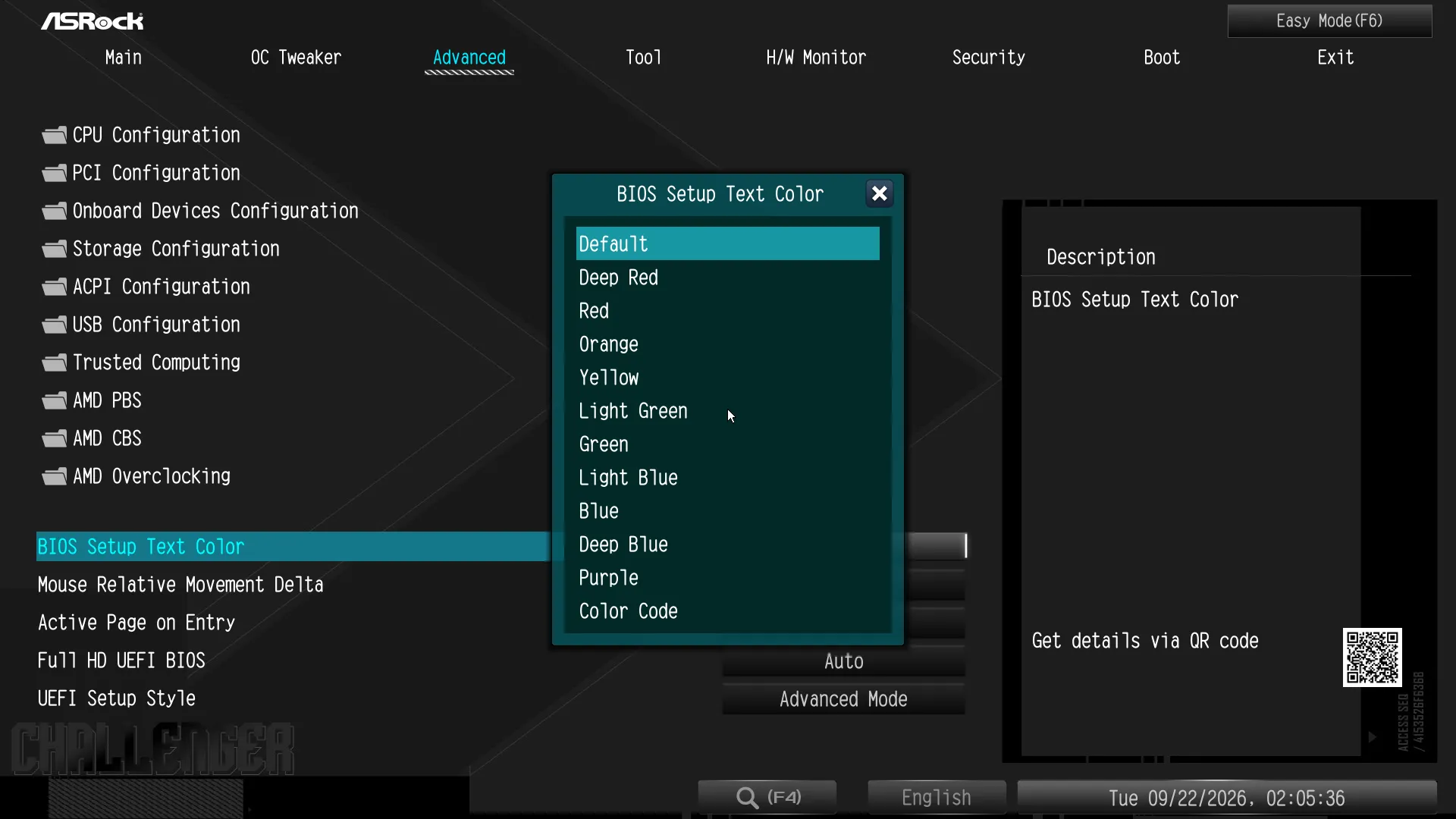
In addition to basic configuration changes through its various submenus, the “Advanced” menu offers appearance settings for its own menus as well as an option to set its default entry GUI into “Easy Mode”. All of those custom settings will unfortunately disappear if the firmware gets reset, including changes to the firmware’s “defaults”.
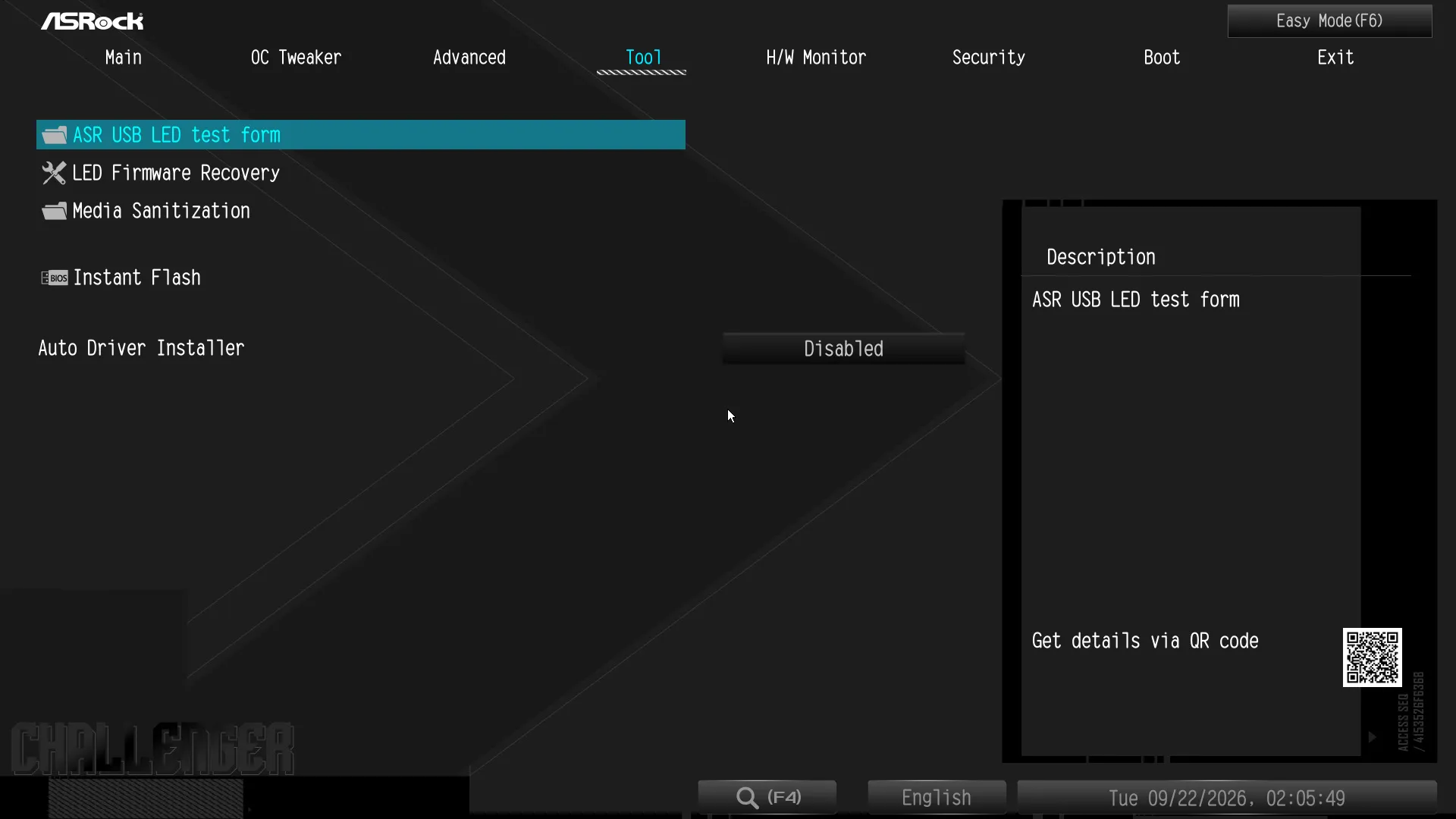
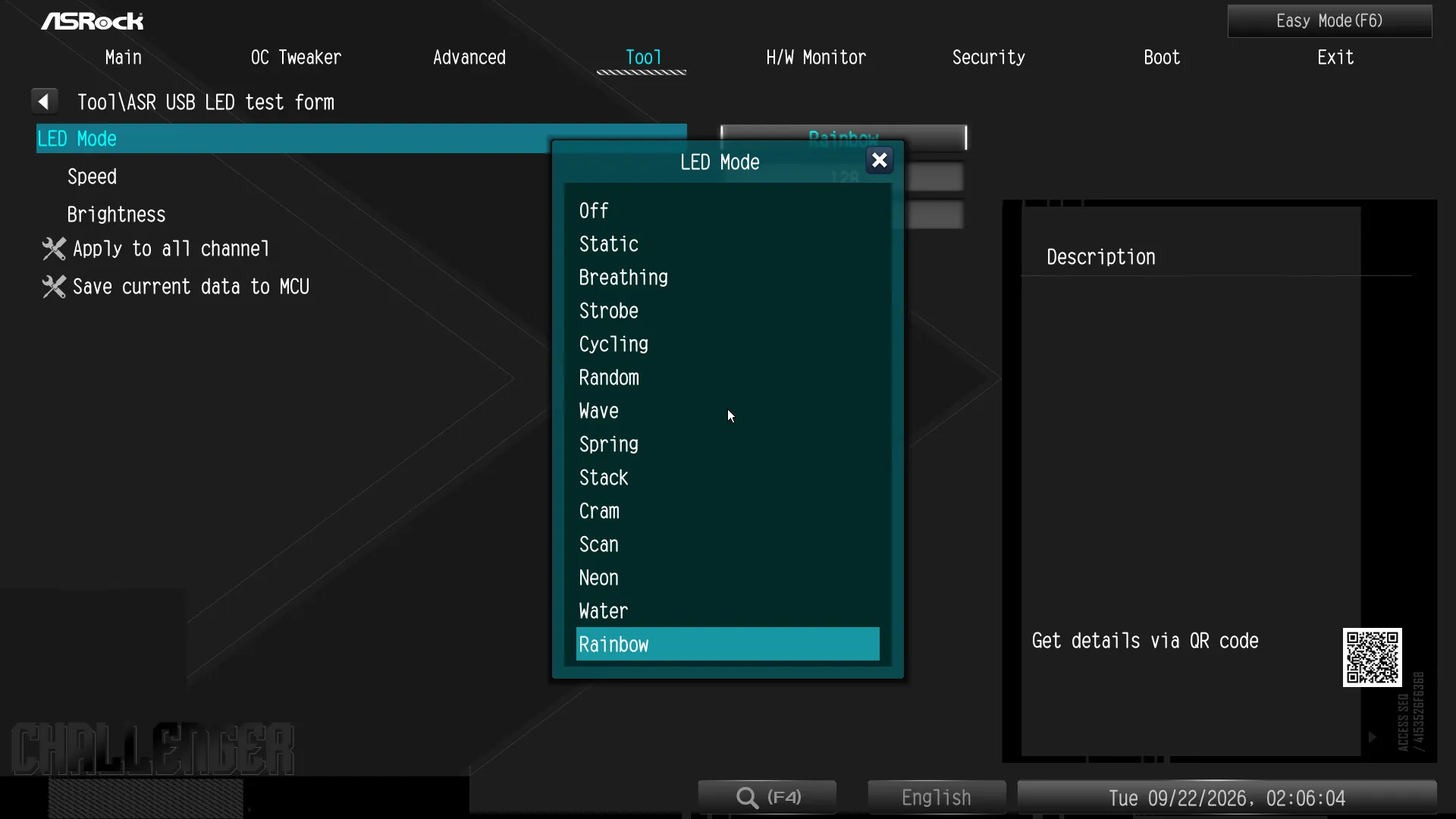
The “Tool” menu is where we go to find ASRock’s “Instant Flash” firmware programmer as well as its firmware-based ARGB modes. Also visible, the Auto Driver Installer is designed to run once at the first entry of Windows to engage a driver download applet, after which it disables itself until the next firmware reset (or, it can be disabled manually).
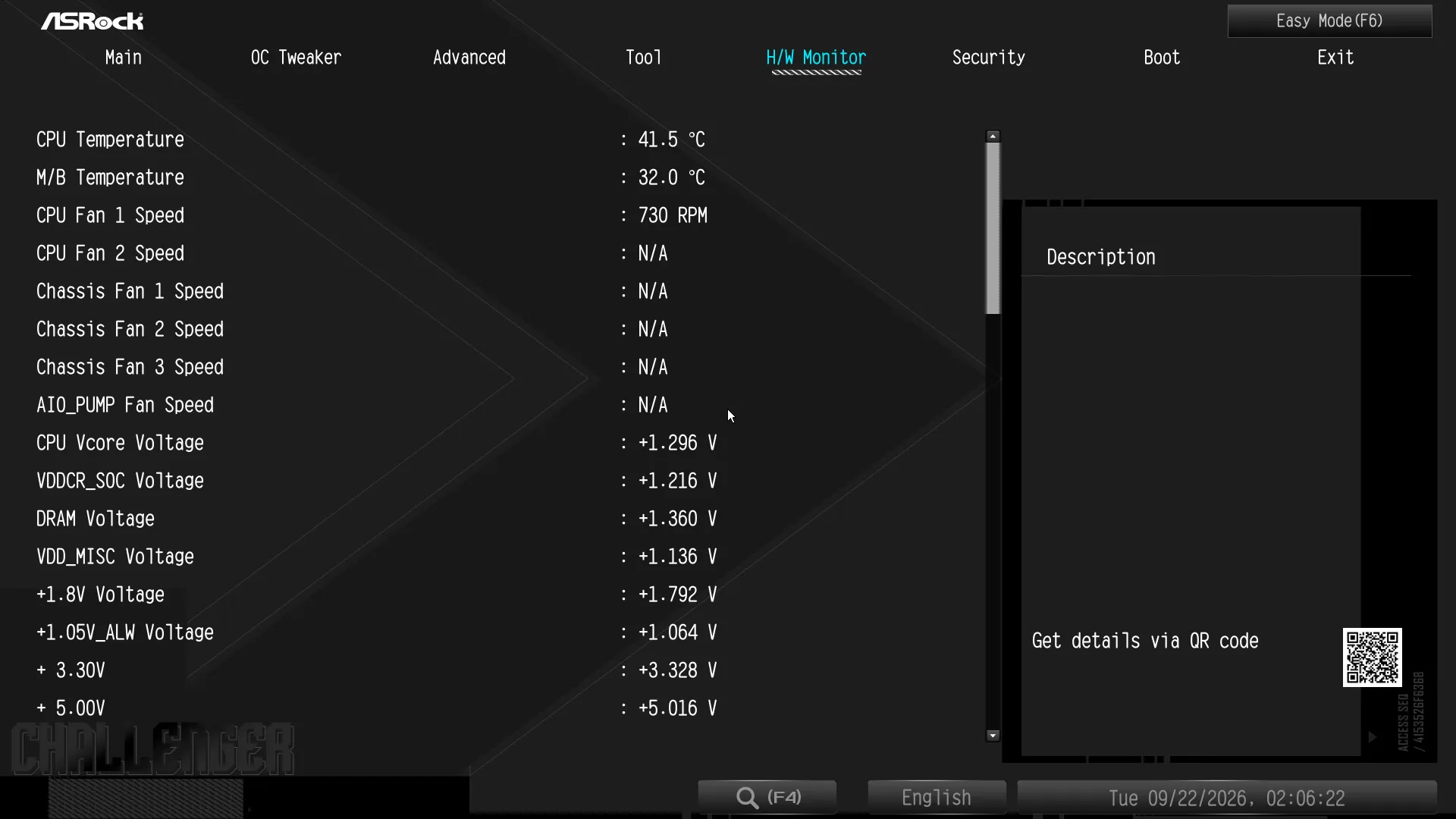
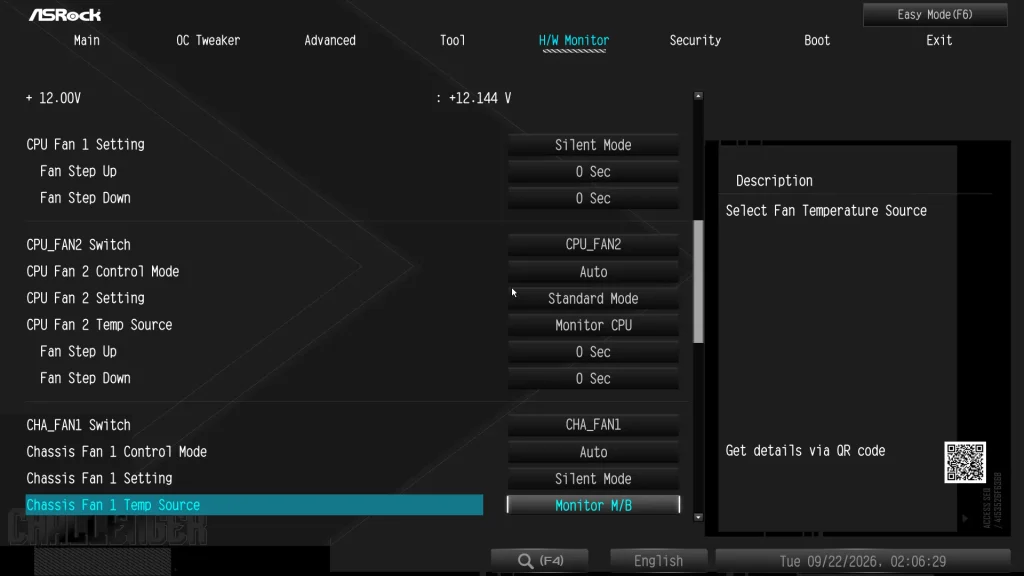
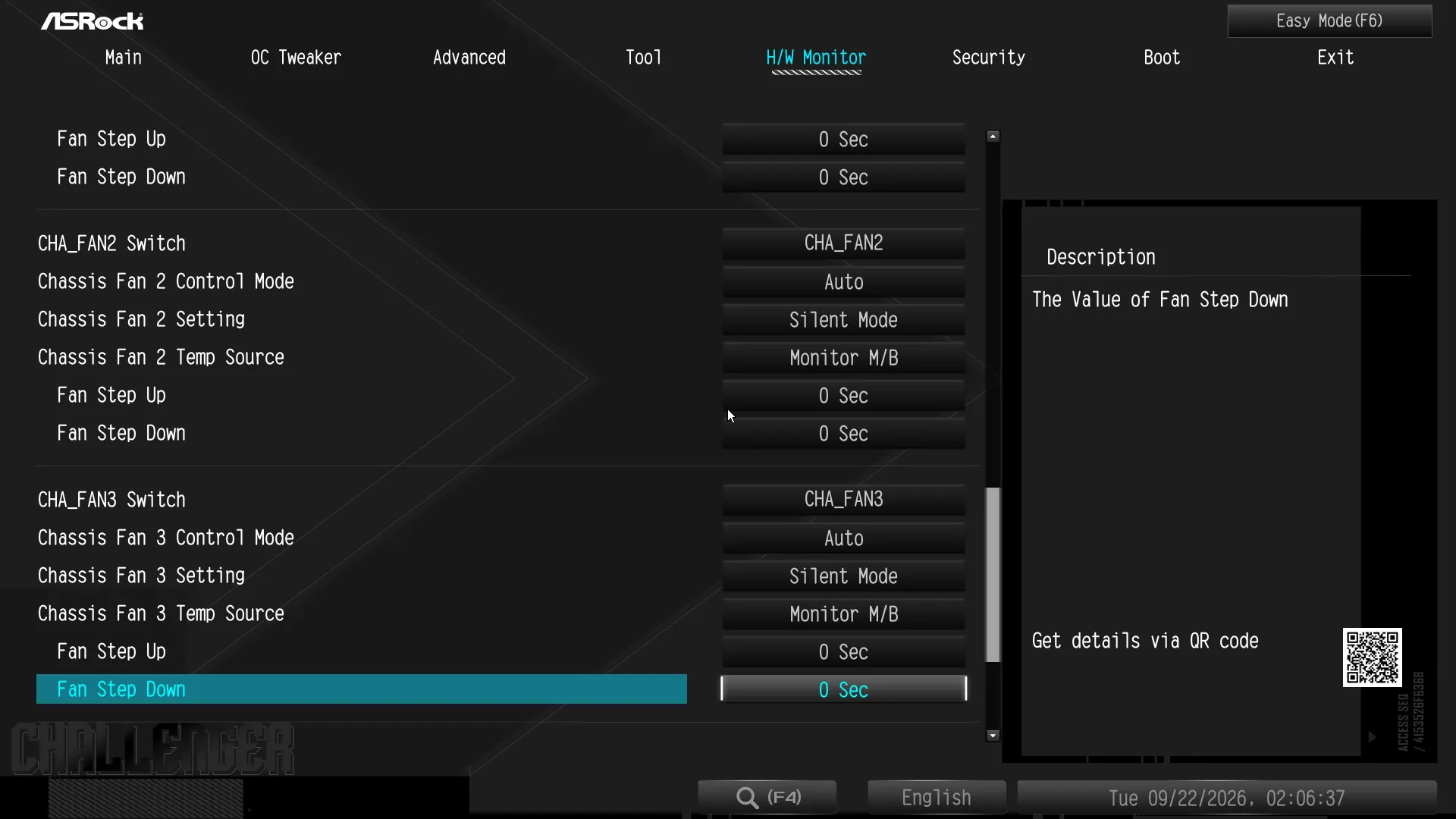
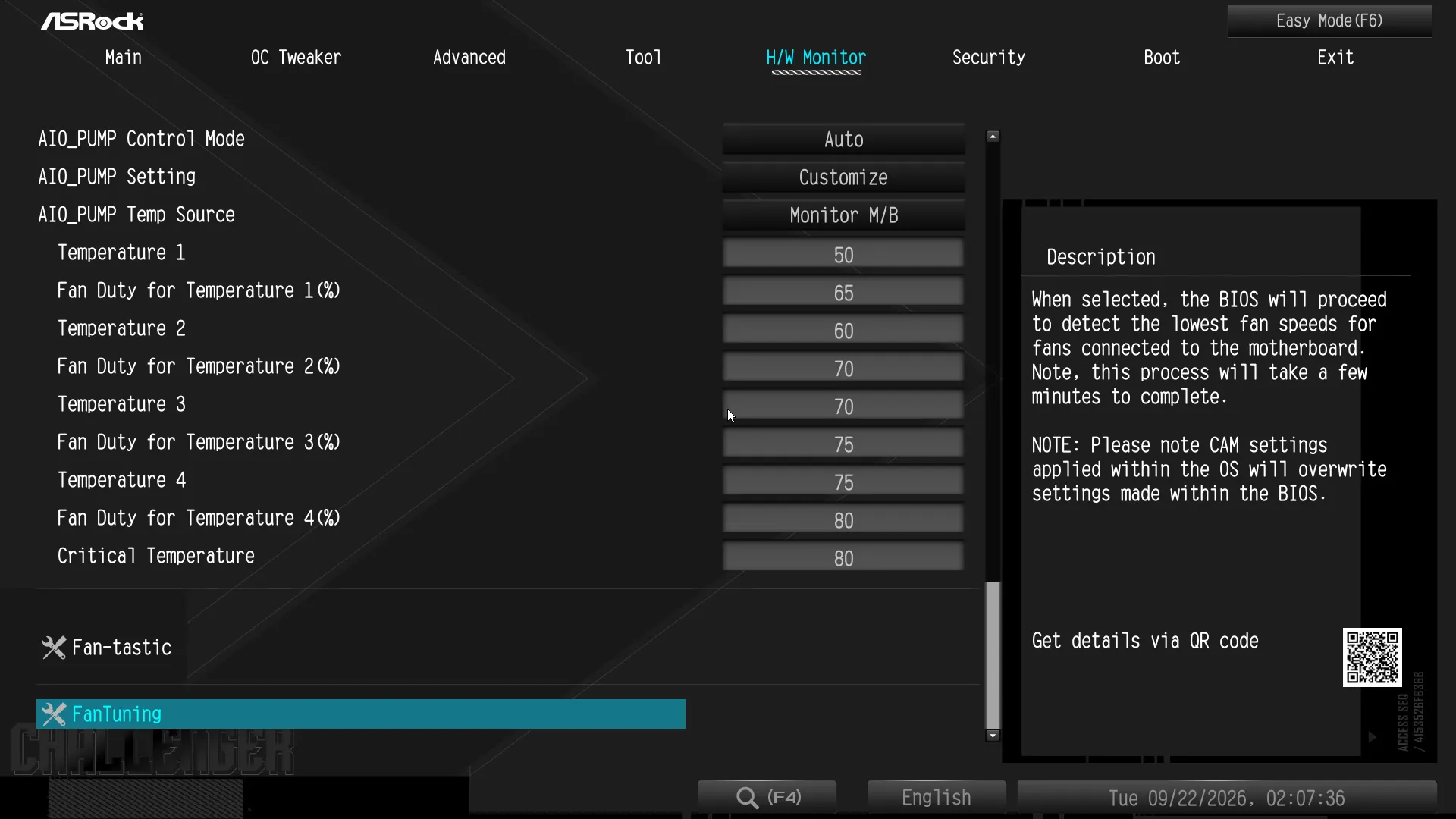
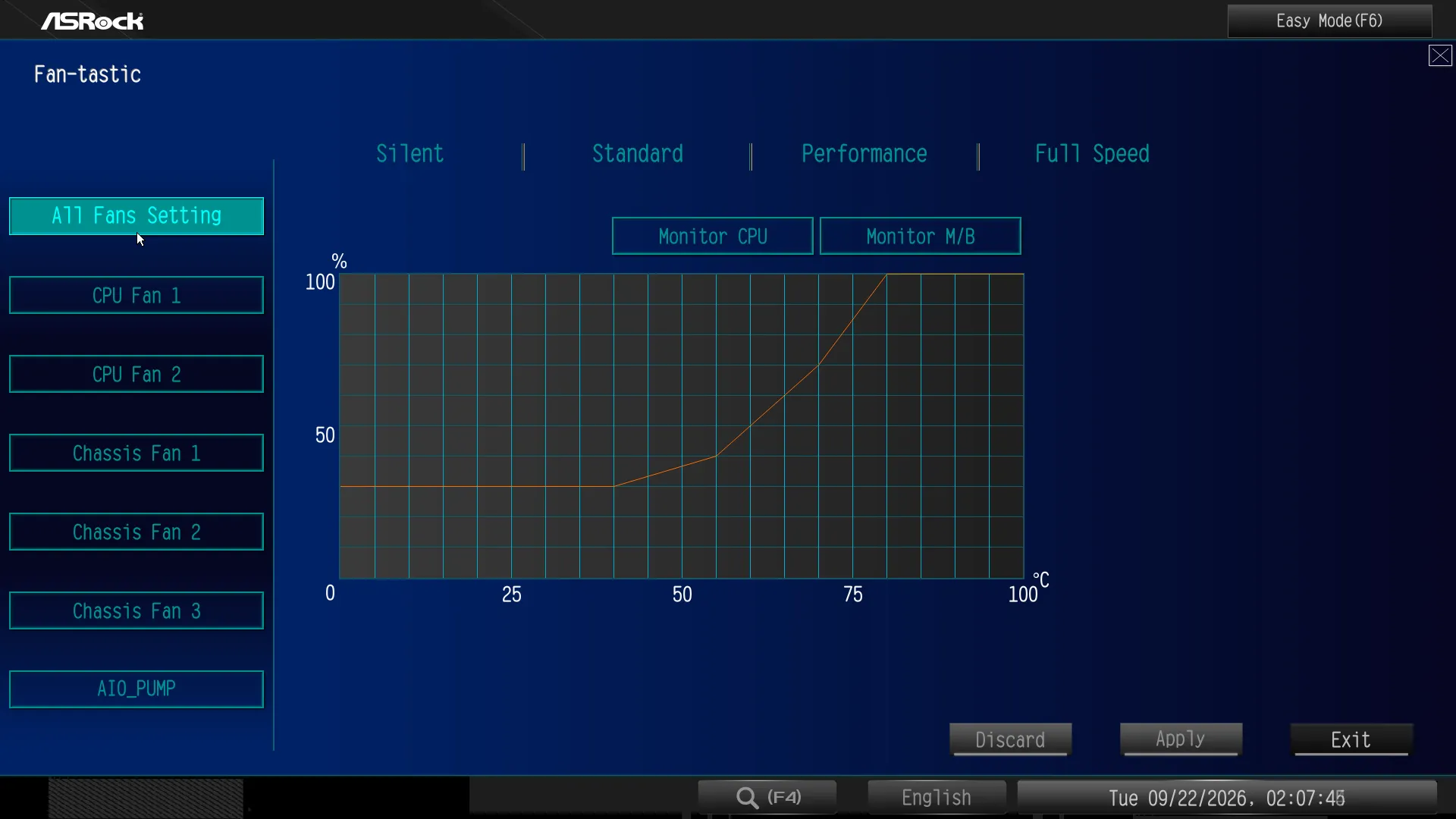
ASRock’s H/W Monitor menu keeps us informed of CPU and chipset temperature along with a few key voltage levels, but its most useful for its fan settings. Users can pick a factory profile such as Silent, Standard, Performance or Full Speed, or they can manually enter their preferred slope numerically, or they can even enter the Fan-Tastic submenu to change their fan slopes graphically. Meanwhile, the Fan Tuning algorithm is designed to reconfigure factory slopes to match the minimum speeds of your specific fans.
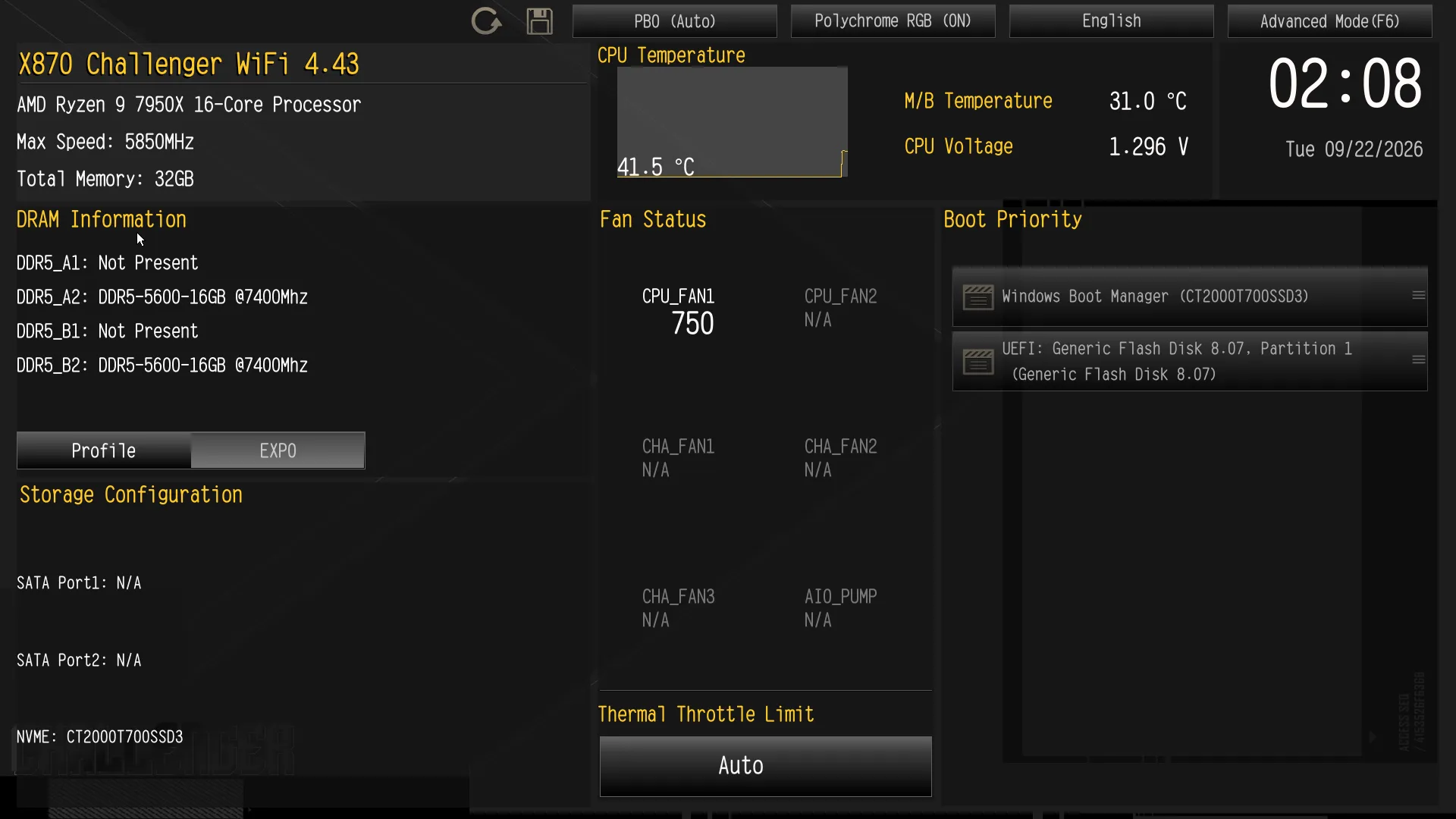
As for those who’d rather just pick a memory profile and change their boot order at most, Easy Mode is again a mere press of the keyboard’s “F6” key away.
Performance Benchmarks
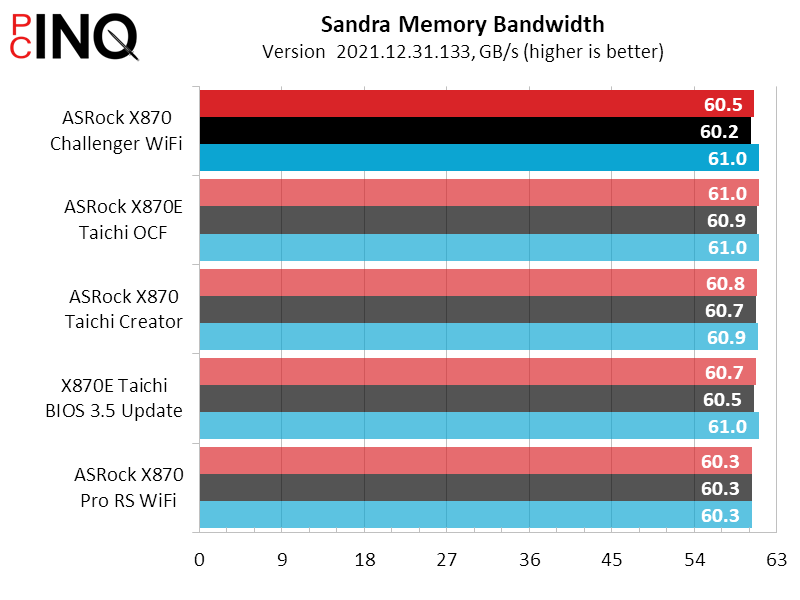
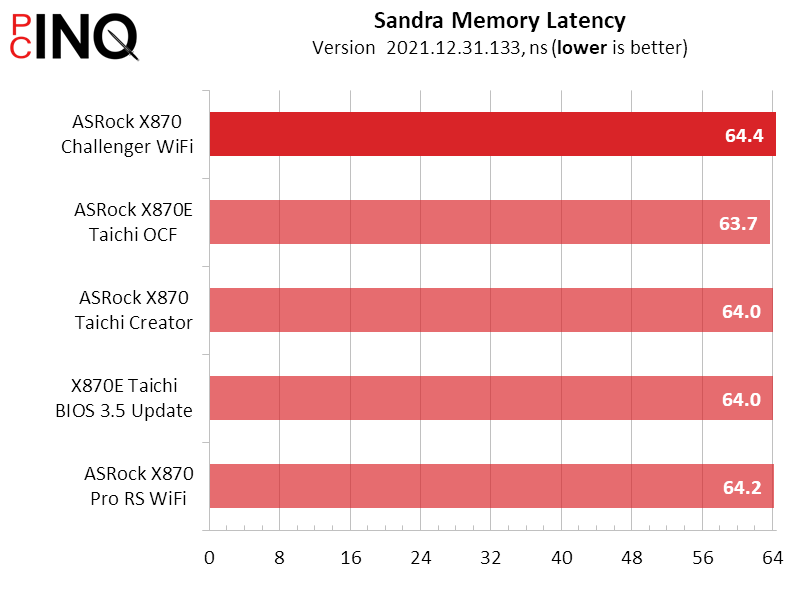
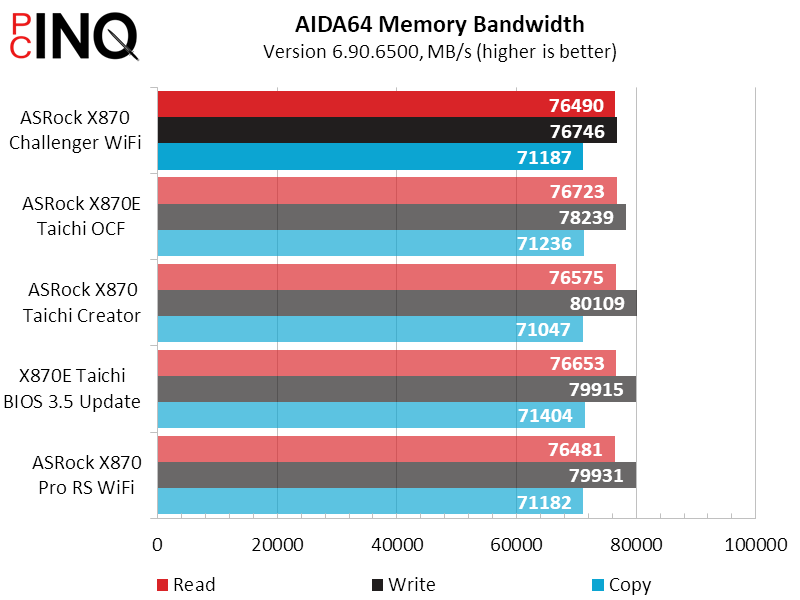
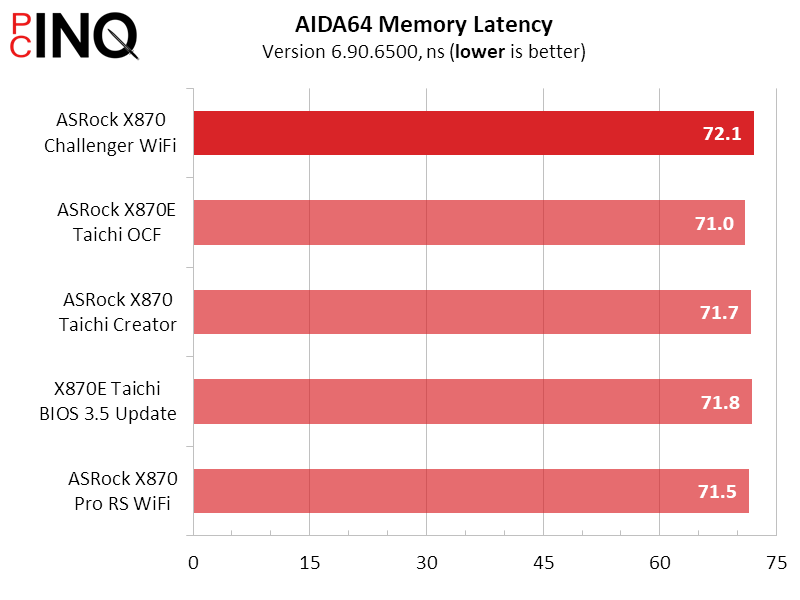
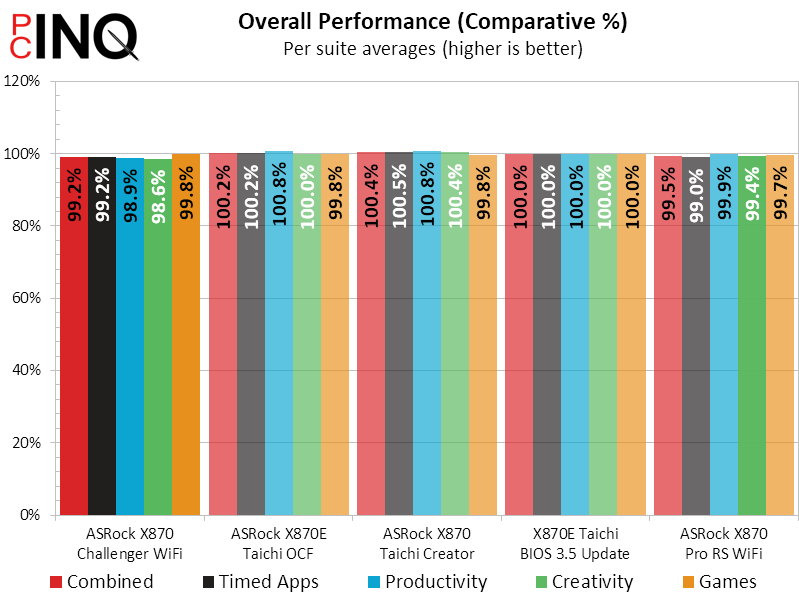
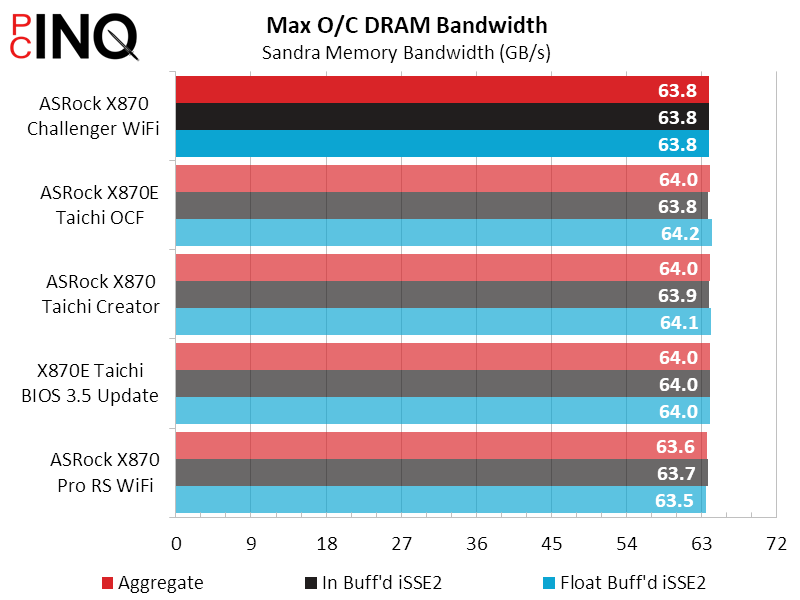
Sandra’s memory benchmarks show ASRock’s latest low-cost enthusiast board performing on par with its pricier predecessors, as does legacy AIDA64.
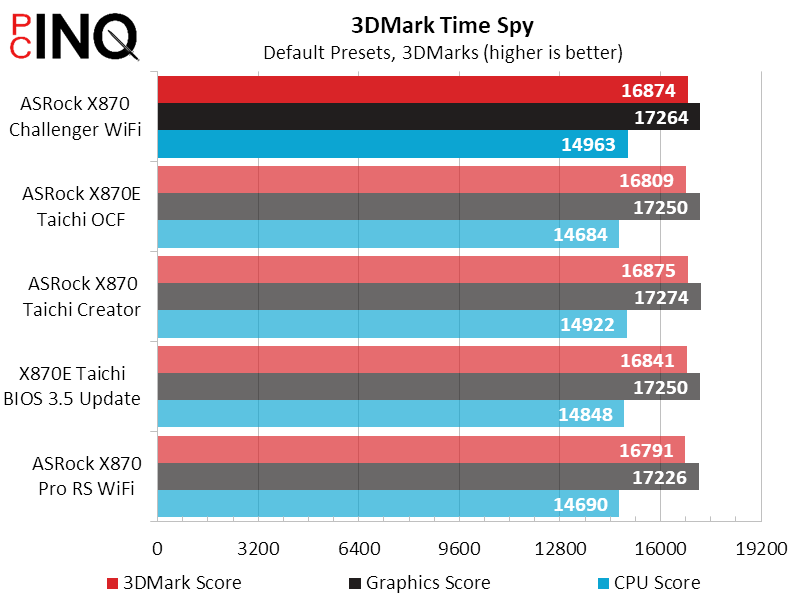
Firmware advancements appear to boost 3DMark’s CPU Profile performance slightly (with the oldest board shown at the bottom), but its old Port Royal bench suffers. The Game Loading profiles also appear to be showing the age of our test drive.
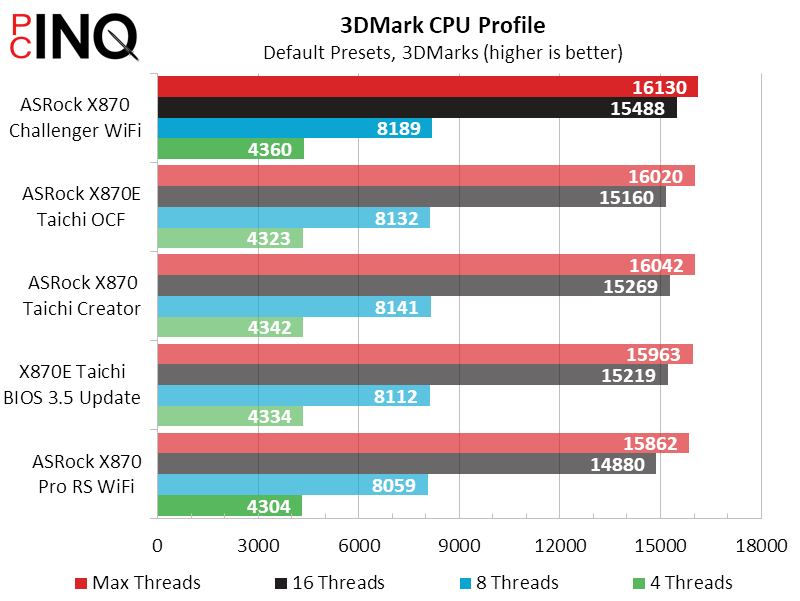
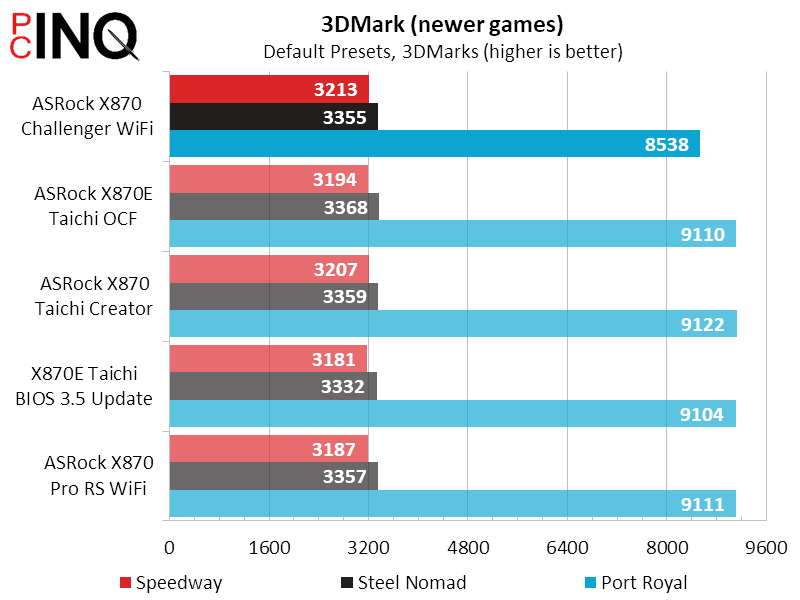
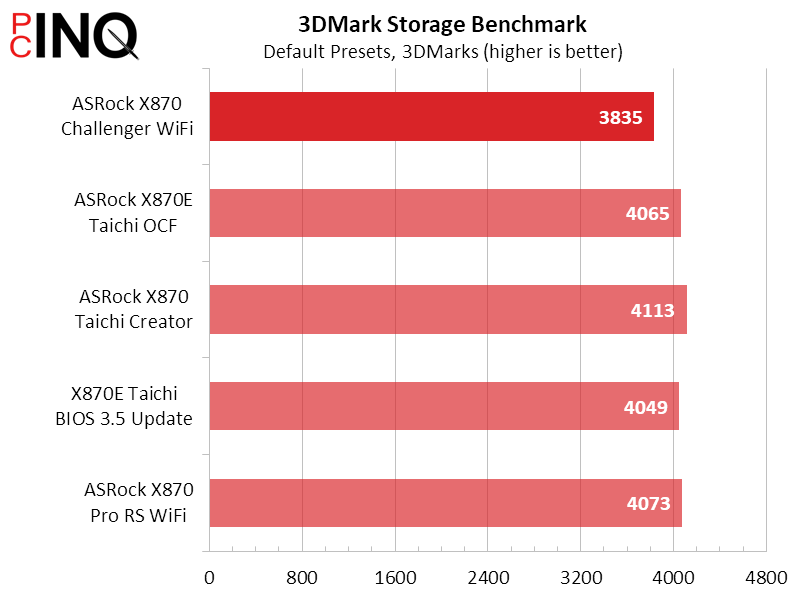
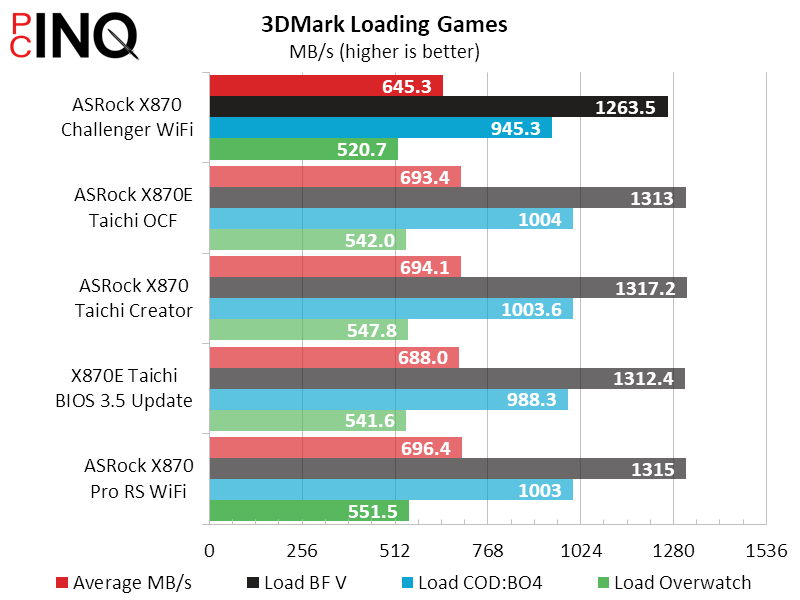
The X870 Challenger WiFi also falls slightly behind in PC Mark’s App Start-Up, which again could be due to our aging benchmark drive.
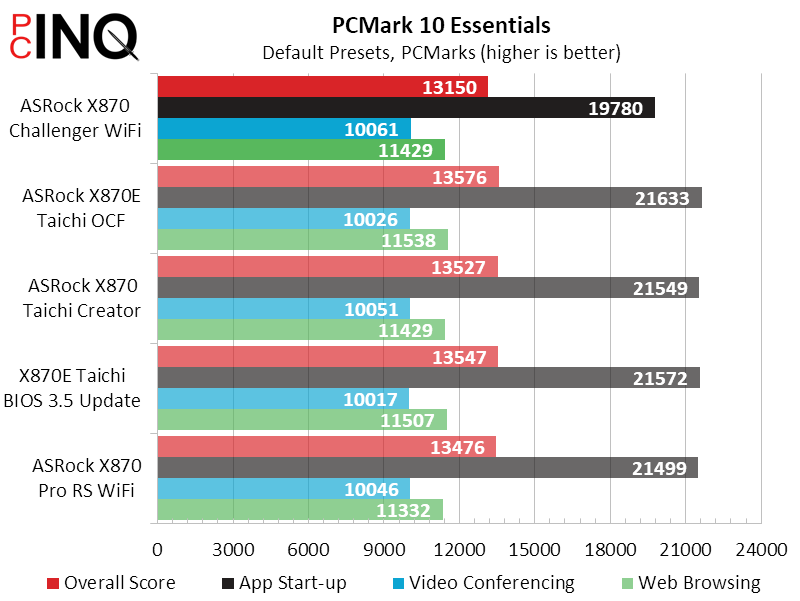
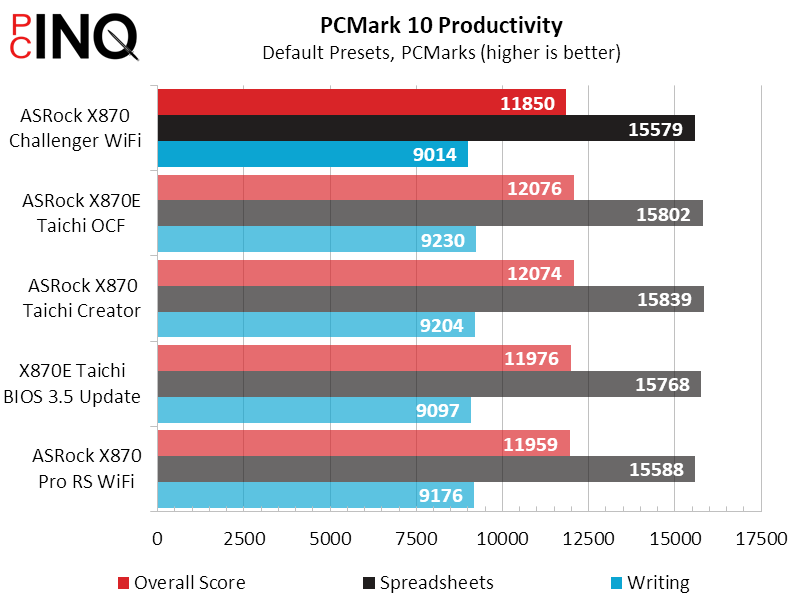
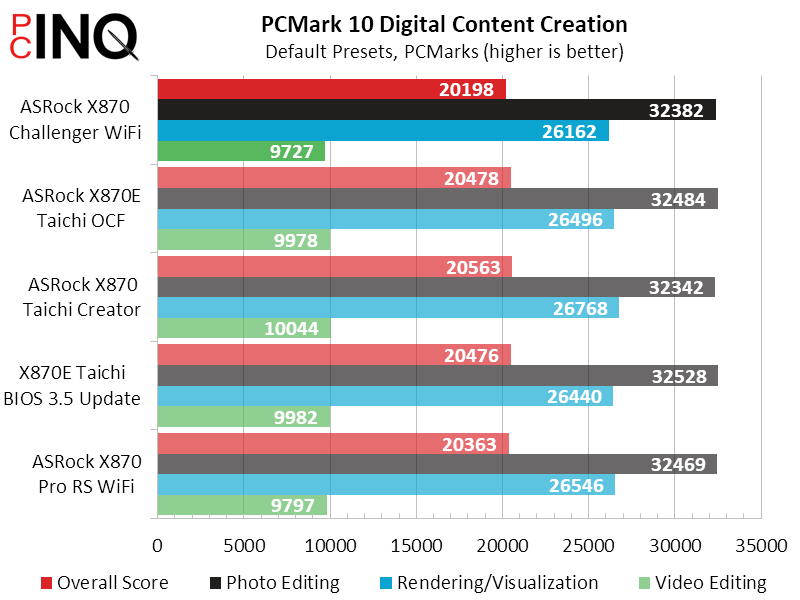
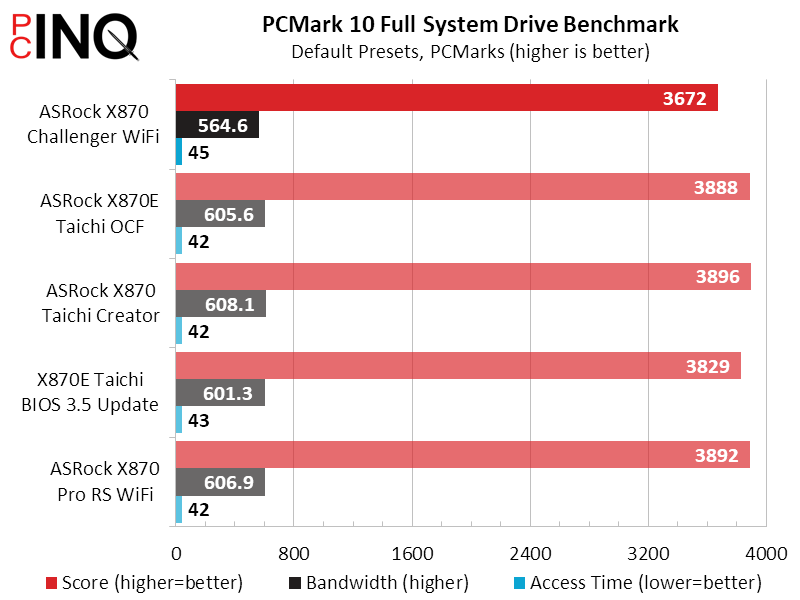
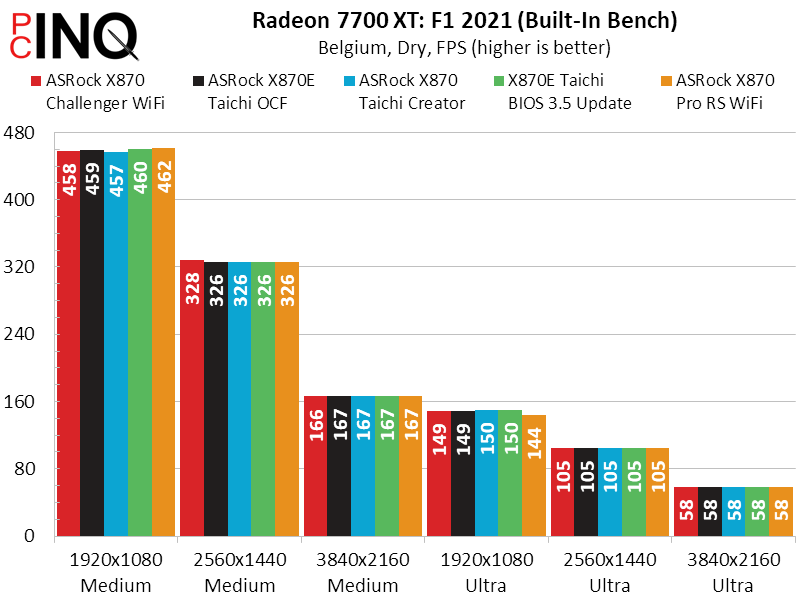
The EGO engine of F1 2021 tends to show memory performance issues when fully uncapped on the GPU side, but we’re not sure if a difference of only a few FPS at 1920×1080 Medium qualifies. The other settings appear to be GPU constrained, even when an result exceeding 300 FPS hardly feels constraining.
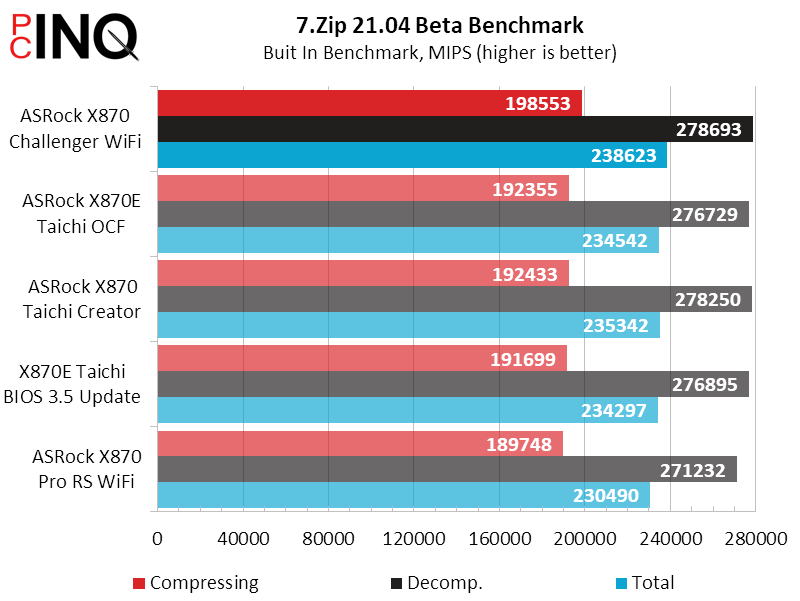
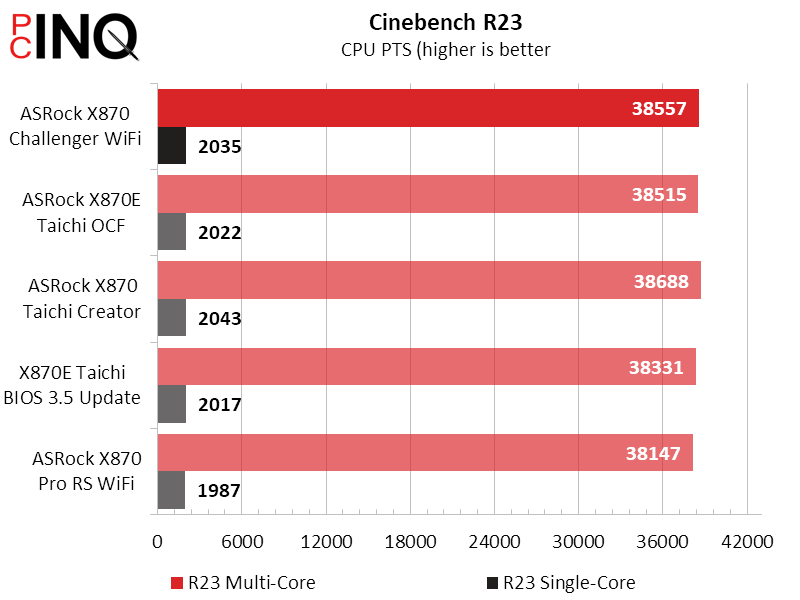
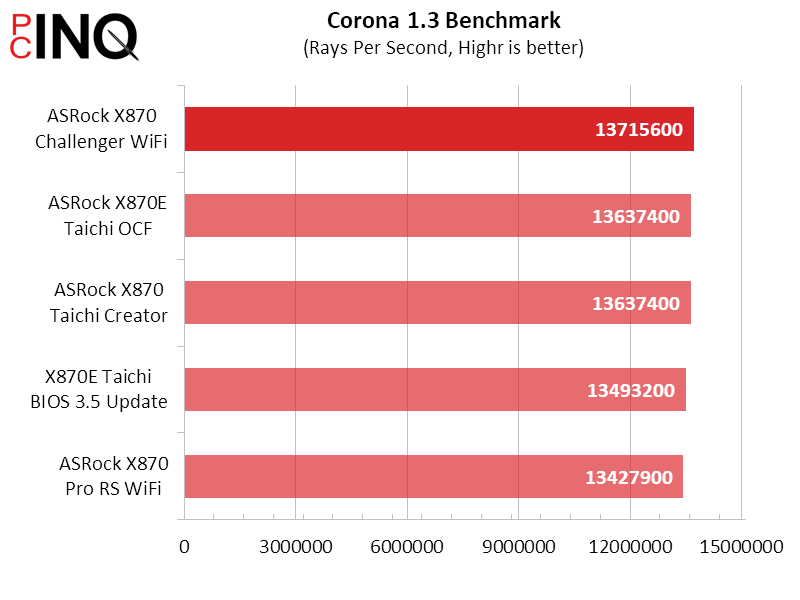
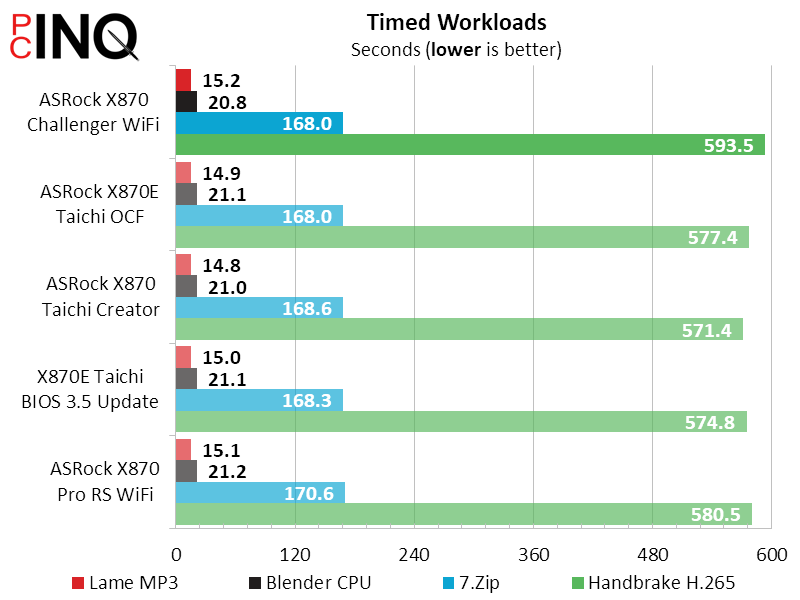
Moreover, 7.Zip is also bound by laggy memory performance, and it shows the X870 Challenger WiFi leading. Since we can’t really pin down a clear leader elsewhere, we’ll credit firmware advancements for the majority of small differences seen across various timed benchmarks.
Power, Heat & Efficiency
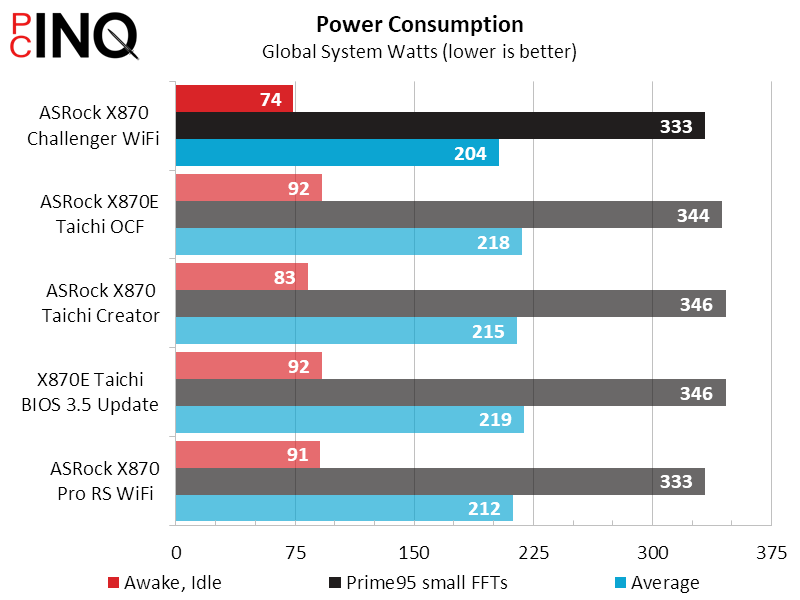
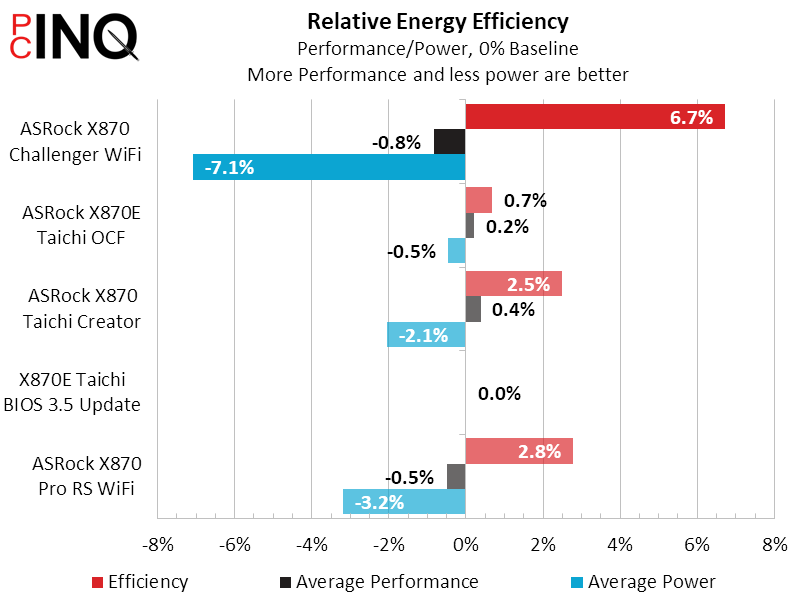
Reduced idle power consumption is one of the biggest changes we see from the newer motherboard and its more-recent firmware, and that combination pushes its energy efficiency calculation firmly into positive territory. Your results will vary depending on load.
Overclocking Comparison
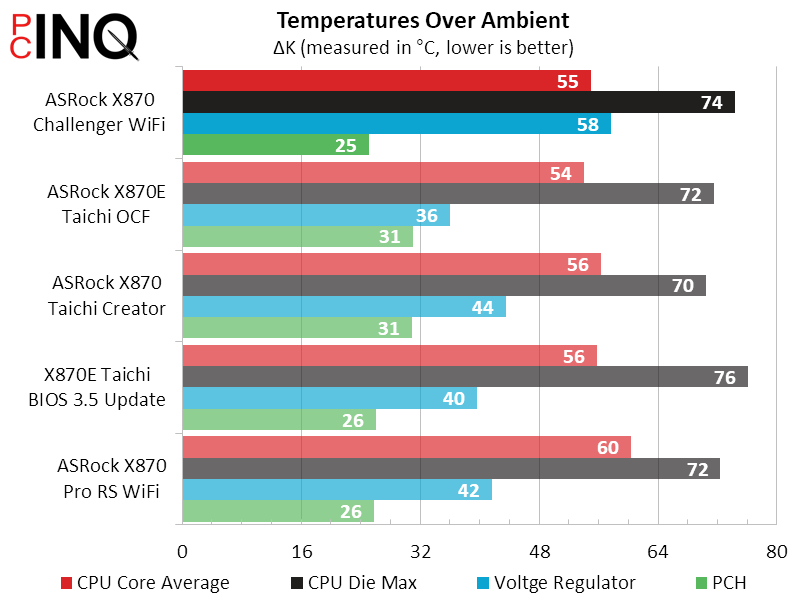
Though we’ve been trying to push our venerable 7950X farther with each test, nearly every motherboard we’ve tried shows us the same results: 5425 MHz at most in Cinebench and 5125MHz in Prime 95 (small FFTs) before the CPU drops out from either overcurrent or thermal protection. Our memory likewise shows a consistent DDR5-7400 when left at its rated 1.35V and tuned using custom C42 latency.
Final Verdict & Value Assessment
The X870 Challenger WiFi looks like a real bargain thanks to its run-of-the-mill performance and overclocking coming in at a record-setting low of $170. But we did notice something else: Our previously-tested X870 Pro RS WiFi recently dropped from over $200 to under $180.
- The Pro RS WiFi has one fewer M.2 slots, but none share bandwidth with the USB4 controller. One of its M.2 slots even adds compatibility for legacy SATA M.2 drives.
- The Pro RS WiFi loses 10Gbps ports on the rear panel but gains 20Gbps for a front-panel Type-C port, while retaining its 40Gbps USB4 ports.
- The Pro RS WiFi’s second PCIe expansion card slot runs at Gen4x4 rather than the Challenger WiFi’s Gen3x2.
- The Pro RS WiFi has half as many 19-pin front-panel USB3 ports (one connector, two ports) but twice as many SATA (four).
And the downside? Though it still costs $10 more, the X870 Pro RS WiFi still has two fewer DR MOS power stage controllers (14 rather than 16) for the CPU core.
| ASRock X870 Challenger WiFi | |
| Pros | Cons |
| X870 (w/USB4) at ultra-low cost Fourth NVMe M.2 drive slot Array of fast I/O panel interfaces Big 16-phase core voltage controller | USB4 shares lanes with M.2_2 (halving bandwidth) One M.2 shared, another has only two lanes Drives front USB Type-C ports at 1/4 speed (5Gbps) Slow PCIe Gen3x2 lower expansion slot |
| The Verdict | |
| Though the X870 Challenger WiFi’s great price appears unmatched, many users might get closer to their build goals by instead picking the older X870 Pro RS WiFi for a mere $10 more. | |
Find it at Amazon
(click for availability)


